
Fictional family. Real software.
The Tuala family
Two people, one Companion Core, and a cottage full of drawings.
6 Millrace Lane, Rookbeck
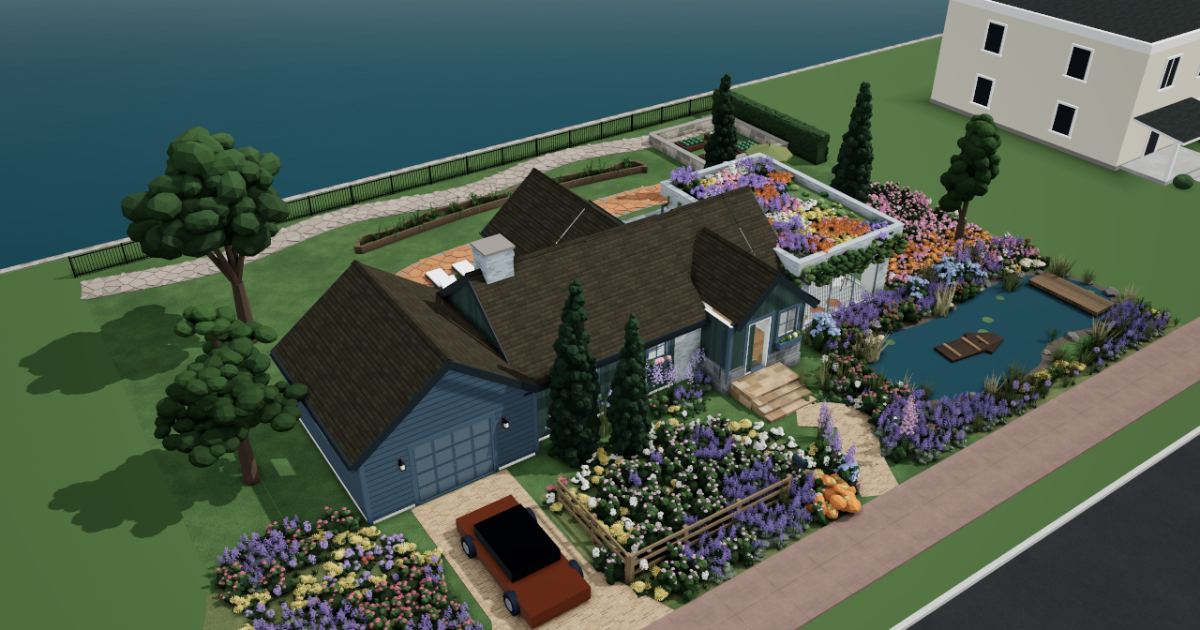 Interactive 3D tour
- Companion OS, Companion Memory and Companion Agents are in beta.
Meet the family
Malia draws botanical prints in the sunroom, and Sione builds websites for clients from the study. The print shop and the web work share one Companion Core in a cottage at Rookbeck.
Malia
MakerAge 44Sunroom
Botanical illustrator.
Marigold is Malia’s Hermes agent. Drafts replies to print customers from the notes Malia sends it. Drafts only. Malia reads and sends every message.
Rented before, on the Core now
Rented before
- Evernote
- Plex
- AnyList
- Todoist
- Adobe Illustrator
- Wix
- Google Photos
On the Core now
 Joplin Server
 Jellyfin
 Grocy
 Vikunja
 Inkscape
 WordPress
 Hermes
 Immich
-
The living room
Malia notes when the ferns unfurl
Tea beside her, Malia writes down when the ferns unfurled. The notes sync to Joplin Server on the Core, so her other devices find them there.
Watch this momentJoplin Serverreplaces Evernote -
The living room
Malia puts summer on the TV
Last summer’s rowboat videos fill the TV while Malia and Sione share the sofa. Jellyfin plays them from a folder on the Core.
Watch this momentJellyfinreplaces Plex -
The kitchen
Malia adds jasmine to the list
The tea canister is nearly empty, so Malia adds jasmine tea to the list in Grocy. The pantry count stays on the Core by default.
Watch this momentGrocyreplaces AnyList -
Around the farmhouse table
Malia and Sione plan studio day
The open studio is Saturday, so Malia and Sione plan it on a Vikunja board at the farmhouse table. Vikunja keeps the jobs and their reminders on the Core.
Watch this momentVikunjareplaces Todoist -
Malia inks a pencil fern
A pencil fern on the easel becomes clean lines in Inkscape. Malia saves the file to a folder on the Core, beside her earlier prints.
Watch this momentInkscapereplaces Adobe Illustrator -
Malia captions the columbines
The columbines on the catalogue page still need captions. Malia types them at the bistro table in WordPress, and the draft waits on the Core until she is happy.
Watch this momentWordPressreplaces Wix -
Marigold drafts, Malia sends
A customer asks which print suits a narrow hall. Marigold drafts a reply from the notes Malia connected to Companion Memory (beta). Malia reads it and sends it herself.
HermesMessages pass through the chat service you choose.
Watch this moment -
Out in the garden
Malia photographs the garden beds
A new planting fills the garden beds, and Malia photographs it for her next print. Immich backs the pictures up to the Core and sorts them, slowly at first.
Watch this momentImmichreplaces Google Photos
Real screenshots of Malia’s apps
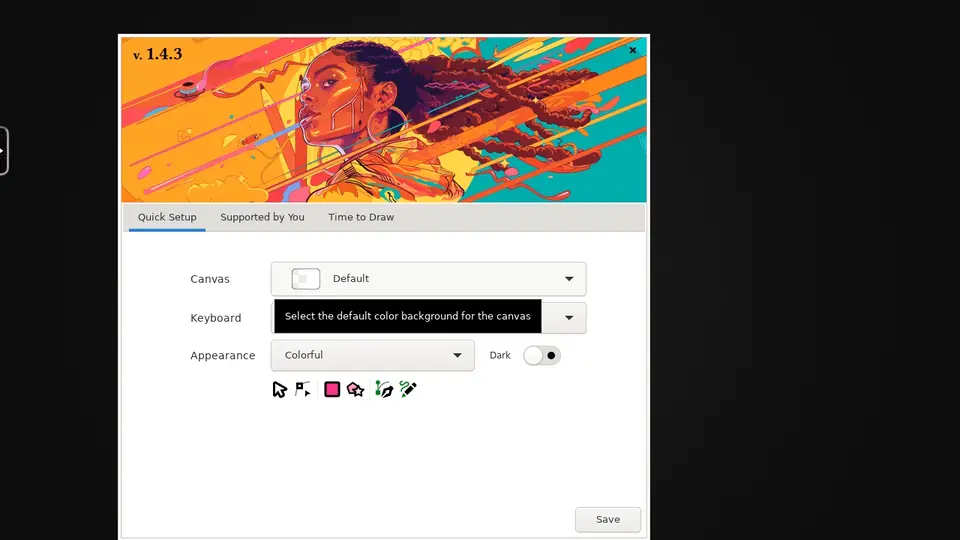
Real screenshot of Inkscape from a Companion Hub QA run. Not a recording of this family. 
Real screenshot of Immich from a Companion Hub QA run. Not a recording of this family.
Sione
BuilderAge 46Study
Freelance web developer.
Chai is Sione’s OpenClaw agent. Walks the pages of Sione’s draft sites and lists what needs fixing. Lists only. Sione reads every list and makes the changes.
Rented before, on the Core now
Rented before
- Squarespace
- Rocket Money
- AnyList
- Zapier
On the Core now
 OpenClaw WebCLI
- WordPress
 Open WebUI
 Wallos
 GlassHome
- Grocy
 n8n
-
Sione shapes a cheesemaker’s pages
A cheesemaker wants new pages by Friday, so Sione builds them in WordPress on the Core. Pictures and drafts sit there while he works.
Watch this momentWordPressreplaces Squarespace -
Sione asks the model for help
One Grist formula in a client’s price list will not add up. Sione asks a model on the Core, through Open WebUI, and the question stays there by default.
Watch this momentOpen WebUI -
Chai finds the loose ends
Pictures without a description turn up on the cheesemaker’s draft pages. Chai walks them in WordPress and lists the gaps, and Sione reads the list before he changes anything.
OpenClaw
Scripted Chai: “Here is the list. Please read it before you change a page.”
Watch this moment -
Malia asks about the font licence
Malia asks when the font licence renews. Sione looks it up in Wallos by the fireplace. The date sits on the Core, with a reminder before it.
Watch this momentWallosreplaces Rocket Money -
The living room
Sione joins two rooms of lights
Rain sends Sione to the sofa. He drags the sunroom lights and the living-room floor lamp onto one GlassHome dashboard. The data stays on the home network.
Watch this momentGlassHome -
The kitchen
Sione checks the flour first
Before he bakes coconut buns at the range, Sione checks the flour count in Grocy. The count lives on the Core, next to the recipe.
Watch this momentGrocyreplaces AnyList -
Around the farmhouse table
Sione’s workflow writes the packing list
Prints wait on the farmhouse table, and the packing list is already written. Sione’s n8n workflow turns order emails into lines on the Core, with no connector service between.
Watch this momentn8nreplaces Zapier
Real screenshots of Sione’s apps
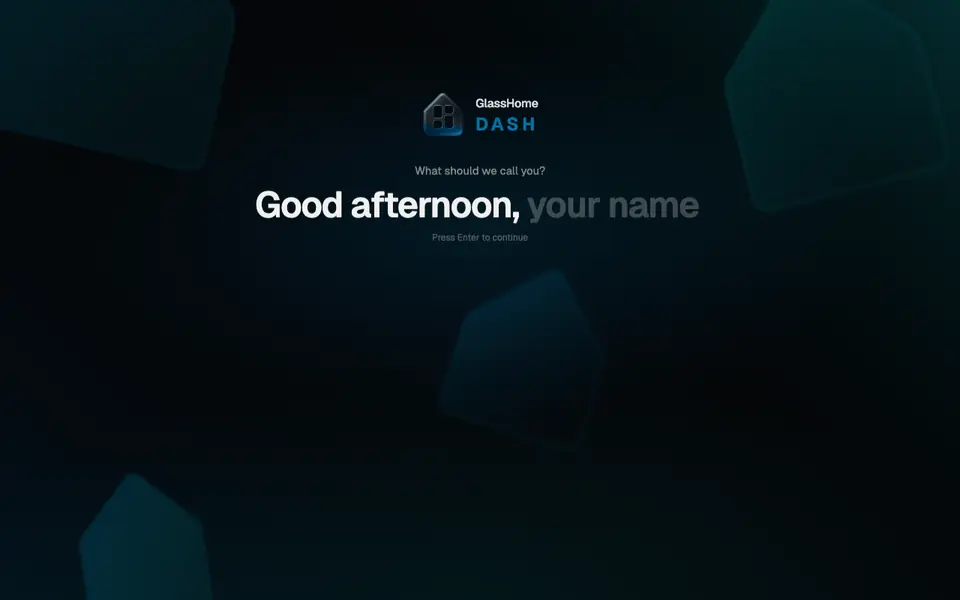
Real screenshot of GlassHome from a Companion Hub QA run. Not a recording of this family.
The home
- 2 storeys
- 150 m²
- 8 rooms
Scroll the plan sideways to see all of it.
Scroll the plan sideways to see all of it.
A diagram of the rooms, drawn from the home’s layout. It leaves out walls, doors and stairs. The pins show the room each person uses, and the small box marks the Companion Core.
What runs on the Core
One Companion Core in the house runs these apps. Each is in the Companion Hub store. Other software is named in text, for what it replaces.
- OpenClaw WebCLIFrom the OpenClaw Foundation
- WordPressReplaces Squarespace
- Open WebUI
- WallosReplaces Rocket Money
- GlassHome
- Joplin ServerReplaces Evernote
- JellyfinReplaces Plex
- GrocyReplaces AnyList
- VikunjaReplaces Todoist
- n8nReplaces Zapier
- InkscapeReplaces Adobe Illustrator
- HermesFrom Nous Research
- ImmichReplaces Google Photos
The other apps in these stories are made by other people, most of them open-source projects. Companion Intelligence did not make them. A logo belongs to its project. It shows which app is named beside it.
How it runs
Two pieces do the work. One runs on the Core. The other keeps track of your devices.
Companion Hub
Companion Hub is where you install apps on the Core. Pick one in the Companion Hub store and Hub sets it up. Installing apps uses the internet.
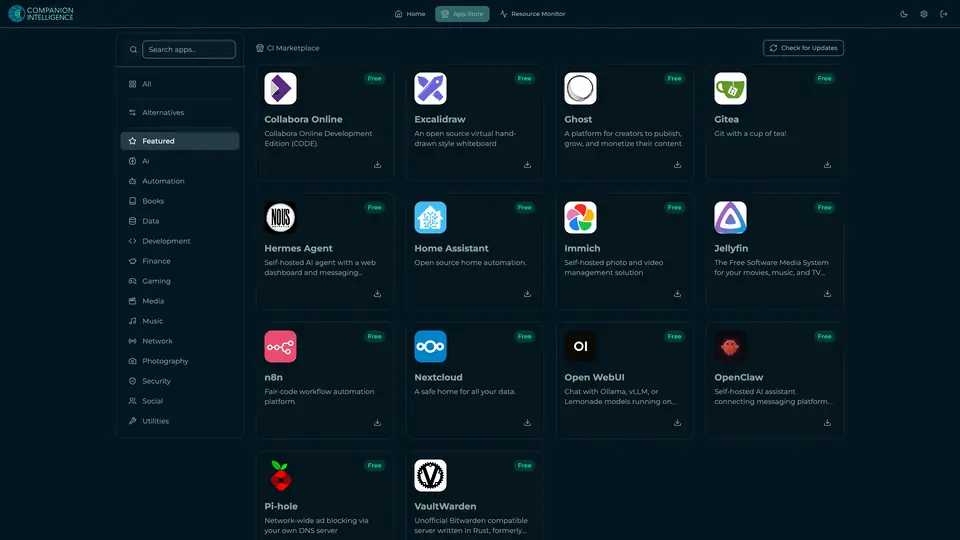
Real screenshot of Companion Hub from a product tutorial capture. Not a recording of this family. 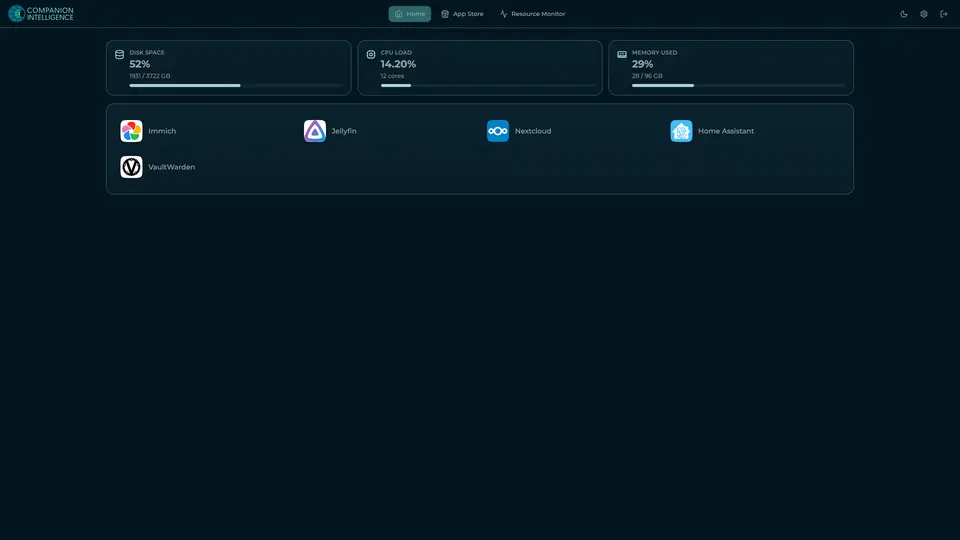
Real screenshot of Companion Hub from a product tutorial capture, with sample data. The disk, CPU and memory figures are the capture machine's, not a Companion Core spec. Not a recording of this family.
Companion account
Your Companion account pairs your devices with the Hub and lists them. The apps and their files stay on the Core.

Real screenshot of the Companion account page from a product tutorial capture, with sample data. Not a recording of this family. 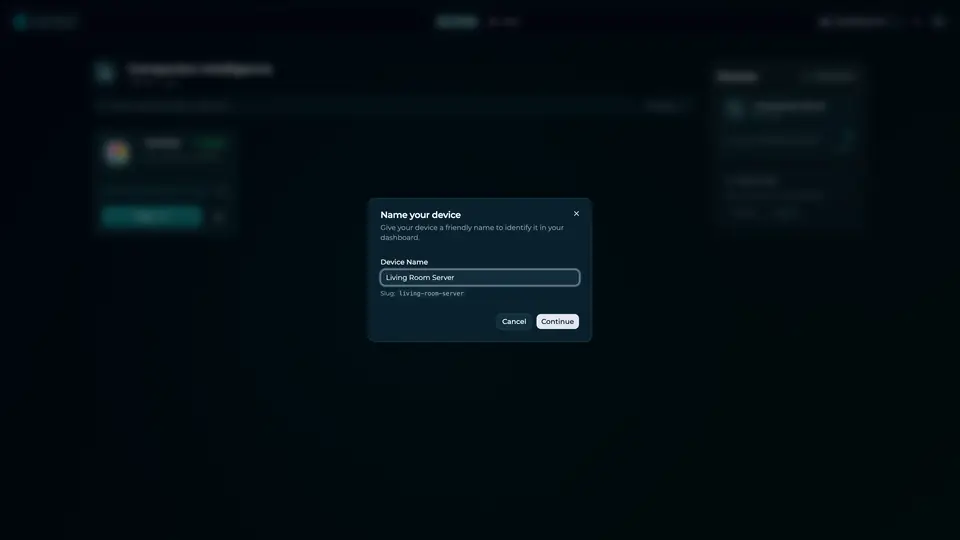
Real screenshot of the Companion account page from a product tutorial capture, with sample data. Not a recording of this family.
How the Core starts
-
Plug it in.
The parcel holds the Companion Core, a power cable, a quick-start guide and a recovery USB drive. Companion OS is already on its drive. Plug it in and press the button.
-
Join its Wi-Fi.
The Core opens its own Wi-Fi network. Join it from a phone, choose your home network from the list and enter its password.
-
Pick your apps and run.
In the Companion Hub store, pick your first agents and apps. Then walk away. Installing apps uses the internet.
Some steps use the internet: installing apps from the Companion Hub store, and any website or messaging service your agent talks to.
UnCloud your life.
Your drawings, draft sites and shopping list can run on a Companion Core at home. Browse the Companion Hub store and pick your first apps.