
Fictional family. Real software.
The Salazar family
A painter, a developer and one Companion Core in a treehouse.
5 Larkspur Steps, Brindle Cross
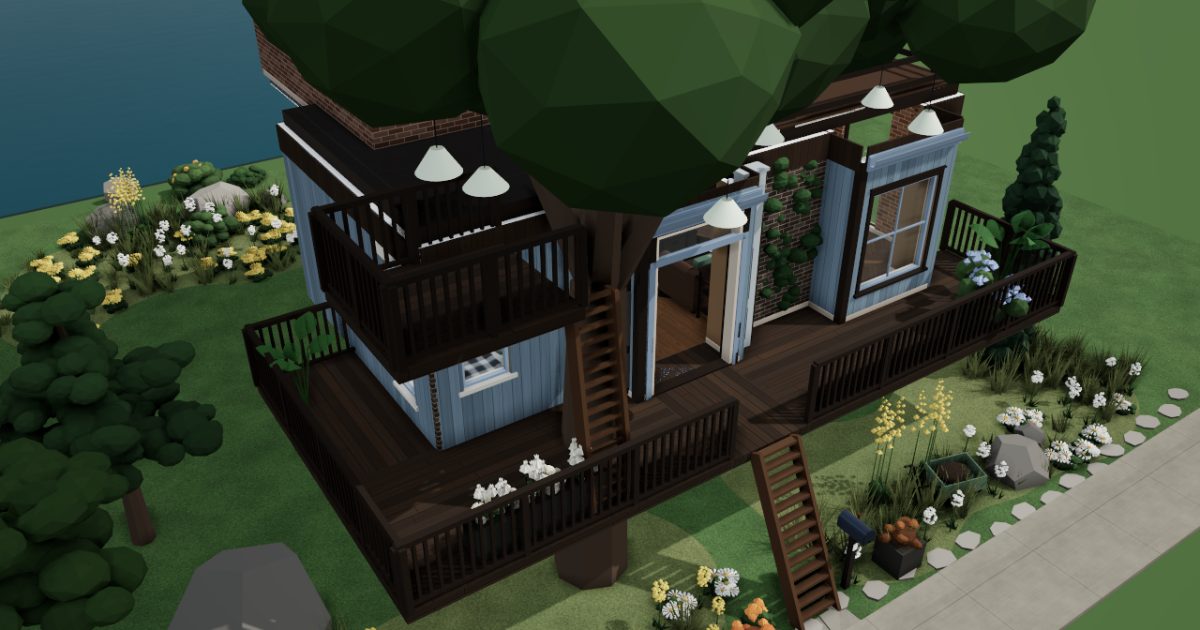 Interactive 3D tour
- Companion OS, Companion Memory and Companion Agents are in beta.
Meet the family
Valeria paints and sells prints from the studio loft, and Rafael builds software for clients from the study nook. One Companion Core, on his desk, serves both of their small businesses.
Valeria
MakerAge 36Studio loft
Painter, sells prints.
Hazel is Valeria’s OpenClaw agent. Fills in the framer’s order form in its own browser from Valeria’s list. Prepares the form only. Valeria checks every field and presses send.
Rented before, on the Core now
Rented before
- Zapier
- Plex
- AnyList
- Adobe Illustrator
- Notion
On the Core now
 OpenClaw WebCLI
 n8n
 Jellyfin
 Grocy
 Inkscape
 Mazanoke
 Obsidian
 Wanderer
-
Rafael in the study nook
Valeria’s order becomes a packing slip
Valeria adds a print order, and a flow Rafael built in n8n writes the packing slip. It runs on the Core, with no connector service in the middle.
Watch this momentn8nreplaces Zapier -
The hearth room
Valeria replays a canvas in time-lapse
The time-lapse of Valeria’s last canvas plays from Jellyfin on the Core to the wall TV. Rafael asks to see the blue wash again.
Watch this momentJellyfinreplaces Plex -
The kitchen
The olive oil reaches the list
The olive oil is nearly gone, so Valeria marks it low in Grocy. The shopping list on the Core gains a line, and Rafael adds lemons.
Watch this momentGrocyreplaces AnyList -
Valeria redraws the sketch
A pencil sketch waits on the easel while Valeria traces it in Inkscape. The vector file for the next print edition is kept on the Core.
Watch this momentInkscapereplaces Adobe Illustrator -
Valeria shrinks the canvas photos
On a bright morning Valeria shoots the finished canvases, then shrinks each photo in Mazanoke. The app resizes and compresses in her browser, and nothing is uploaded.
Watch this momentMazanoke -
Valeria checks Hazel’s order form
Six prints need frames. Valeria’s agent, Hazel, fills in the framer’s order form in its own browser. Valeria checks each field and presses send herself.
OpenClaw
OpenClaw reaches websites over your home internet.
Watch this moment -
The green gets written down
Beside the easel, Valeria writes down the green she mixed, in Obsidian. It runs in a browser session, and the note is a plain Markdown file on the Core.
Watch this momentObsidianreplaces Notion -
Decks and meadow
Friday’s ride gets a route
On the bench in the meadow, Valeria loads the lake path’s GPX file into Wanderer and traces Friday’s ride. Rafael adds a boathouse stop before she saves it.
Watch this momentWanderer
Real screenshots of Valeria’s apps
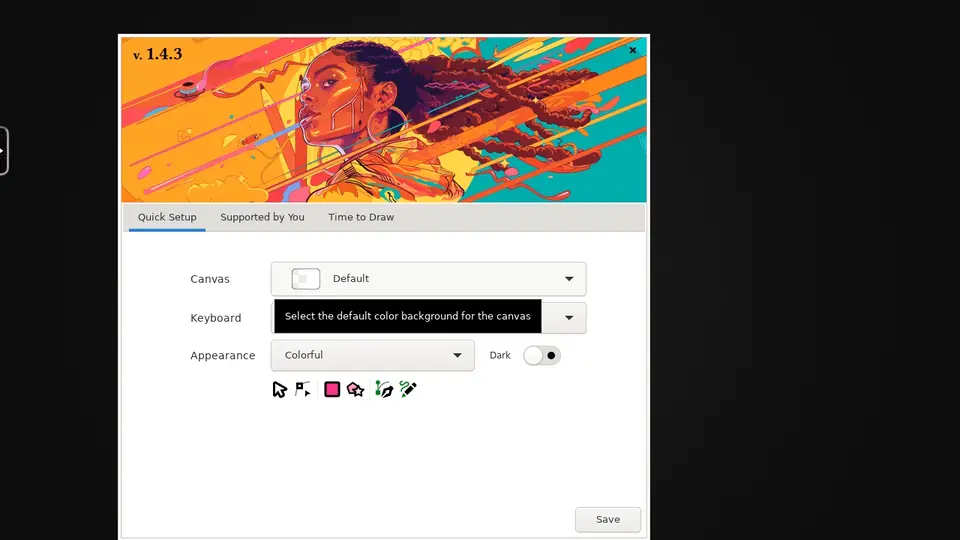
Real screenshot of Inkscape from a Companion Hub QA run. Not a recording of this family. 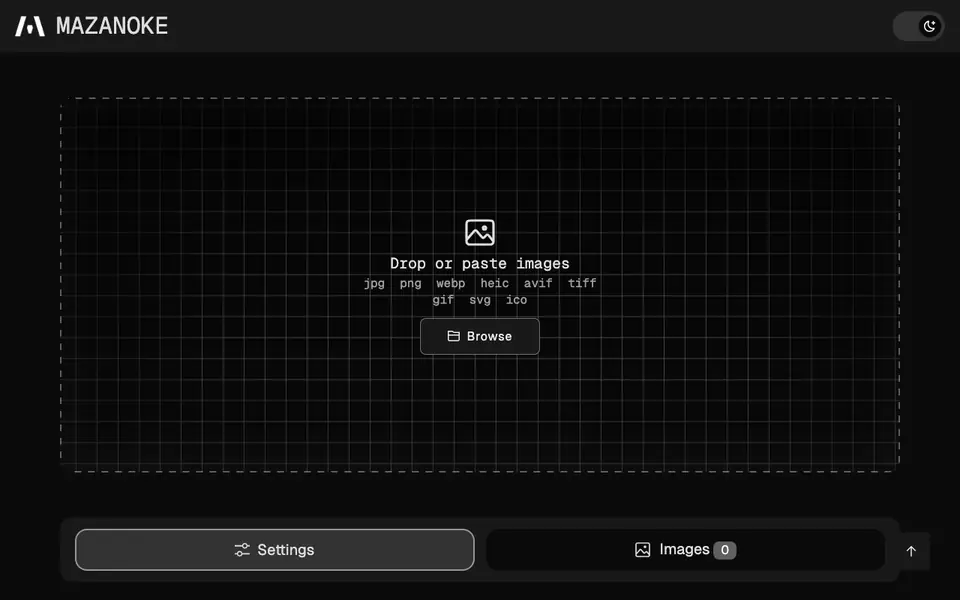
Real screenshot of Mazanoke from a Companion Hub QA run. Not a recording of this family. 
Real screenshot of Wanderer from a Companion Hub QA run. Not a recording of this family.
Rafael
BuilderAge 38Study nook
Freelance developer.
Aspen is Rafael’s OpenClaw agent. Reads library release pages in its own browser and lists what changed. Reads and lists only. Rafael decides what gets upgraded.
Rented before, on the Core now
Rented before
- GitHub
- Adobe Acrobat
- Google Home
- AnyList
- Squarespace
- Microsoft Office
On the Core now
 Forgejo
- OpenClaw WebCLI
 JupyterLab
 Stirling-PDF
 Home Assistant
- Grocy
 WordPress
 LibreOffice
-
The invoice script ships
A client waits on the invoice script. Rafael tags the release and pushes it to Forgejo. The repository sits on the Core, not on a rented code host.
Watch this momentForgejoreplaces GitHub -
Rafael hands Aspen a reading list
Three libraries need a look. Aspen reads each release page in its own browser and writes up what changed. Rafael decides which ones to upgrade.
OpenClaw
Scripted Aspen: “Here is what changed. Please read it before you upgrade.”
OpenClaw reaches websites over your home internet.
Watch this moment -
Rafael hunts for a missing row
A quarterly total comes one row short. Rafael traces it in JupyterLab, then asks the Core’s model through Open WebUI, which answers from the hardware beside him.
Watch this momentJupyterLab -
Timesheets travel behind the invoice
A month of timesheets must travel behind one invoice. Rafael merges the pages in Stirling-PDF on the Core, then attaches the single file.
Watch this momentStirling-PDFreplaces Adobe Acrobat -
The hearth room
Rafael links the lamp and TV
On Saturday afternoon, the floor lamp’s smart bulb and the wall TV switch together in a scene Rafael built. Home Assistant itself needs no cloud account.
Watch this momentHome Assistantreplaces Google Home -
The kitchen
Recycling and compost swap hands
This Sunday, Rafael takes the recycling and Valeria takes the compost. Grocy swaps the two jobs on the chore list, next to the pantry stock.
Watch this momentGrocyreplaces AnyList -
Valeria in the studio loft
The print page gets a draft
At Valeria’s desk, Rafael builds the print page in WordPress and drops in her shrunken photos. The draft stays on the Core while Valeria reads it through.
Watch this momentWordPressreplaces Squarespace -
Decks and meadow
Rafael drafts a client proposal
Beside the tulip planter, Rafael drafts a client proposal in LibreOffice, in his browser. Valeria reads the first line aloud, and he saves the file to the Core.
Watch this momentLibreOfficereplaces Microsoft Office
Real screenshots of Rafael’s apps
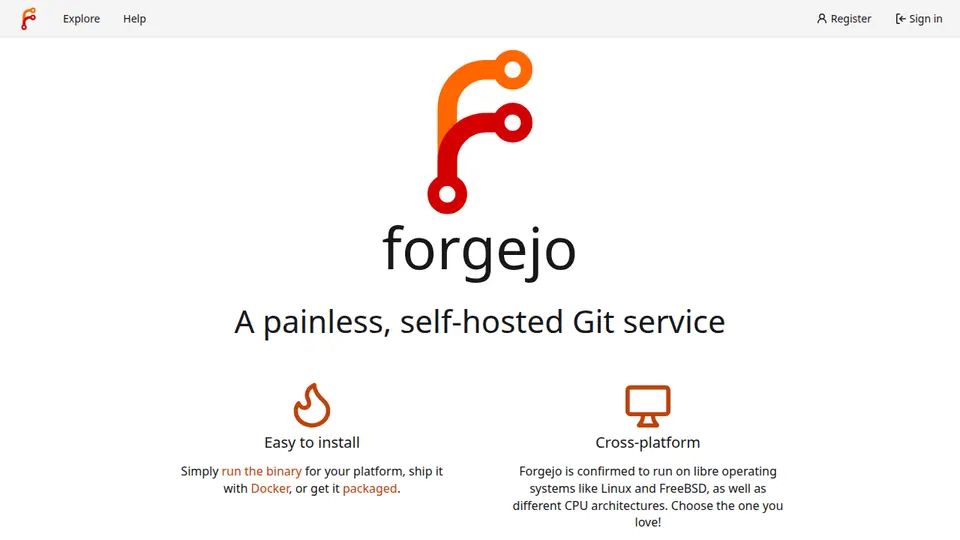
Real screenshot of Forgejo from a Companion Hub QA run. Not a recording of this family. 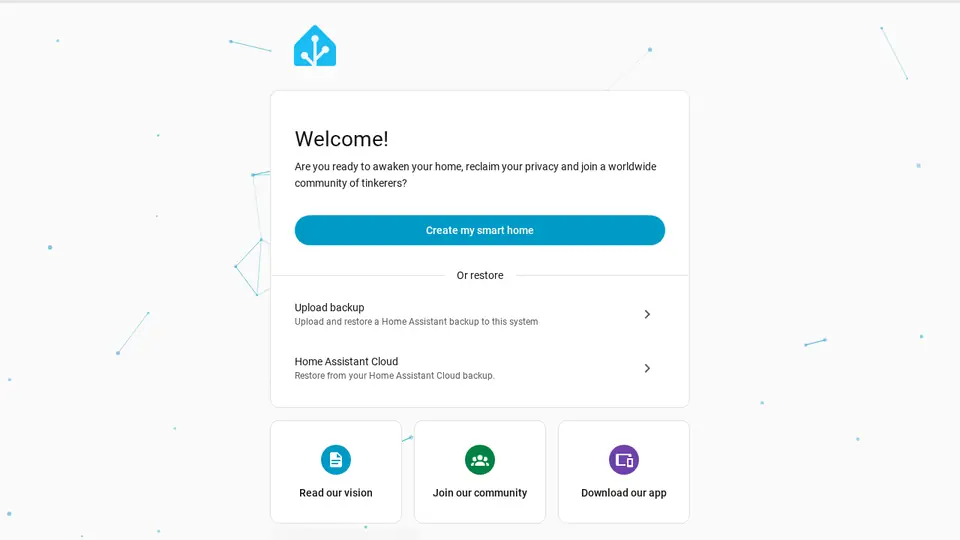
Real screenshot of Home Assistant from a Companion Hub QA run. Not a recording of this family. 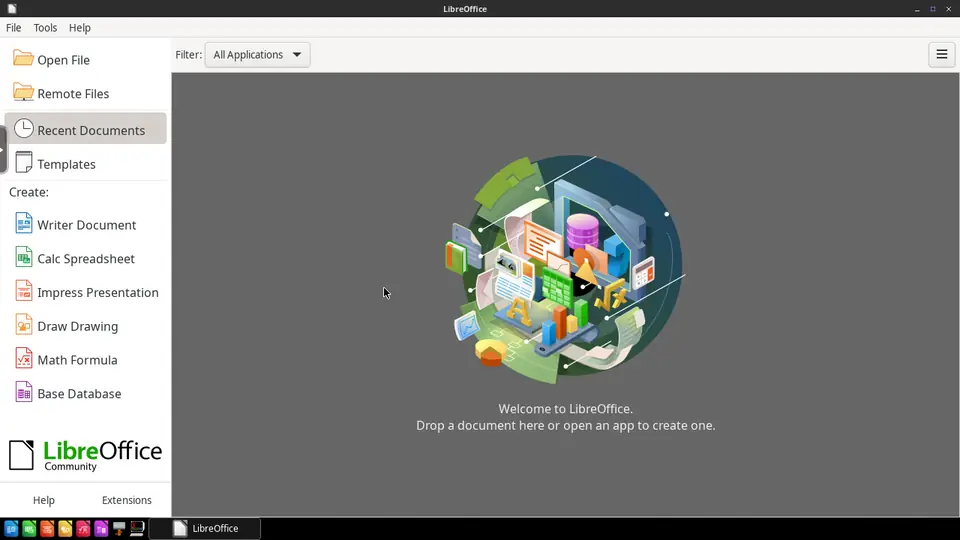
Real screenshot of LibreOffice from a Companion Hub QA run. Not a recording of this family.
The home
- 2 storeys
- 82 m²
- 8 rooms
Scroll the plan sideways to see all of it.
Scroll the plan sideways to see all of it.
A diagram of the rooms, drawn from the home’s layout. It leaves out walls, doors and stairs. The pins show the room each person uses, and the small box marks the Companion Core.
What runs on the Core
One Companion Core in the house runs these apps. Each is in the Companion Hub store. Other software is named in text, for what it replaces.
- OpenClaw WebCLIFrom the OpenClaw Foundation
- ForgejoReplaces GitHub
- JupyterLab
- n8nReplaces Zapier
- Stirling-PDFReplaces Adobe Acrobat
- Home AssistantReplaces Google Home
- JellyfinReplaces Plex
- GrocyReplaces AnyList
- InkscapeReplaces Adobe Illustrator
- Mazanoke
- WordPressReplaces Squarespace
- ObsidianReplaces Notion
- LibreOfficeReplaces Microsoft Office
- Wanderer
The other apps in these stories are made by other people, most of them open-source projects. Companion Intelligence did not make them. A logo belongs to its project. It shows which app is named beside it.
How it runs
Two pieces do the work. One runs on the Core. The other keeps track of your devices.
Companion Hub
Companion Hub is where you install apps on the Core. Pick one in the Companion Hub store and Hub sets it up. Installing apps uses the internet.
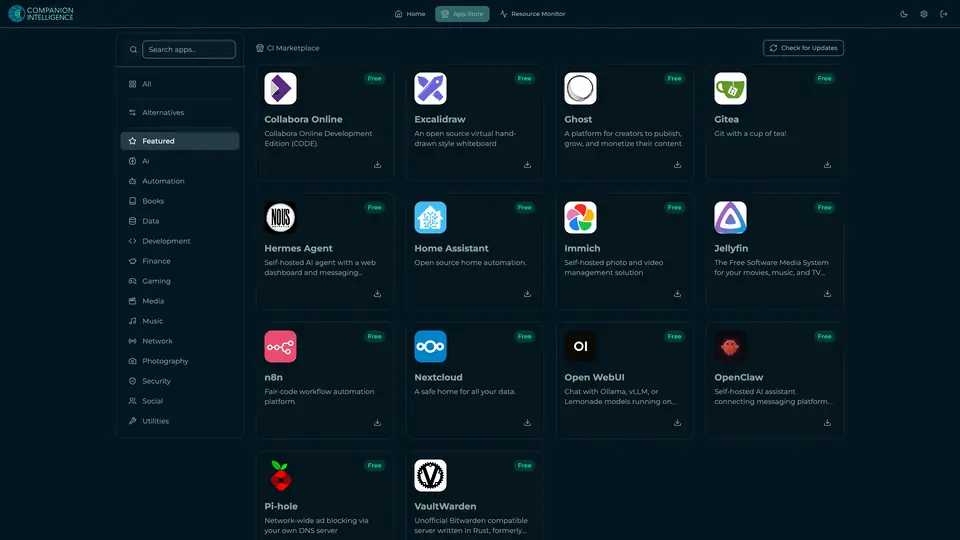
Real screenshot of Companion Hub from a product tutorial capture. Not a recording of this family. 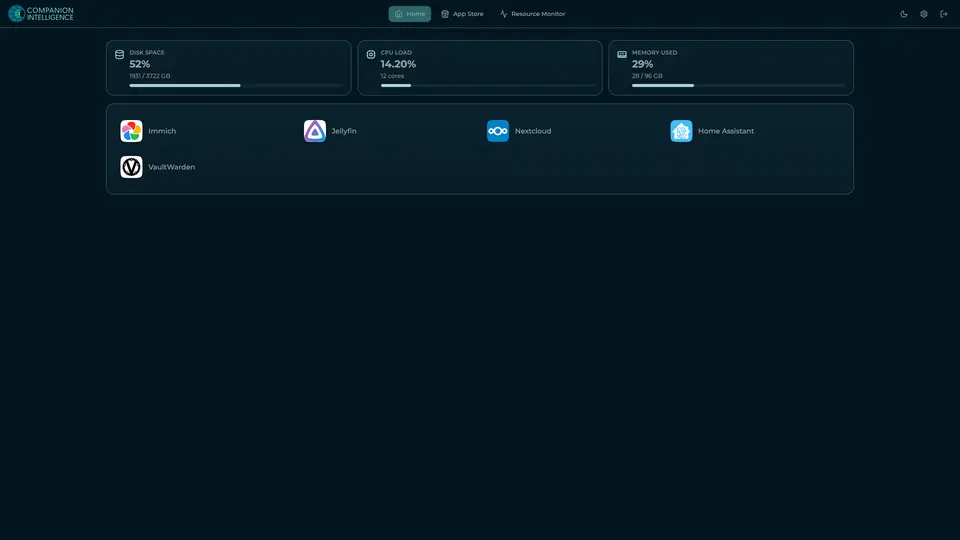
Real screenshot of Companion Hub from a product tutorial capture, with sample data. The disk, CPU and memory figures are the capture machine's, not a Companion Core spec. Not a recording of this family.
Companion account
Your Companion account pairs your devices with the Hub and lists them. The apps and their files stay on the Core.

Real screenshot of the Companion account page from a product tutorial capture, with sample data. Not a recording of this family. 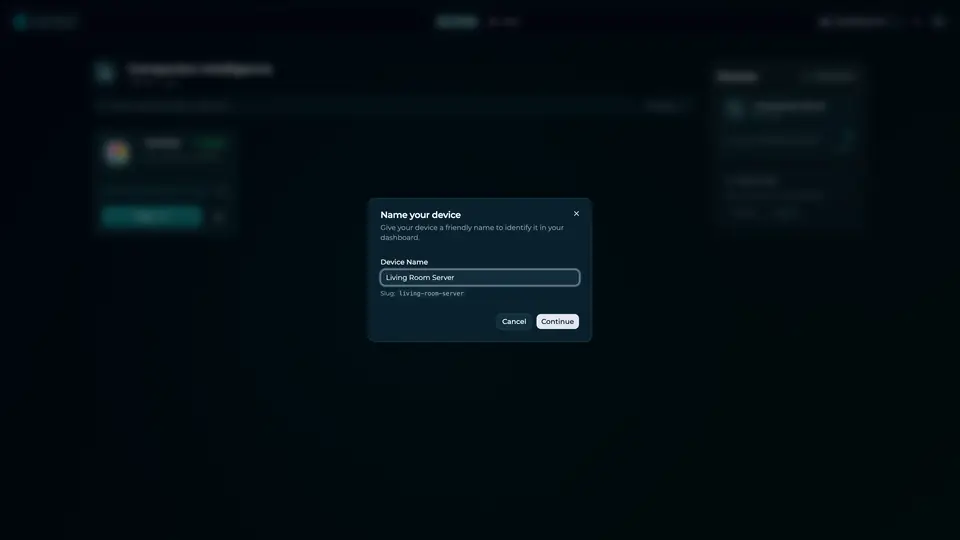
Real screenshot of the Companion account page from a product tutorial capture, with sample data. Not a recording of this family.
How the Core starts
-
Plug it in.
The parcel holds the Companion Core, a power cable, a quick-start guide and a recovery USB drive. Companion OS is already on its drive. Plug it in and press the button.
-
Join its Wi-Fi.
The Core opens its own Wi-Fi network. Join it from a phone, choose your home network from the list and enter its password.
-
Pick your apps and run.
In the Companion Hub store, pick your first agents and apps. Then walk away. Installing apps uses the internet.
Some steps use the internet: installing apps from the Companion Hub store, and any website or messaging service your agent talks to.
UnCloud your life.
Your drawings, repositories and pantry list can live on a Companion Core at home. Browse the Companion Hub store and pick your first apps.