
Fictional family. Real software.
The Nwachukwu family
Two grandparents, one grandchild and one Companion Core in a small cottage.
7 Linnet Row, Pellam Green
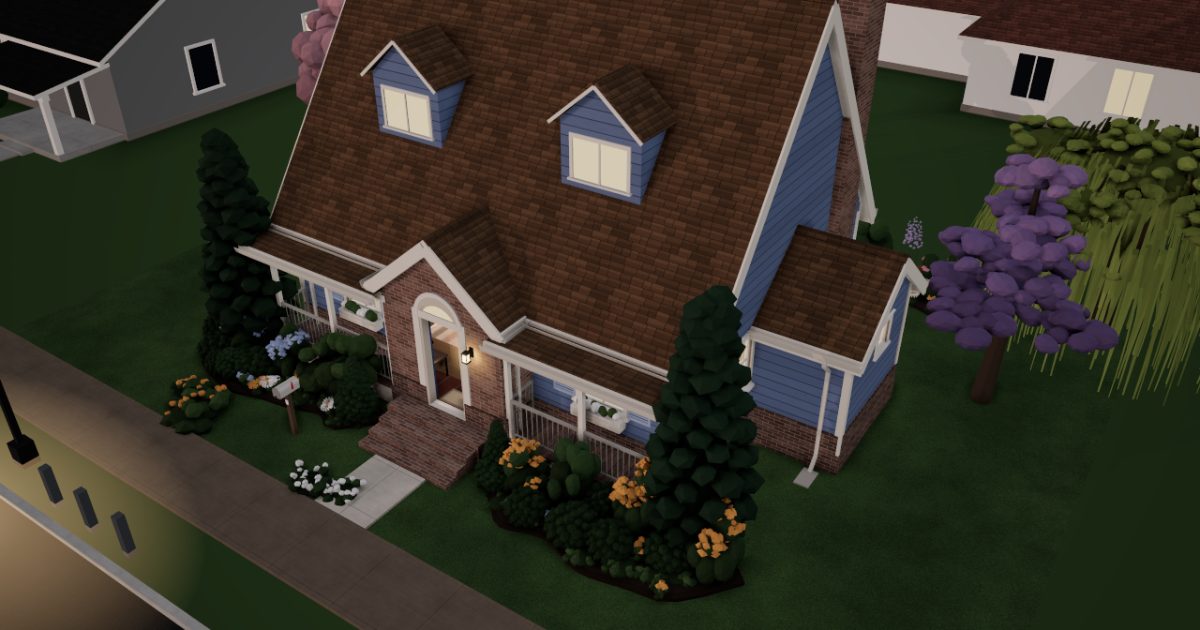 Interactive 3D tour
- Companion OS, Companion Memory and Companion Agents are in beta.
Meet the family
Ngozi keeps the household papers, Emeka cooks and grows tomatoes, and eight-year-old Chidi reads in his corner. One Companion Core in the living room serves all three.
Ngozi
OrganiserAge 67Living room
Retired church treasurer.
Gingersnap is Ngozi’s Hermes agent. Drafts Ngozi’s replies to the hall committee and her sister from short notes. Drafts only. Ngozi reads each draft and sends it herself.
Rented before, on the Core now
Rented before
- Backblaze
- Google Drive
- YNAB
- Microsoft Office
On the Core now
 Hermes
 Duplicati
 Papra
 Firefly III
 LibreOffice
-
The living room
A local disk takes the copy
On the first Saturday, Ngozi points Duplicati at a local disk. It encrypts the family’s files before copying them across, and the copy stays in the house.
Watch this momentDuplicatireplaces Backblaze -
The living room
Ngozi reads the draft first
On the loveseat, Ngozi types three lines about a changed hall booking. Gingersnap drafts the reply on the Core’s local model. Ngozi reads it and sends it herself.
HermesScripted Gingersnap: “The draft reply is ready. Please read it through before you send it.”
Messages pass through the chat service you choose.
Watch this moment -
The warranty is found in time
The kettle breaks on the last day of its warranty. Ngozi finds the receipt in Papra, kept on the Core, not in a rented drive.
Watch this momentPaprareplaces Google Drive -
The month’s bills find their budgets
Ngozi, once the church treasurer, types the month’s bills into Firefly III and sorts them into budgets. The ledger stays in the house, with no budgeting service holding it.
Watch this momentFirefly IIIreplaces YNAB -
The hall agenda is typed up
Before the hall committee meets, Ngozi types the agenda in LibreOffice, in her browser. The document is saved on the Core.
Watch this momentLibreOfficereplaces Microsoft Office
Real screenshots of Ngozi’s apps
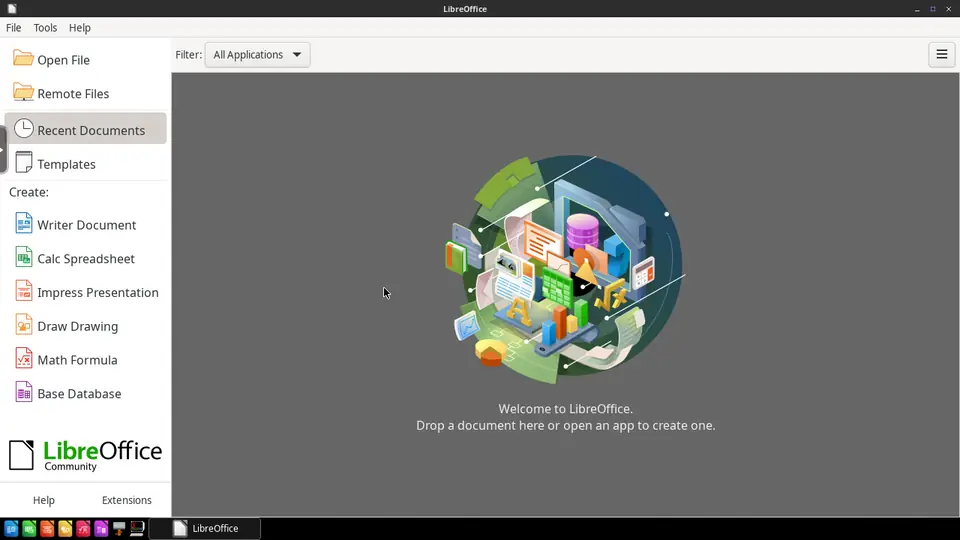
Real screenshot of LibreOffice from a Companion Hub QA run. Not a recording of this family.
Emeka
HostAge 70Kitchen
Retired bus driver, cooks and grows tomatoes.
Crumpet is Emeka’s Hermes agent. Turns Emeka’s quick notes into short messages for the neighbours and the parish council. Drafts only. Emeka reads each draft and sends it himself.
Rented before, on the Core now
Rented before
- Plex
- Ring
On the Core now
 Companion Planning
 KitchenOwl
- Hermes
 Jellyfin
 Frigate
-
The living room
The school run follows sports day
At the loveseat, Emeka blocks out Chidi’s sports day on Wednesday and shifts the school run to fit. Companion Planning keeps the week in one local file on the Core.
Watch this momentCompanion Planning -
Plantain goes on the shared list
By the fridge, Emeka adds plantain to the grocery list in KitchenOwl. Ngozi adds tomato paste from the loveseat. Both land on one list, on the Core.
Watch this momentKitchenOwl -
Emeka sends the bench note himself
At the counter, Emeka tells Crumpet the bus shelter has lost its bench. Crumpet drafts a note to the parish council, and Emeka reads it and sends it himself.
HermesScripted Crumpet: “The note is short and polite. Change a word if you like, then send it.”
Messages pass through the chat service you choose.
Watch this moment -
Emeka cooks to his own music
While the stew simmers on the range, Emeka plays highlife albums from his own collection. Jellyfin serves them from the Core to the phone beside the kettle.
Watch this momentJellyfinreplaces Plex -
Out the back door
Emeka solves the tomato mystery
Something keeps taking the ripe tomatoes, so Emeka points an IP camera at the border. Frigate records on the Core, and the footage shows a squirrel.
Watch this momentFrigatereplaces Ring
Real screenshots of Emeka’s apps
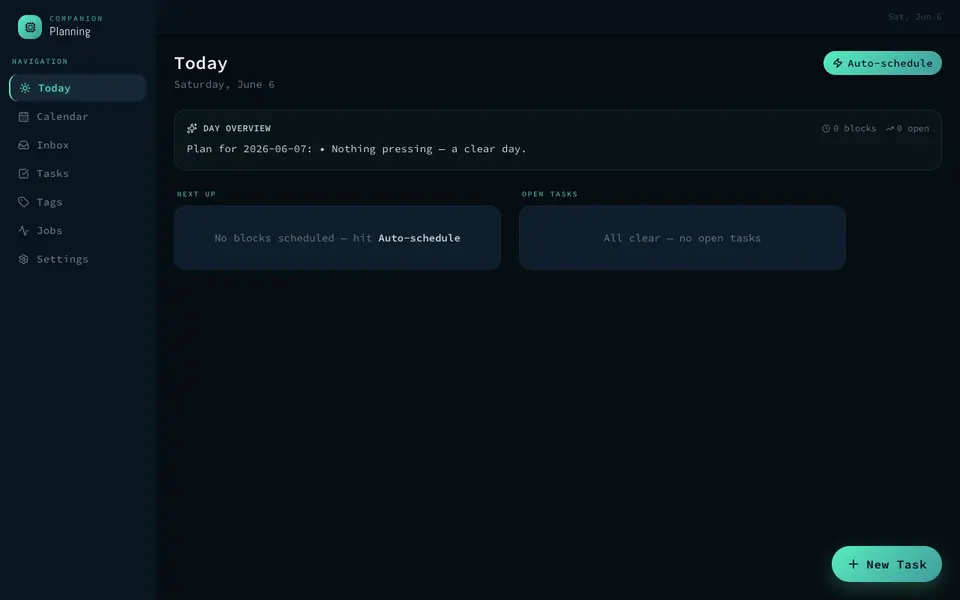
Real screenshot of Companion Planning from a Companion Hub QA run. Not a recording of this family.
Chidi
LearnerAge 8Kids corner
Primary school.
Rented before, on the Core now
Rented before
- Audible
- Amazon Kindle
- Google Photos
On the Core now
 Audiobookshelf
 Koodo Reader
 Immich
 HortusFox
-
A biscuit rides on a whale
At the bookshelf, Chidi bets Grandpa a biscuit that he can finish the whale audiobook before the weekend. Audiobookshelf keeps the family’s audiobooks on the Core.
Watch this momentAudiobookshelfreplaces Audible -
Chidi hears the chapter read aloud
On the rug by the toy box, Chidi settles into a chapter, and Koodo Reader reads it aloud. The family’s ebooks sit in one library on the Core.
Watch this momentKoodo Readerreplaces Amazon Kindle -
Grandpa’s tortoise stories play again
After school, Chidi lies on his bed and plays the tortoise stories Emeka recorded himself. Audiobookshelf serves them from the Core and picks up where the story stopped.
Watch this momentAudiobookshelfreplaces Audible -
The living room
Grandma turns up in the prints
Among the scanned prints, Chidi finds Ngozi as a girl. Immich keeps the scans on the Core, not in a photo cloud, and the first sort takes a while.
Watch this momentImmichreplaces Google Photos -
Out the back door
Chidi counts the green tomatoes
By the patio, Chidi counts the green tomatoes while Emeka writes each count into HortusFox. The plant journal, with its photos and watering dates, is kept on the Core.
Watch this momentHortusFox
Real screenshots of Chidi’s apps
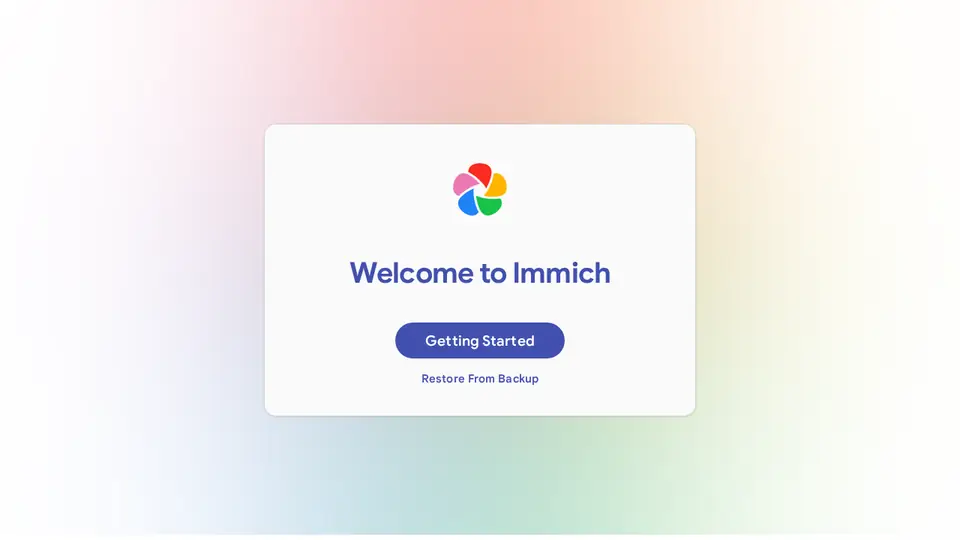
Real screenshot of Immich from a Companion Hub QA run. Not a recording of this family. 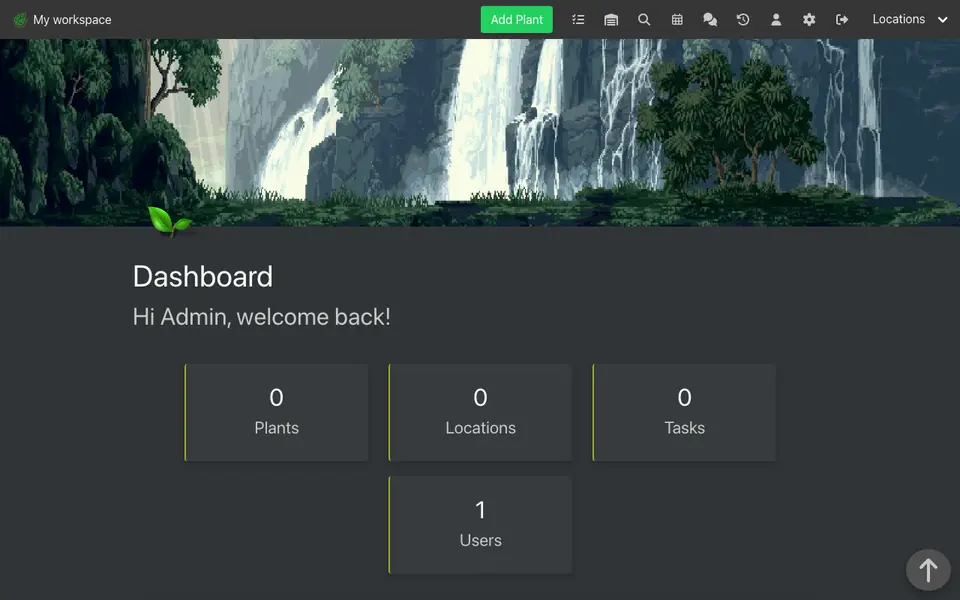
Real screenshot of HortusFox from a Companion Hub QA run. Not a recording of this family.
The home
- 1 storey
- 78 m²
- 8 rooms
Scroll the plan sideways to see all of it.
A diagram of the rooms, drawn from the home’s layout. It leaves out walls, doors and stairs. The pins show the room each person uses, and the small box marks the Companion Core.
What runs on the Core
One Companion Core in the house runs these apps. Each is in the Companion Hub store. Other software is named in text, for what it replaces.
- HermesFrom Nous Research
- AudiobookshelfReplaces Audible
- Koodo ReaderReplaces Amazon Kindle
- DuplicatiReplaces Backblaze
- ImmichReplaces Google Photos
- Companion PlanningFirst party
- KitchenOwl
- JellyfinReplaces Plex
- PapraReplaces Google Drive
- Firefly IIIReplaces YNAB
- LibreOfficeReplaces Microsoft Office
- HortusFox
- FrigateReplaces Ring
The other apps in these stories are made by other people, most of them open-source projects. Companion Intelligence did not make them. A logo belongs to its project. It shows which app is named beside it.
How it runs
Two pieces do the work. One runs on the Core. The other keeps track of your devices.
Companion Hub
Companion Hub is where you install apps on the Core. Pick one in the Companion Hub store and Hub sets it up. Installing apps uses the internet.
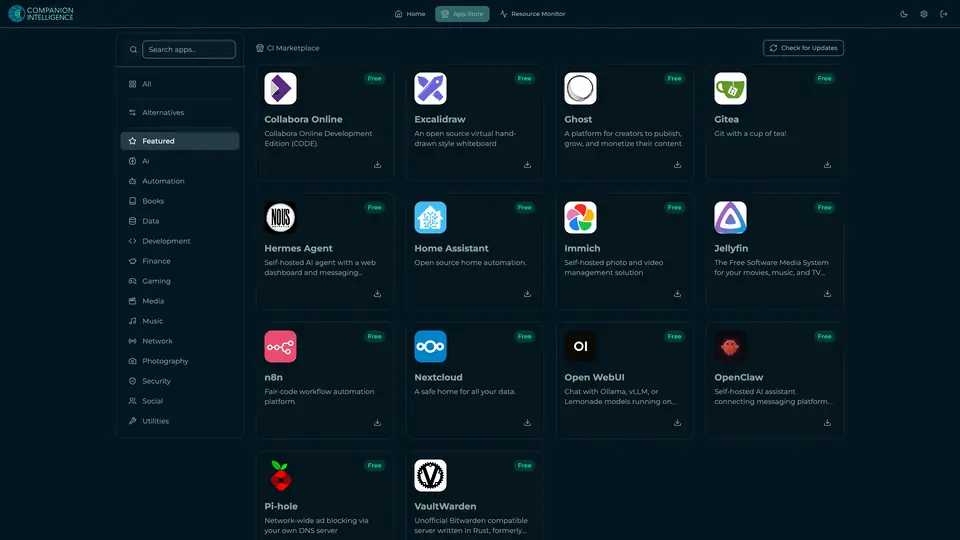
Real screenshot of Companion Hub from a product tutorial capture. Not a recording of this family. 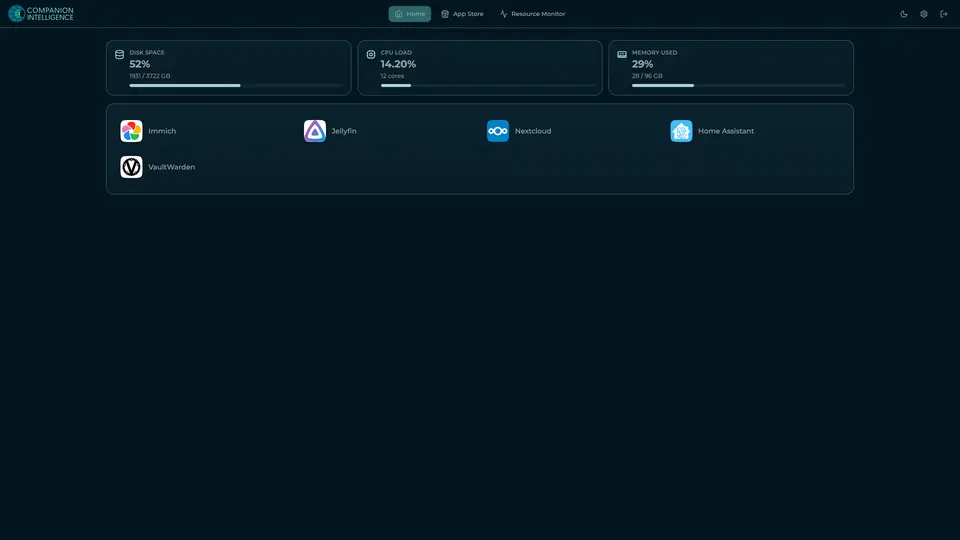
Real screenshot of Companion Hub from a product tutorial capture, with sample data. The disk, CPU and memory figures are the capture machine's, not a Companion Core spec. Not a recording of this family.
Companion account
Your Companion account pairs your devices with the Hub and lists them. The apps and their files stay on the Core.
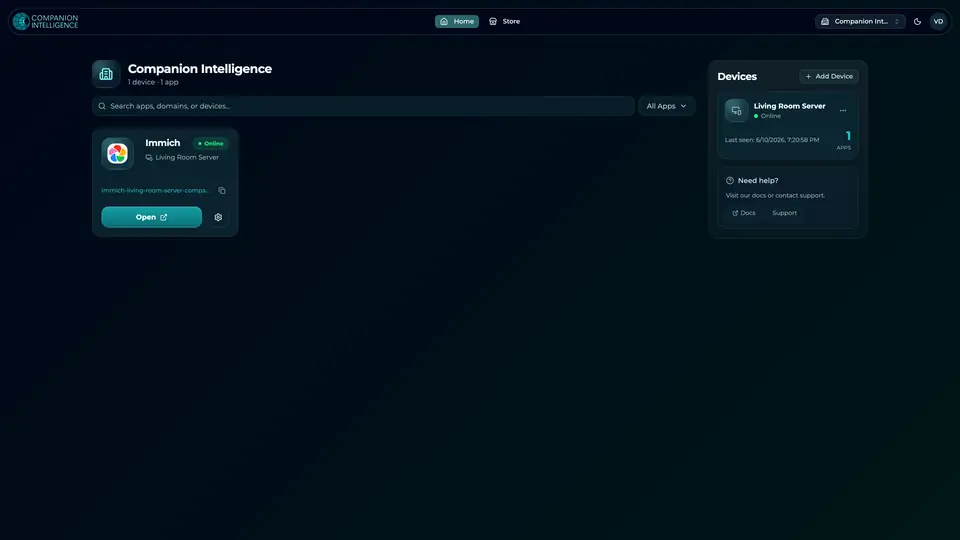
Real screenshot of the Companion account page from a product tutorial capture, with sample data. Not a recording of this family. 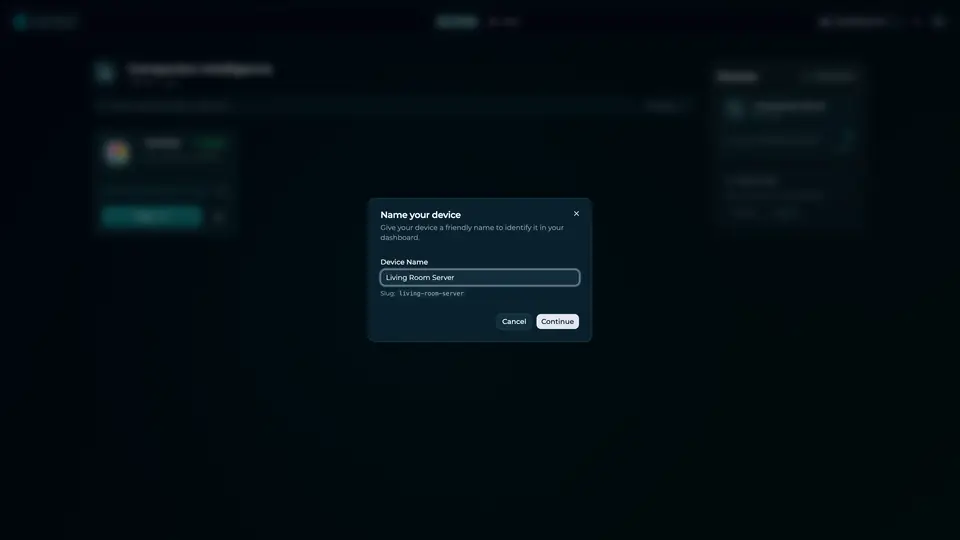
Real screenshot of the Companion account page from a product tutorial capture, with sample data. Not a recording of this family.
How the Core starts
-
Plug it in.
The parcel holds the Companion Core, a power cable, a quick-start guide and a recovery USB drive. Companion OS is already on its drive. Plug it in and press the button.
-
Join its Wi-Fi.
The Core opens its own Wi-Fi network. Join it from a phone, choose your home network from the list and enter its password.
-
Pick your apps and run.
In the Companion Hub store, pick your first agents and apps. Then walk away. Installing apps uses the internet.
Some steps use the internet: installing apps from the Companion Hub store, and any website or messaging service your agent talks to.
UnCloud your life.
Your receipts, recipes and photographs can sit on a Companion Core at home. Browse the Companion Hub store and pick your first apps.