
Fictional family. Real software.
The Kamau family
A baby, two parents and one Companion Core in a cottage with a garden nook.
8 Lanterwick Close, Orrin Vale
 Interactive 3D tour
- Companion OS, Companion Memory and Companion Agents are in beta.
Meet the family
Wanjiru writes software from the glass garden nook beside the living room. Juma stays home with baby Zuri and grows vegetables outside. One Companion Core on the living-room shelf keeps their code, lists, pictures and plants.
Wanjiru
BuilderAge 34Garden nook
Software developer, works from home.
Rowan is Wanjiru’s Hermes agent. Drafts talk outlines from the bullet notes Wanjiru sends it. Drafts only. Wanjiru rewrites every outline in her own words.
Rented before, on the Core now
Rented before
- Backblaze
- GitHub
- Zapier
- Evernote
- Amazon Kindle
On the Core now
 Duplicati
 Gitea
 n8n
 Hermes
 Joplin Server
 Koodo Reader
-
The living room
A deleted folder comes back
Wanjiru deletes the wrong folder by mistake. The encrypted copy Duplicati keeps on a disk beside the Core brings it back.
Watch this momentDuplicatireplaces Backblaze -
Naptime is code time
While Zuri naps, Wanjiru merges her talk demo branch in Gitea. Its issues and pull requests sit with the code on the Core.
Watch this momentGiteareplaces GitHub -
The nook lamp keeps office hours
Each weekday at nine, Wanjiru’s n8n workflow lights the nook lamp through Home Assistant. It runs on the Core, so the data does not pass through a connector service.
Watch this momentn8nreplaces Zapier -
Wanjiru rewrites Rowan’s outline
Wanjiru messages Rowan her bullet notes for a meetup talk. Rowan drafts an outline on the Core’s local model, and Wanjiru rewrites it in her own words.
HermesScripted Rowan: “Outline done. Cut what you like, then write it your way.”
Companion Agents are in beta. Messages pass through the chat service you choose.
Watch this moment -
The dining table
A note holds the colour code
A scuff in the hall needs touch-up paint. Wanjiru finds the colour code in an old note at the trestle table. Her notes sync to Joplin Server on the Core.
Watch this momentJoplin Serverreplaces Evernote -
Out in the garden
Wanjiru reads on the patio
At lunch on a patio lounger, Wanjiru reads a programming book from her own library in Koodo Reader. The library is stored on the Core.
Watch this momentKoodo Readerreplaces Amazon Kindle
Juma
HostAge 36Kitchen
At home with Zuri, grows vegetables.
Biscuit is Juma’s Hermes agent. Drafts Juma’s posts for the neighbourhood seedling swap. Drafts only. Juma reads each post and sends it himself.
Rented before, on the Core now
Rented before
- Google Photos
- Google Home
- iCloud
On the Core now
- Hermes
 Immich
 Home Assistant
 HortusFox
 KitchenOwl
 Nextcloud
-
The living room
Both camera rolls become one album
Zuri’s first months sit on two phones. On the loveseat, Juma and Wanjiru gather them into one Immich album on the Core.
Immichreplaces Google PhotosThe first start takes a while.
Watch this moment -
The living room
One tap before the afternoon walk
Pram ready, Juma taps one scene. The lamps and the kettle plug go off together. Home Assistant, which needs no cloud account, runs the scene from the Core.
Watch this momentHome Assistantreplaces Google Home -
The dining table
The brown leaf has a history
A leaf on the peace lily has browned. Juma checks its HortusFox page: last watered ten days ago. He fills the can and logs the date.
Watch this momentHortusFox -
The paper list leaves the fridge
Juma copies the paper list from the fridge door into KitchenOwl: rice, cardamom, nappies. The same list reaches Wanjiru’s phone from the Core.
Watch this momentKitchenOwl -
Wednesday’s greens come from the garden
For Wednesday, Juma puts sukuma wiki on the meal plan in KitchenOwl. The greens come from the garden, so he leaves them off the shopping list.
Watch this momentKitchenOwl -
Thursday’s call moves lunch to Juma
Wanjiru adds a Thursday call to the family calendar in Nextcloud. Juma sees it on his phone, served from the Core, and takes over the lunch job.
Watch this momentNextcloudreplaces iCloud -
Out in the garden
Last year’s journal picks the spot
Beside the pergola deck, Juma checks last year’s HortusFox journal to choose where the beans climb. The journal stays on the Core.
Watch this momentHortusFox -
Out in the garden
Juma posts the seedling swap himself
Juma messages Biscuit the seedlings he has spare. Biscuit drafts a post for the neighbourhood swap on the Core’s local model. Juma reads it and posts it himself.
HermesScripted Biscuit: “Here is the swap post. Read it, then post it when you are ready.”
Companion Agents are in beta. Messages pass through the chat service you choose.
Watch this moment
Real screenshots of Juma’s apps

Real screenshot of Immich from a Companion Hub QA run. Not a recording of this family. 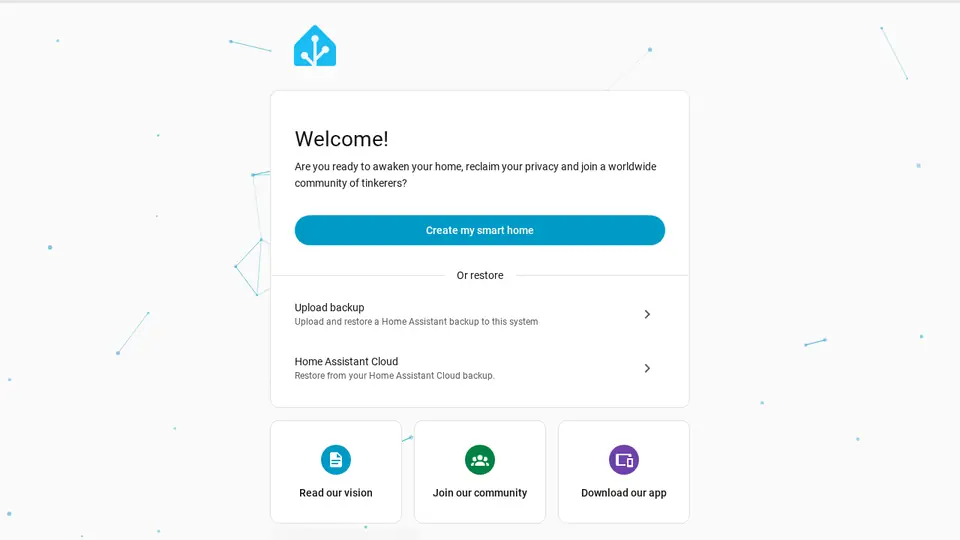
Real screenshot of Home Assistant from a Companion Hub QA run. Not a recording of this family. 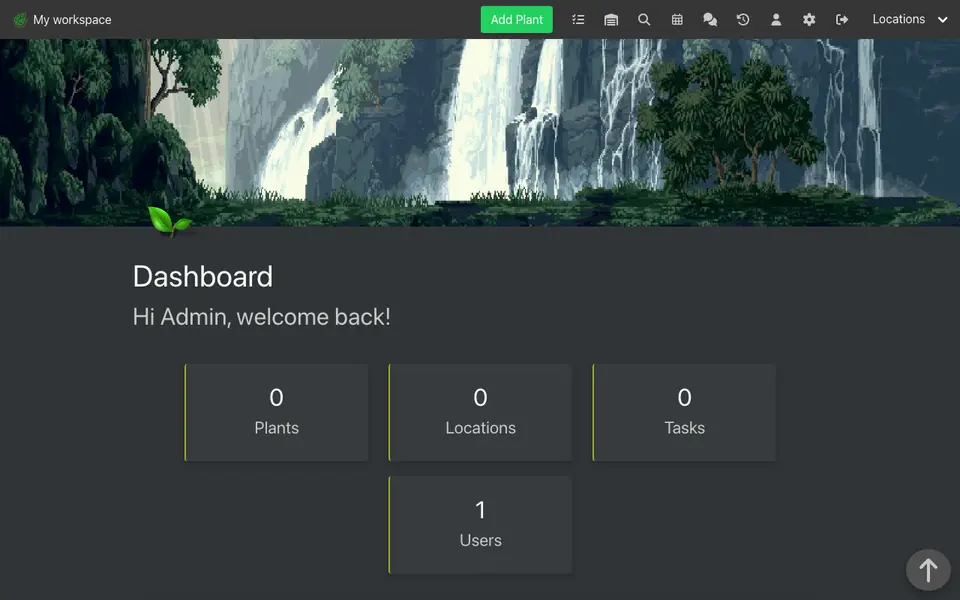
Real screenshot of HortusFox from a Companion Hub QA run. Not a recording of this family.
Zuri
BabyAge 0Bedroom & nursery
Rented before, on the Core now
Rented before
- Apple Podcasts
On the Core now
 Audiobookshelf
-
Zuri sleeps halfway through a rhyme
After the morning feed, Zuri falls asleep in the glider halfway through a rhyme podcast. Audiobookshelf keeps the place, and the episodes are downloaded to the Core.
Watch this momentAudiobookshelfreplaces Apple Podcasts
The home
- 1 storey
- 136 m²
- 9 rooms
Scroll the plan sideways to see all of it.
A diagram of the rooms, drawn from the home’s layout. It leaves out walls, doors and stairs. The pins show the room each person uses, and the small box marks the Companion Core.
What runs on the Core
One Companion Core in the house runs these apps. Each is in the Companion Hub store. Other software is named in text, for what it replaces.
- HermesFrom Nous Research
- ImmichReplaces Google Photos
- DuplicatiReplaces Backblaze
- Home AssistantReplaces Google Home
- GiteaReplaces GitHub
- n8nReplaces Zapier
- Joplin ServerReplaces Evernote
- HortusFox
- KitchenOwl
- NextcloudReplaces iCloud
- AudiobookshelfReplaces Apple Podcasts
- Koodo ReaderReplaces Amazon Kindle
The other apps in these stories are made by other people, most of them open-source projects. Companion Intelligence did not make them. A logo belongs to its project. It shows which app is named beside it.
How it runs
Two pieces do the work. One runs on the Core. The other keeps track of your devices.
Companion Hub
Companion Hub is where you install apps on the Core. Pick one in the Companion Hub store and Hub sets it up. Installing apps uses the internet.
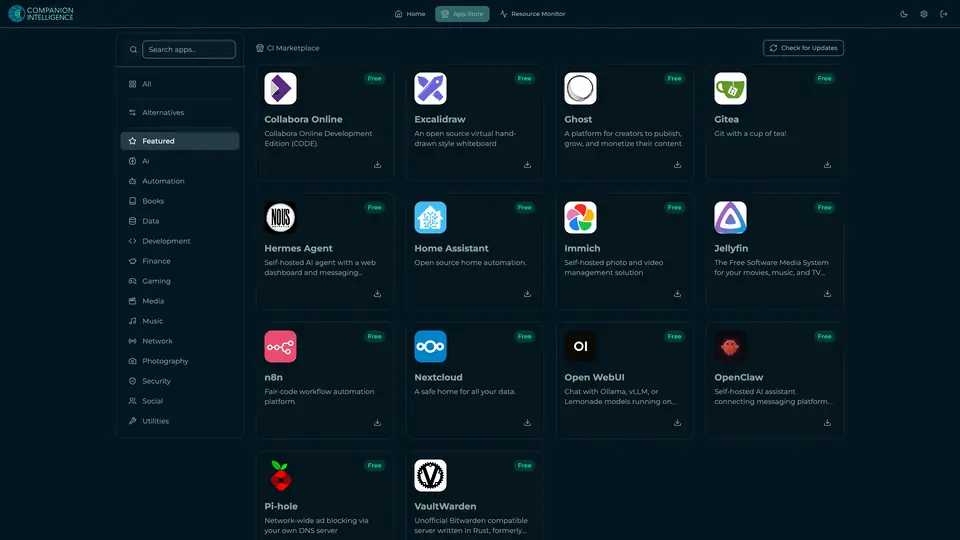
Real screenshot of Companion Hub from a product tutorial capture. Not a recording of this family. 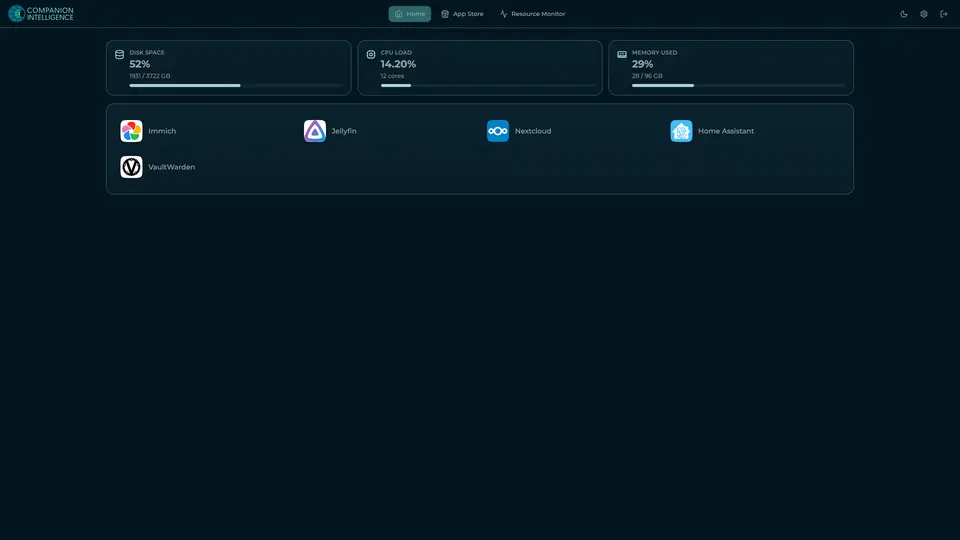
Real screenshot of Companion Hub from a product tutorial capture, with sample data. The disk, CPU and memory figures are the capture machine's, not a Companion Core spec. Not a recording of this family.
Companion account
Your Companion account pairs your devices with the Hub and lists them. The apps and their files stay on the Core.
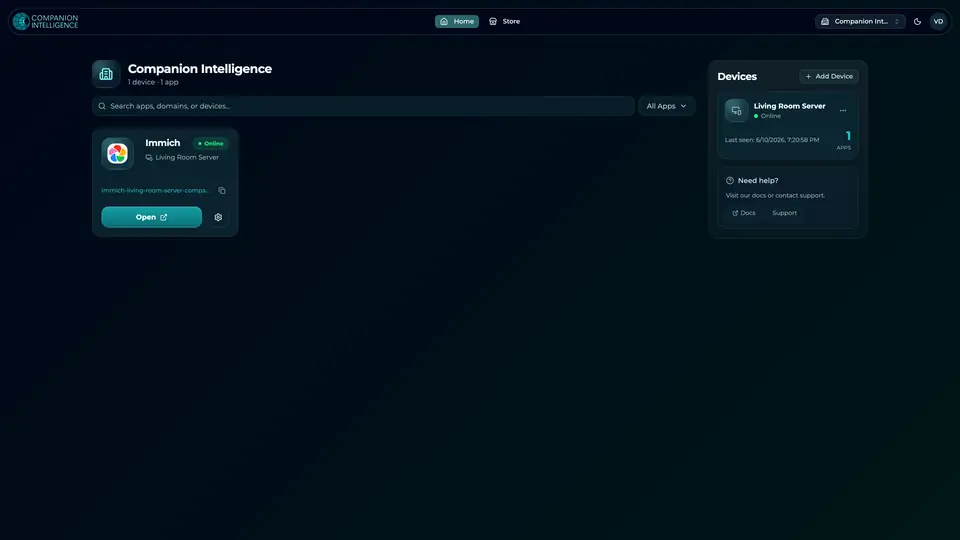
Real screenshot of the Companion account page from a product tutorial capture, with sample data. Not a recording of this family. 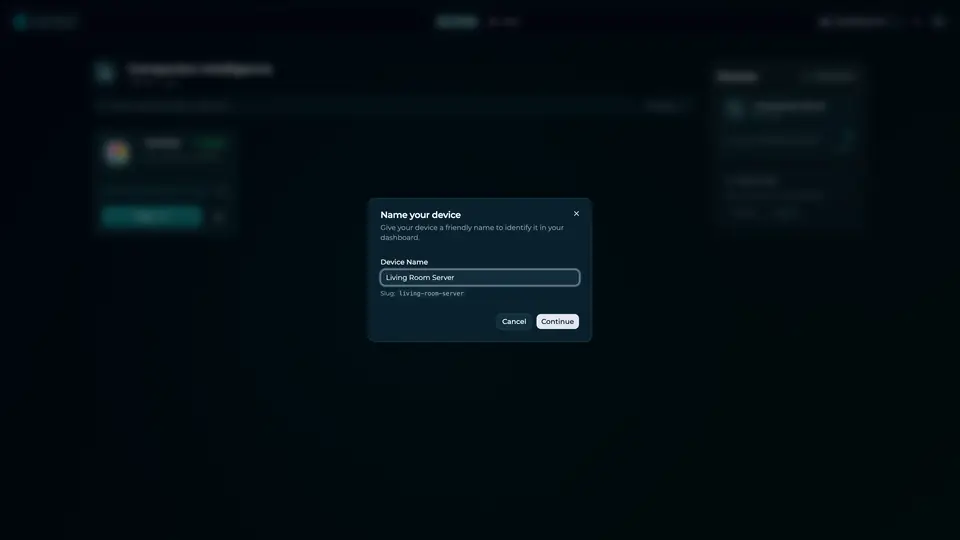
Real screenshot of the Companion account page from a product tutorial capture, with sample data. Not a recording of this family.
How the Core starts
-
Plug it in.
The parcel holds the Companion Core, a power cable, a quick-start guide and a recovery USB drive. Companion OS is already on its drive. Plug it in and press the button.
-
Join its Wi-Fi.
The Core opens its own Wi-Fi network. Join it from a phone, choose your home network from the list and enter its password.
-
Pick your apps and run.
In the Companion Hub store, pick your first agents and apps. Then walk away. Installing apps uses the internet.
Some steps use the internet: installing apps from the Companion Hub store, and any website or messaging service your agent talks to.
UnCloud your life.
Your code, shopping lists, pictures and plants can sit on one Companion Core at home. Browse the Companion Hub store, and pick the first apps for your house.