
Fictional family. Real software.
The Hwang family
Three people, one Companion Core, and a house on a knoll above the water.
17 Quillmere Rise, Sorrelby
 Interactive 3D tour
- Companion OS, Companion Memory and Companion Agents are in beta.
Meet the family
Minjung keeps the household running from the dining table, and Jiho builds apps in the little study. Yuna, eight, reads in her room upstairs. One Companion Core sits in the living room.
Minjung
OrganiserAge 40Dining
School administrator.
Poppy is Minjung’s Hermes agent. Drafts replies to the piano teacher and the swimming club from Minjung’s short notes. Drafts only. Minjung reads and sends every message.
Rented before, on the Core now
Rented before
- AnyList
- Notion
- Evernote
- Google Home
On the Core now
 Hermes
 Grocy
 BookStack
 Paperless-ngx
 Home Assistant
-
The kitchen
Minjung adds rice to the list
Tuesday afternoon, the rice runs low. Minjung marks it at the breakfast bar in Grocy, which keeps the pantry stock and shopping list on the Core.
Watch this momentGrocyreplaces AnyList -
Minjung starts with the pump
For the guests, the water shutoff and pool pump restart go on page one. Minjung writes the manual in BookStack, which keeps it on the Core.
Watch this momentBookStackreplaces Notion -
Poppy drafts the reply
The piano teacher asks to move Thursday’s lesson. Poppy drafts the reply on the Core’s local model. Minjung reads it, changes one word and sends it herself.
HermesScripted Poppy: “Here is a draft reply. Please read it before you send it.”
Messages pass through the chat service you choose.
Watch this moment -
Minjung scans the mooring letter
A mooring fee letter and a swimming form get scanned at the dining table. Paperless-ngx reads them on the Core, and Minjung finds the letter later by a word.
Watch this momentPaperless-ngxreplaces Evernote -
Out by the pools
Minjung sets the pump timer
Friday morning, Minjung plugs the pool pump into a smart plug. Home Assistant on the Core runs the timer, and Home Assistant itself needs no cloud account.
Watch this momentHome Assistantreplaces Google Home
Real screenshots of Minjung’s apps
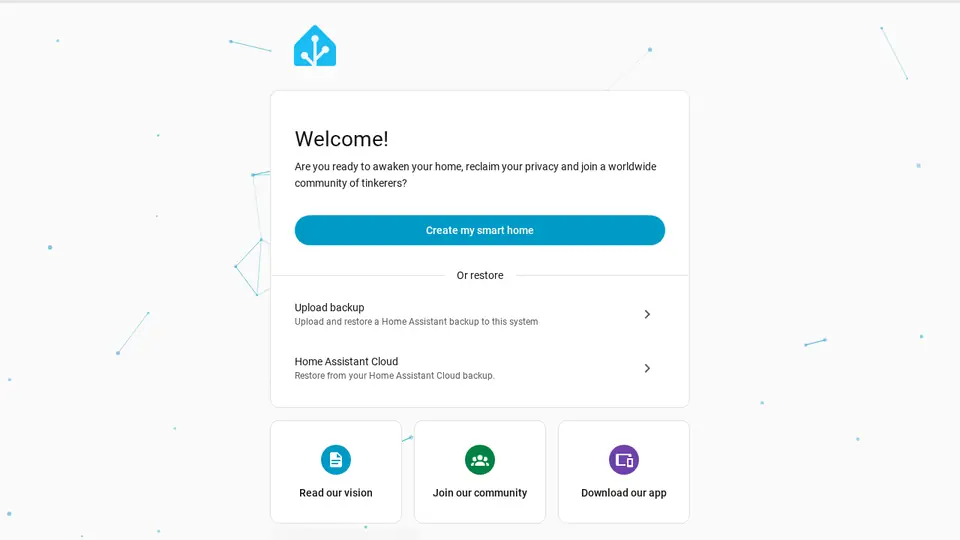
Real screenshot of Home Assistant from a Companion Hub QA run. Not a recording of this family.
Jiho
BuilderAge 42Study
Mobile developer.
Linnet is Jiho’s Hermes agent. Drafts changelogs and commit notes from Jiho’s rough fix notes. Drafts only. Jiho reads every word before it is used.
Rented before, on the Core now
Rented before
- Spotify
- AdGuard
- Backblaze
- Ring
- GitHub
On the Core now
 Navidrome
 Pi-hole
 Duplicati
 Frigate
 Forgejo
- Hermes
 JupyterLab
-
The living room
Jiho queues the weekend playlist
Saturday morning light crosses the grand piano as Jiho chooses the weekend playlist from the sofa. Navidrome plays the family’s own music files from the Core.
Watch this momentNavidromereplaces Spotify -
The living room
Jiho points the router at Pi-hole
From the loveseat, Jiho sets the router to ask Pi-hole for web addresses. Pi-hole on the Core blocks ad and tracker domains for devices that use it for DNS.
Watch this momentPi-holereplaces AdGuard -
The dining room
Jiho backs up the manual
Jiho sets a weekly backup of Minjung’s manual and scans. Duplicati encrypts them before they leave the Core, and the copy lands on a disk plugged into it.
Watch this momentDuplicatireplaces Backblaze -
Out by the pools
Jiho checks the terrace camera
A cushion keeps ending up in the upper pool, so Jiho checks the terrace camera. Frigate recorded an otter, and the clip stays on the Core.
Watch this momentFrigatereplaces Ring -
One bug left before lunch
One tide table bug is left, so Jiho pushes the fix before lunch. Forgejo keeps the code and issues on the Core, not on a rented code host.
Watch this momentForgejoreplaces GitHub -
Linnet drafts the changelog
Jiho types his fix notes to Linnet in his browser. Linnet drafts the changelog on the Core’s local model, and Jiho reads it before he pastes it into Forgejo himself.
HermesScripted Linnet: “Here is the changelog. Please read it before you paste it.”
Watch this moment -
Jiho hunts a late tide table
One tide table comes out an hour late. Jiho reruns the sums in JupyterLab, then asks a model on the Core, through Open WebUI, what he missed.
Watch this momentJupyterLab
Real screenshots of Jiho’s apps
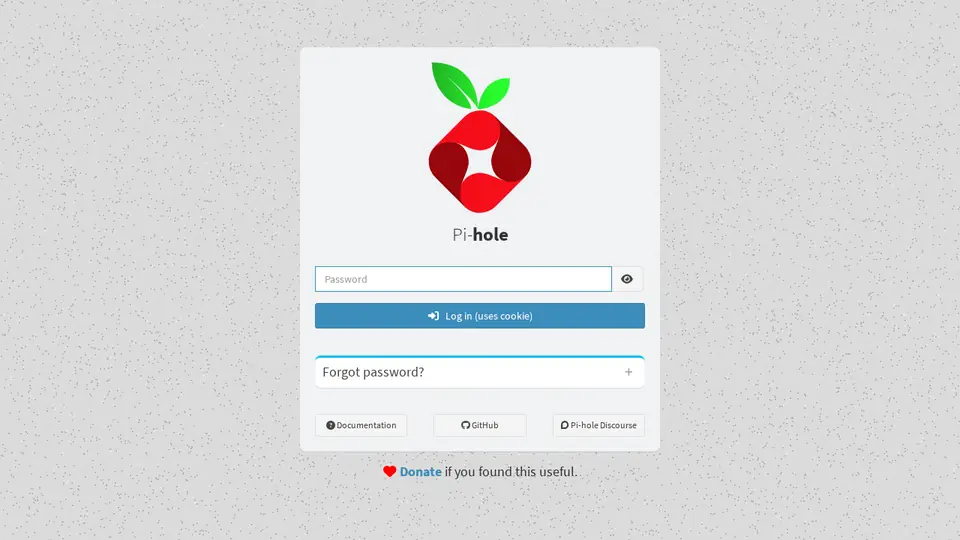
Real screenshot of Pi-hole from a Companion Hub QA run. Not a recording of this family. 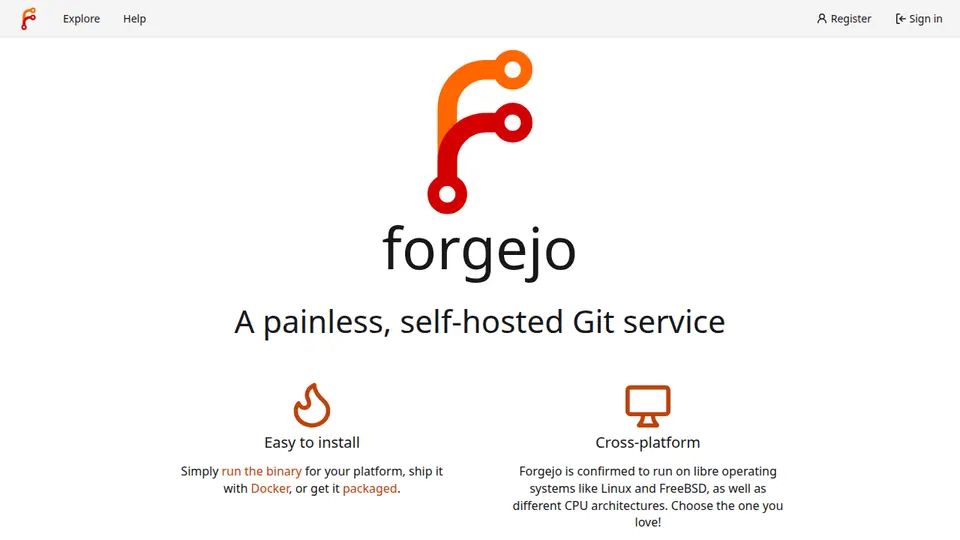
Real screenshot of Forgejo from a Companion Hub QA run. Not a recording of this family.
Yuna
LearnerAge 8Kids room
Primary school.
Rented before, on the Core now
Rented before
- OurHome
- Google Translate
- Amazon Kindle
On the Core now
 Donetick
- Kokoro
 LibreTranslate
 Koodo Reader
-
The kitchen
Yuna ticks off the fruit bowl
Setting out the fruit bowl is Yuna’s Wednesday job. She holds the family phone to a tag on the fridge. The Donetick rota on the Core marks it done.
Watch this momentDonetickreplaces OurHome -
Yuna hears her otter story
Yuna types three lines about the otter on the terrace. Kokoro on the Core speaks them back, and she fixes the funniest sentence.
Kokoro
Watch this moment -
Yuna writes the card first
For her grandmother’s birthday, Yuna writes a card in Korean, then checks it in LibreTranslate. Its language models were downloaded once, and the Core does the translating.
Watch this momentLibreTranslatereplaces Google Translate -
Yuna has the page read aloud
Beside the low bookshelf, Yuna opens the family’s own ebooks in Koodo Reader and has it read the page aloud. The library lives on the Core.
Watch this momentKoodo Readerreplaces Amazon Kindle
The home
- 3 storeys
- 331 m²
- 17 rooms
Scroll the plan sideways to see all of it.
Scroll the plan sideways to see all of it.
Scroll the plan sideways to see all of it.
A diagram of the rooms, drawn from the home’s layout. It leaves out walls, doors and stairs. The pins show the room each person uses, and the small box marks the Companion Core.
What runs on the Core
One Companion Core in the house runs these apps. Each is in the Companion Hub store. Other software is named in text, for what it replaces.
- HermesFrom Nous Research
- NavidromeReplaces Spotify
- Pi-holeReplaces AdGuard
- GrocyReplaces AnyList
- DonetickReplaces OurHome
- BookStackReplaces Notion
- Paperless-ngxReplaces Evernote
- DuplicatiReplaces Backblaze
- FrigateReplaces Ring
- Home AssistantReplaces Google Home
- ForgejoReplaces GitHub
- JupyterLab
- Kokoro
- LibreTranslateReplaces Google Translate
- Koodo ReaderReplaces Amazon Kindle
The other apps in these stories are made by other people, most of them open-source projects. Companion Intelligence did not make them. A logo belongs to its project. It shows which app is named beside it.
How it runs
Two pieces do the work. One runs on the Core. The other keeps track of your devices.
Companion Hub
Companion Hub is where you install apps on the Core. Pick one in the Companion Hub store and Hub sets it up. Installing apps uses the internet.
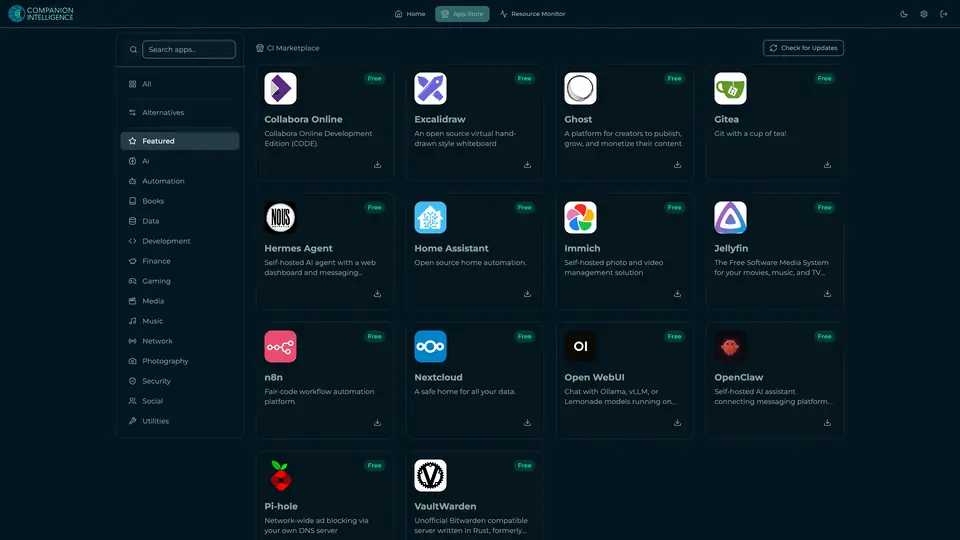
Real screenshot of Companion Hub from a product tutorial capture. Not a recording of this family. 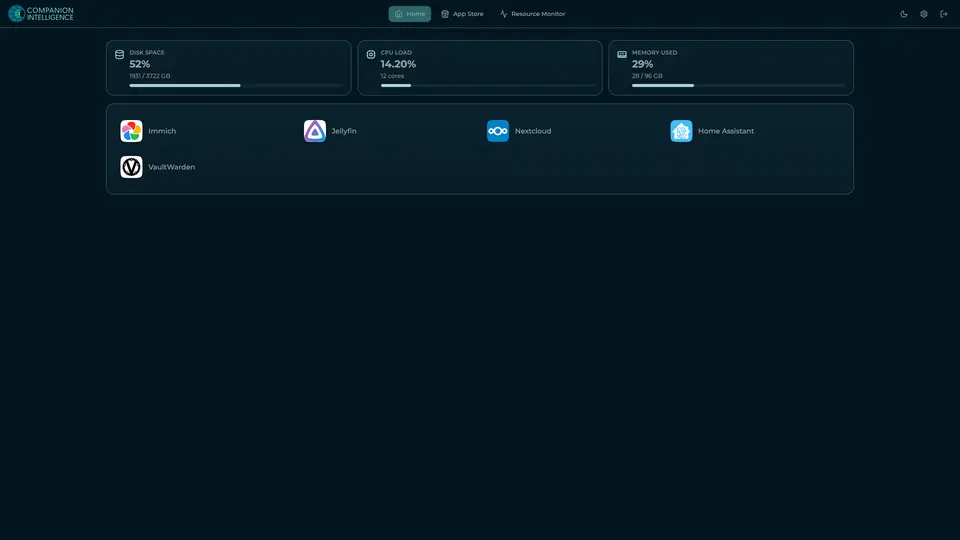
Real screenshot of Companion Hub from a product tutorial capture, with sample data. The disk, CPU and memory figures are the capture machine's, not a Companion Core spec. Not a recording of this family.
Companion account
Your Companion account pairs your devices with the Hub and lists them. The apps and their files stay on the Core.
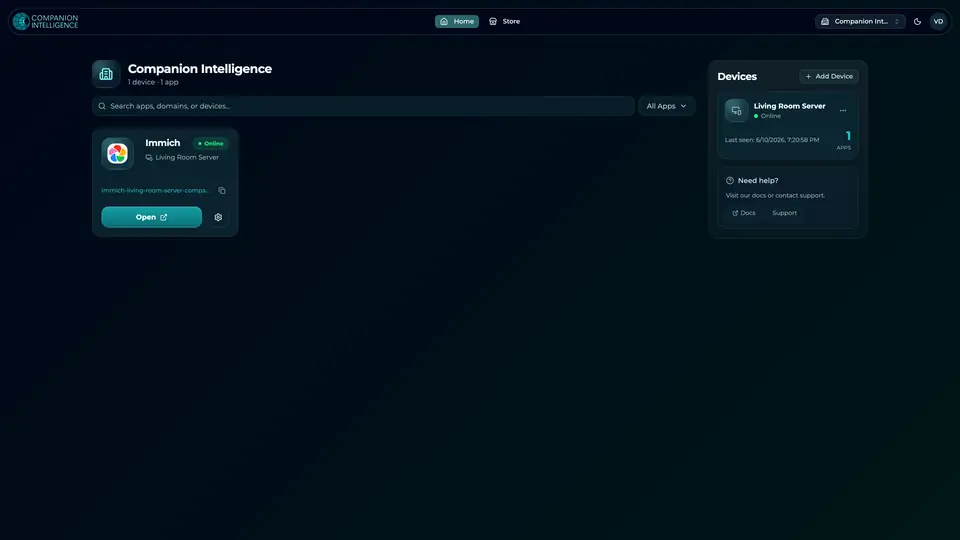
Real screenshot of the Companion account page from a product tutorial capture, with sample data. Not a recording of this family. 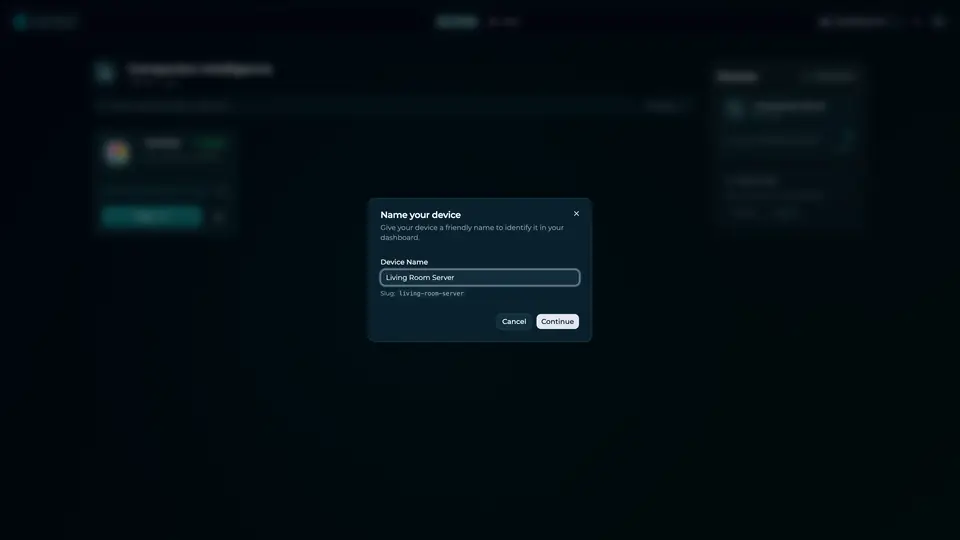
Real screenshot of the Companion account page from a product tutorial capture, with sample data. Not a recording of this family.
How the Core starts
-
Plug it in.
The parcel holds the Companion Core, a power cable, a quick-start guide and a recovery USB drive. Companion OS is already on its drive. Plug it in and press the button.
-
Join its Wi-Fi.
The Core opens its own Wi-Fi network. Join it from a phone, choose your home network from the list and enter its password.
-
Pick your apps and run.
In the Companion Hub store, pick your first agents and apps. Then walk away. Installing apps uses the internet.
Some steps use the internet: installing apps from the Companion Hub store, and any website or messaging service your agent talks to.
UnCloud your life.
Your house manual, camera clips, code and read-aloud stories can sit on a Companion Core. Browse the Companion Hub store and pick your first apps.