
Fictional family. Real software.
The Iyer family
A translator, a sound designer and two children share one Companion Core.
9 Copperwing Rise, Tarrow Heights
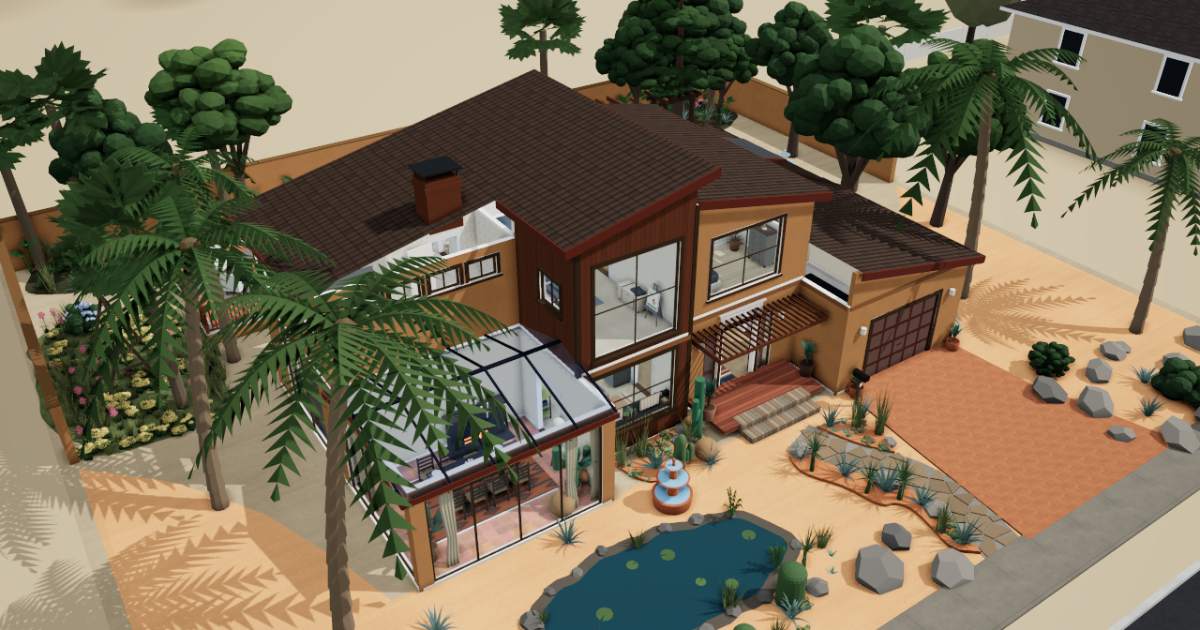 Interactive 3D tour
- Companion OS, Companion Memory and Companion Agents are in beta.
Meet the family
Meenakshi runs a translation and tutoring agency from the conservatory table, and Ravi designs sound upstairs beside a record player. Arjun, fifteen, plays in the guest bedroom, and Kavya, ten, studies at her desk. One Companion Core sits on a credenza in the living room.
Meenakshi
OrganiserAge 45Conservatory dining
Translator, runs a small agency.
Clover is Meenakshi’s Hermes agent. Drafts reply messages to Meenakshi’s clients and pupils from her notes. Writes drafts and nothing more. Meenakshi sends each reply herself.
Rented before, on the Core now
Rented before
- Google Translate
- Microsoft Office
- Google Drive
On the Core now
 Hermes
 LibreTranslate
 ONLYOFFICE Desktop Editors
 Nextcloud
-
The brochure gets a first pass
A client’s brochure arrives in Spanish. Meenakshi runs a first pass in LibreTranslate, then polishes it herself. The models were downloaded once, so the Core does the translating.
Watch this momentLibreTranslatereplaces Google Translate -
Meenakshi moves a lesson
By the fireplace, Meenakshi names two free slots for a pupil’s parent. Clover drafts the reply on the Core’s local model, and Meenakshi reads it and sends it herself.
HermesScripted Clover: “Here is a draft with both slots. Please read it before you send it.”
Messages pass through the chat service you choose.
Watch this moment -
Meenakshi lays out a bilingual contract
Two languages, two columns. Meenakshi lays out a client’s contract in ONLYOFFICE Desktop Editors, which runs on the Core and shows in her browser.
Watch this momentONLYOFFICE Desktop Editorsreplaces Microsoft Office -
The old glossary is still there
A client returns after a year. Meenakshi opens the old folder in Nextcloud. The glossary she built is saved on the Core, not in a rented drive.
Watch this momentNextcloudreplaces Google Drive
Ravi
MakerAge 47Primary bedroom
Sound designer.
Maple is Ravi’s Hermes agent. Drafts delivery notes for Ravi’s sound packs from his file lists. Drafts only. Ravi reads each note and sends it himself.
Rented before, on the Core now
Rented before
- Spotify
- Adobe Audition
On the Core now
 Navidrome
 ntfy
 AudioMass
 Companion Planning
- Hermes
-
The living room
Ravi finds the song Kavya hummed
On the chesterfield, Ravi finds the song Kavya hummed at breakfast. Navidrome serves his own music files from the Core to the phone in his hand.
Watch this momentNavidromereplaces Spotify -
The kitchen
Ravi sends the lunch bell
At the range, Ravi runs a one-line script that sends ‘lunch’ to the family’s phones through ntfy. The ntfy server that delivers it runs on the Core.
Watch this momentntfy -
Ravi trims a record he copied
Beside the record player, Ravi trims a record he copied to files. The Core serves AudioMass, and the trimming happens in his browser tab.
Watch this momentAudioMassreplaces Adobe Audition -
Ravi fits the recording week
On Monday morning, Ravi fits the week’s recording hours into Companion Planning, one local file on the Core. He leaves Thursday afternoon empty for retakes.
Watch this momentCompanion Planning -
Maple drafts the delivery note
A studio is waiting for a pack of door sounds. Ravi lists the files, and Maple drafts the delivery note on the Core’s local model. Ravi sends it himself.
HermesScripted Maple: “The note names the pack and lists the files. Read it, then send it.”
Messages pass through the chat service you choose.
Watch this moment
Real screenshots of Ravi’s apps
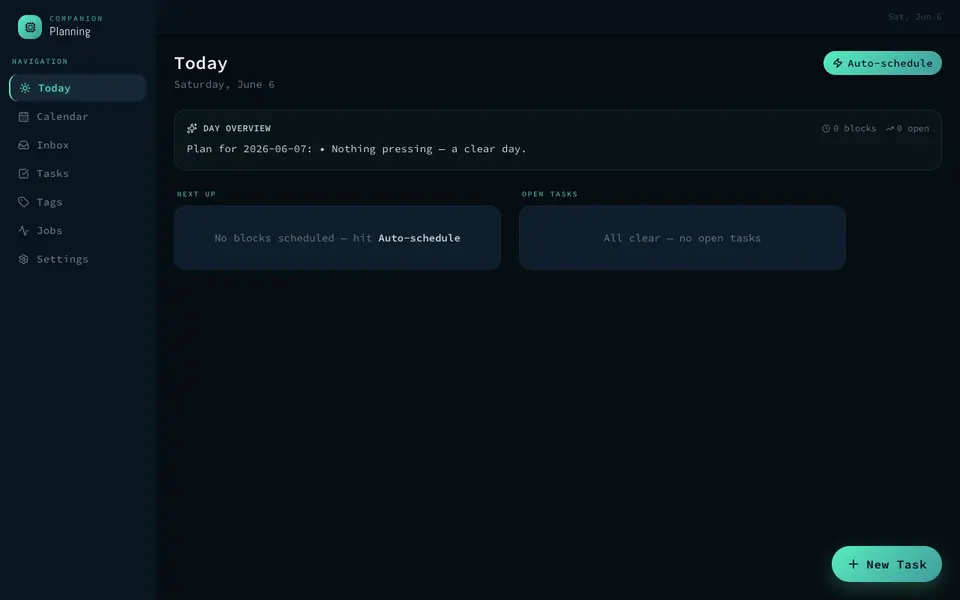
Real screenshot of Companion Planning from a Companion Hub QA run. Not a recording of this family.
Arjun
GamerAge 15Guest bedroom
Secondary school.
Rented before, on the Core now
Rented before
- OurHome
- GeForce Now
- LastPass
- Google Photos
On the Core now
 HomeHub
 Steam Headless
 VaultWarden
 Immich
-
The conservatory table
Arjun clears, then ticks it off
After breakfast it is Arjun’s turn to clear the table. He ticks the chore off in HomeHub, and the family’s chore list is served from the Core.
Watch this momentHomeHubreplaces OurHome -
Arjun’s game runs downstairs
Saturday afternoon, Arjun opens his Steam library in a browser on the bed. Steam Headless runs the session on the Core downstairs.
Steam Headlessreplaces GeForce NowSteam needs a Valve account.
Watch this moment -
Arjun’s game password joins the vault
Arjun keeps forgetting his Valve password. He saves it in the family’s VaultWarden vault, which works with the Bitwarden apps and lives on the Core.
Watch this momentVaultWardenreplaces LastPass -
Arjun backs up a painting
On his bed, Arjun looks over the pictures he took of Kavya’s finished painting. Over the home network, his phone backs them up to Immich on the Core.
Watch this momentImmichreplaces Google Photos
Real screenshots of Arjun’s apps
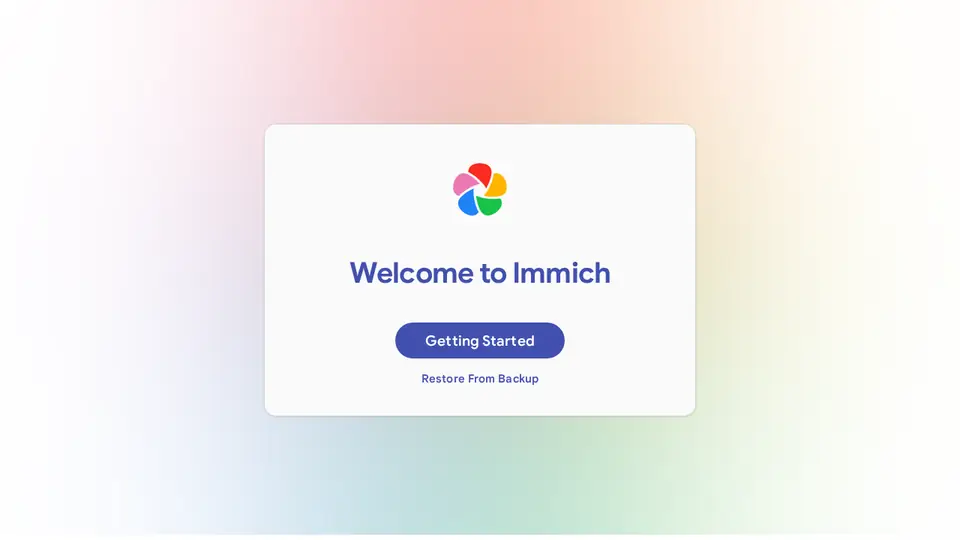
Real screenshot of Immich from a Companion Hub QA run. Not a recording of this family.
Kavya
LearnerAge 10Kids' room
Primary school.
Rented before, on the Core now
Rented before
- Cozi
- Google Translate
- Notion
On the Core now
- HomeHub
- Razzia
- LibreTranslate
 Obsidian
 HortusFox
-
The kitchen
Kavya adds tamarind to the list
At the fridge, Kavya sees the tamarind is nearly gone and adds it to the HomeHub list. Meenakshi reads the list, served from the Core, before she shops.
Watch this momentHomeHubreplaces Cozi -
Kavya and Arjun settle it
Kavya and Arjun argue over who knows more. She sets questions in Razzia, and he answers from his own device, with the Core serving the quiz.
Razzia
Watch this moment -
Kavya labels her frog painting
By the easel, Kavya types frog into LibreTranslate and letters the Spanish word, rana, under her painting. Its language models were downloaded once, so the translating happens at home.
Watch this momentLibreTranslatereplaces Google Translate -
Kavya keeps a reading journal
After school, Kavya adds a line about her library book to her Obsidian journal. It is a plain Markdown note on the Core, readable in any text editor.
Watch this momentObsidianreplaces Notion -
Out by the pool
Kavya waters, then writes it down
After school, Kavya waters the planter by the pool and notes it in HortusFox. The planter’s care history lives on the Core.
Watch this momentHortusFox
Real screenshots of Kavya’s apps
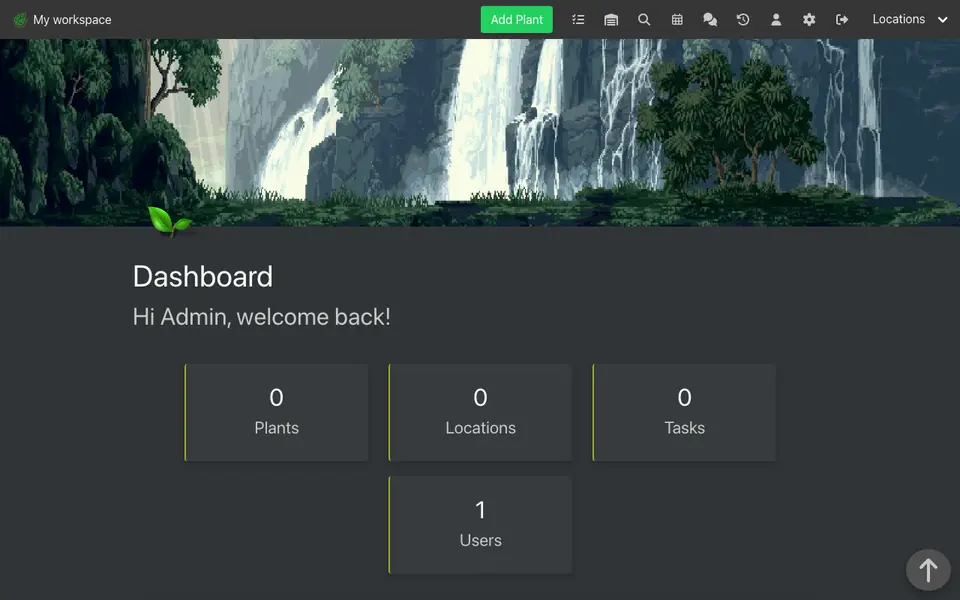
Real screenshot of HortusFox from a Companion Hub QA run. Not a recording of this family.
The home
- 2 storeys
- 280 m²
- 17 rooms
Scroll the plan sideways to see all of it.
Scroll the plan sideways to see all of it.
A diagram of the rooms, drawn from the home’s layout. It leaves out walls, doors and stairs. The pins show the room each person uses, and the small box marks the Companion Core.
What runs on the Core
One Companion Core in the house runs these apps. Each is in the Companion Hub store. Other software is named in text, for what it replaces.
- HermesFrom Nous Research
- NavidromeReplaces Spotify
- LibreTranslateReplaces Google Translate
- HomeHubReplaces OurHome
- ONLYOFFICE Desktop EditorsReplaces Microsoft Office
- NextcloudReplaces Google Drive
- ntfy
- Steam HeadlessReplaces GeForce Now
- VaultWardenReplaces LastPass
- ImmichReplaces Google Photos
- Razzia
- ObsidianReplaces Notion
- AudioMassReplaces Adobe Audition
- Companion PlanningFirst party
- HortusFox
The other apps in these stories are made by other people, most of them open-source projects. Companion Intelligence did not make them. A logo belongs to its project. It shows which app is named beside it.
How it runs
Two pieces do the work. One runs on the Core. The other keeps track of your devices.
Companion Hub
Companion Hub is where you install apps on the Core. Pick one in the Companion Hub store and Hub sets it up. Installing apps uses the internet.
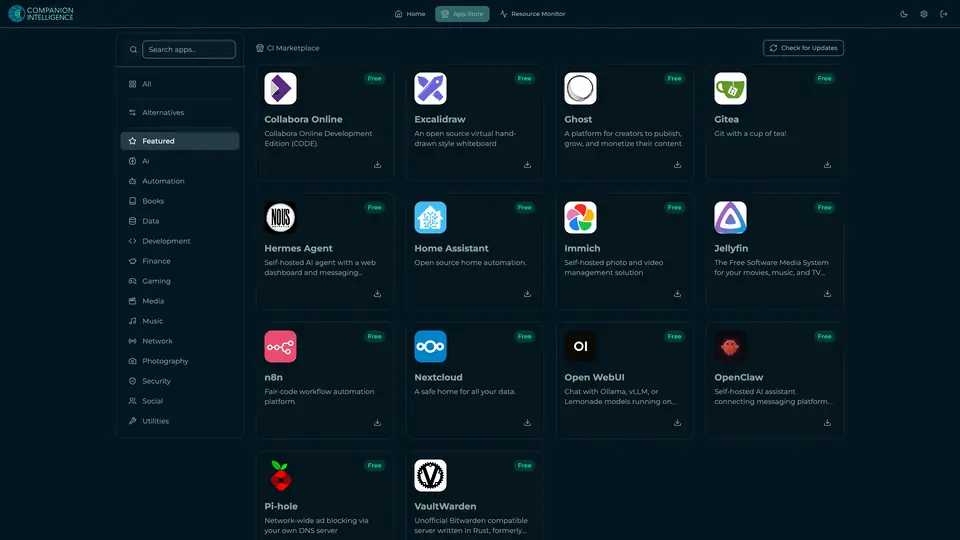
Real screenshot of Companion Hub from a product tutorial capture. Not a recording of this family. 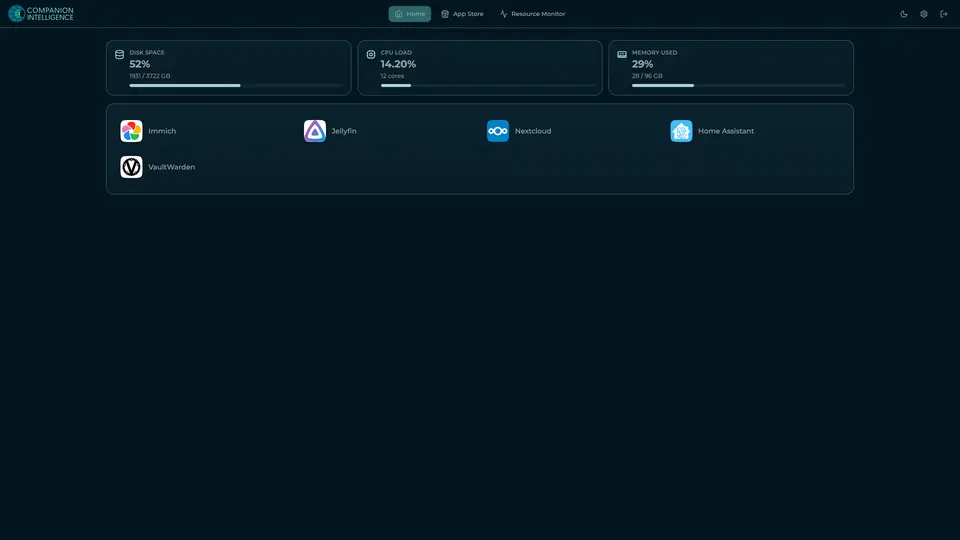
Real screenshot of Companion Hub from a product tutorial capture, with sample data. The disk, CPU and memory figures are the capture machine's, not a Companion Core spec. Not a recording of this family.
Companion account
Your Companion account pairs your devices with the Hub and lists them. The apps and their files stay on the Core.
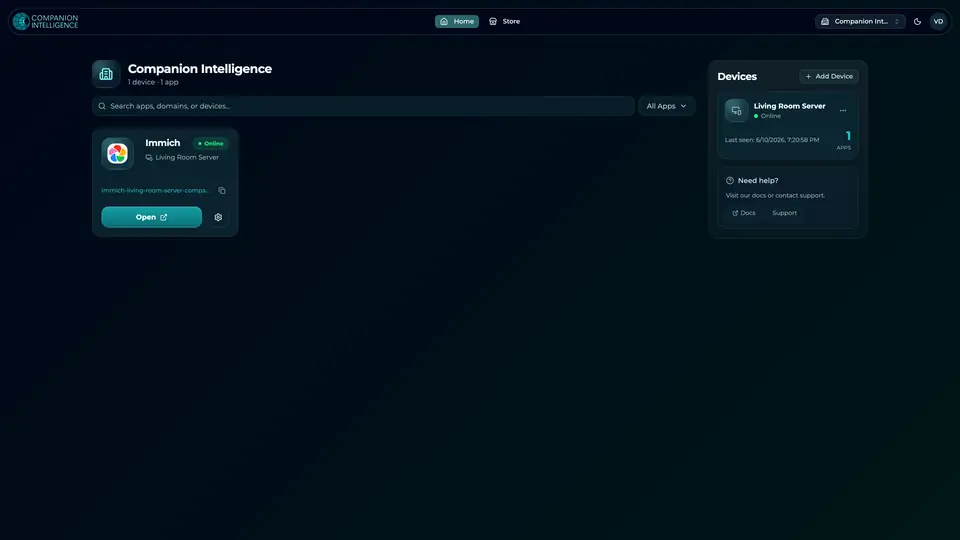
Real screenshot of the Companion account page from a product tutorial capture, with sample data. Not a recording of this family. 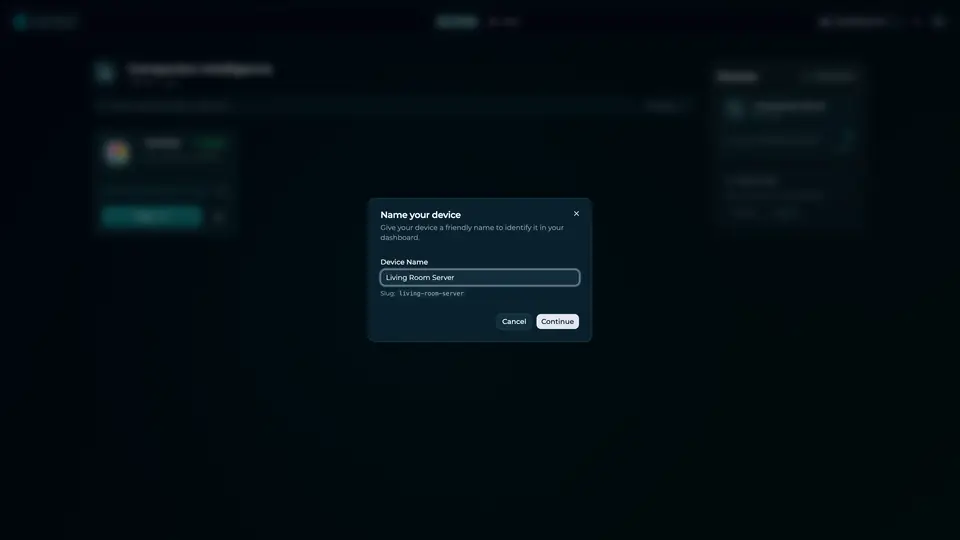
Real screenshot of the Companion account page from a product tutorial capture, with sample data. Not a recording of this family.
How the Core starts
-
Plug it in.
The parcel holds the Companion Core, a power cable, a quick-start guide and a recovery USB drive. Companion OS is already on its drive. Plug it in and press the button.
-
Join its Wi-Fi.
The Core opens its own Wi-Fi network. Join it from a phone, choose your home network from the list and enter its password.
-
Pick your apps and run.
In the Companion Hub store, pick your first agents and apps. Then walk away. Installing apps uses the internet.
Some steps use the internet: installing apps from the Companion Hub store, and any website or messaging service your agent talks to.
UnCloud your life.
Your client work, family music and homework can live on a Companion Core at home. Pick your apps in the Companion Hub store.