
Fictional family. Real software.
The Haddad family
A visualisation studio, three people and one Companion Core in the Den.
17 Hawkmoor Row, Thistlemere
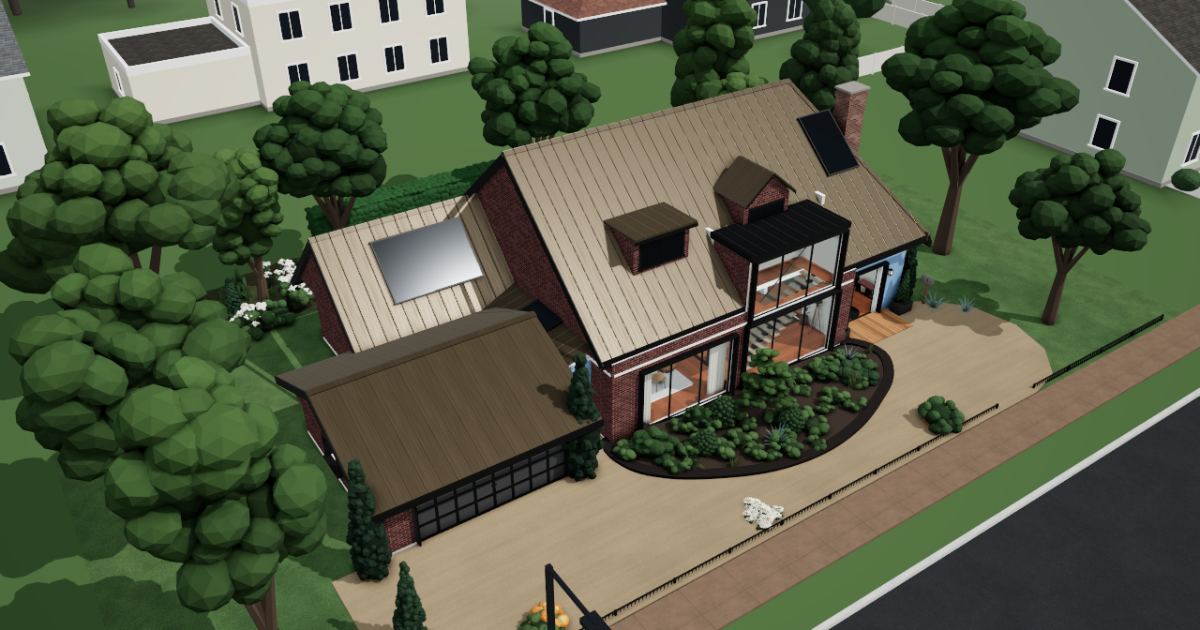 Interactive 3D tour
- Companion OS, Companion Memory and Companion Agents are in beta.
Meet the family
Dalia runs an architectural visualisation studio from the Den, and Samir is its technical lead. Their daughter Yasmin studies geography upstairs. One Companion Core serves all three.
Dalia
OrganiserAge 46Den
Runs a visualisation studio.
Pippin is Dalia’s OpenClaw agent. Fills in Twenty and supplier forms in its own browser from what Dalia tells it. Prepares entries only. Dalia checks every field and presses send.
Rented before, on the Core now
Rented before
- Salesforce
- Dropbox
- Amazon Kindle
- Rocket Money
- Cozi
On the Core now
 OpenClaw WebCLI
 Twenty
 Nextcloud
 Koodo Reader
 Wallos
 HomeHub
-
Dalia checks Pippin’s entries
An architect writes about a courtyard house. Pippin opens Twenty on the Core and enters the contact and the deal. Dalia checks every field.
Watch this momentTwentyreplaces Salesforce -
The brief gets its own folder
Beside the bookshelf, Dalia drops the brief and site photographs into a project folder in Nextcloud. A cloud drive would have held them; here they sit on the Core.
Watch this momentNextcloudreplaces Dropbox -
The lounge
Dalia finishes her novel
Saturday afternoon, Dalia curls into the corner of the sofa with a novel from the family’s own library. Koodo Reader serves that library from the Core.
Watch this momentKoodo Readerreplaces Amazon Kindle -
At the dining table
Dalia asks Samir about a renewal
Wallos, running on the Core, reminds Dalia a week before the studio’s texture library renews. She asks Samir whether anyone still opens it, and they decide together.
Watch this momentWallosreplaces Rocket Money -
The kitchen
Dalia rescues the cream
At the fridge, Dalia finds the cream a day from its date. She noted it in HomeHub on the Core, and it goes into the lunch sauce.
Watch this momentHomeHubreplaces Cozi
Samir
BuilderAge 48Lounge
Technical lead at the studio.
Nutmeg is Samir’s OpenClaw agent. Reads release notes in its own browser and lists the changes Samir asks about. Reads and lists only. Samir decides what to update.
Rented before, on the Core now
Rented before
- Lucidchart
- GitHub
- Datadog
On the Core now
 draw.io
 Forgejo
- OpenClaw WebCLI
 Uptime Kuma
 HortusFox
-
The Den
The delivery steps get redrawn
Samir opens draw.io from the Core on his laptop and draws the delivery steps. Dalia moves one box, and he saves the diagram as a file on the laptop.
Watch this momentdraw.ioreplaces Lucidchart -
Samir tags the export script
Friday afternoon, the export script runs clean. Samir tags it and pushes it to Forgejo from the sofa. The history stays on the Core.
Watch this momentForgejoreplaces GitHub -
Nutmeg reads the release notes
The studio’s render plug-in has a new release. Samir’s agent Nutmeg reads the notes in its own browser and lists the changes. Samir decides whether to update.
OpenClaw
Scripted Nutmeg: “That is the list of changes. Whether to update is your decision.”
OpenClaw reaches websites over your home internet.
Watch this moment -
The garage
Samir sets up the checks
Before a client review, Samir stands at the garage workbench and adds the Core’s apps to Uptime Kuma. The checks run from the Core, inside the home network.
Watch this momentUptime Kumareplaces Datadog -
The front garden
Saturday’s trim goes in the journal
On Saturday morning, Samir clips the round topiary in the front bed. He writes the date in the HortusFox journal on the Core.
Watch this momentHortusFox
Real screenshots of Samir’s apps
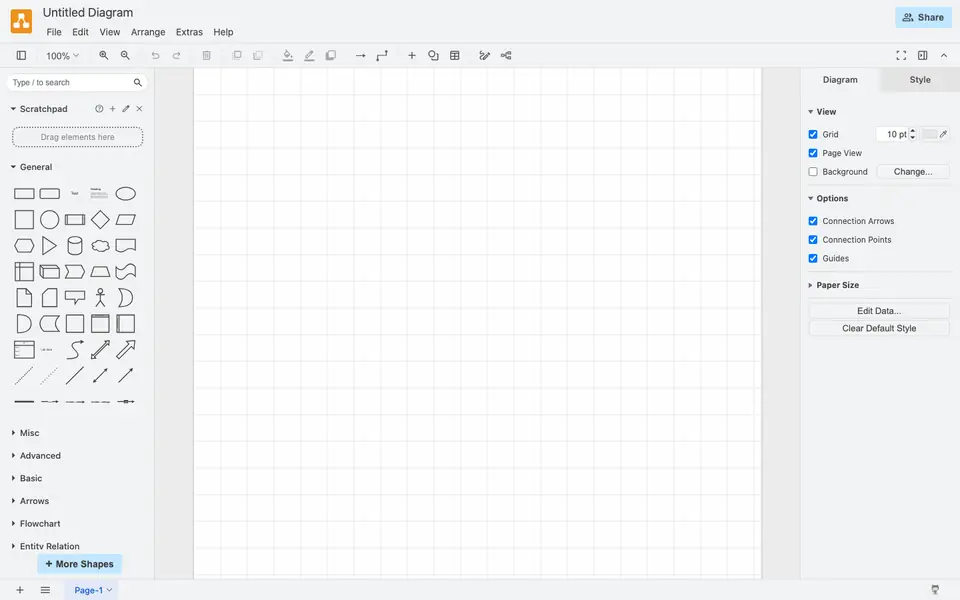
Real screenshot of draw.io from a Companion Hub QA run. Not a recording of this family. 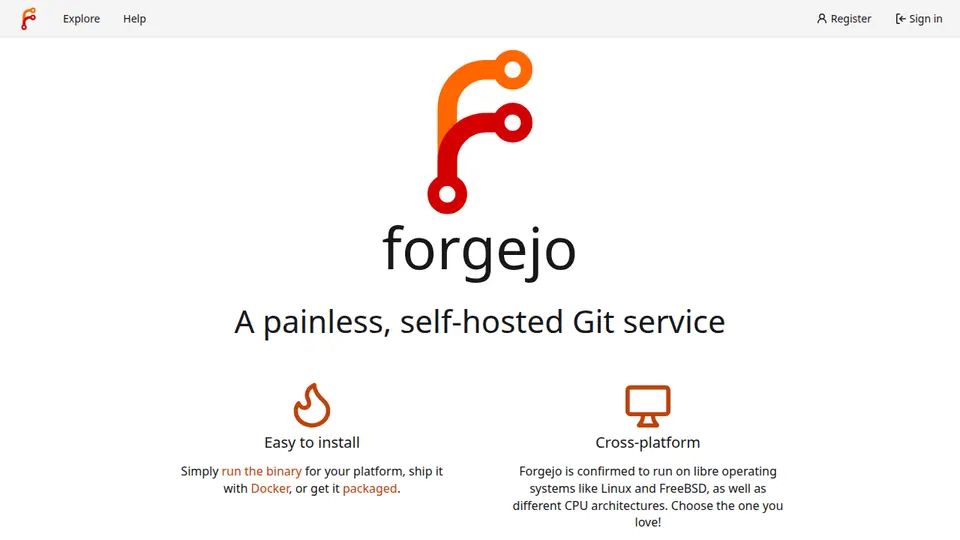
Real screenshot of Forgejo from a Companion Hub QA run. Not a recording of this family. 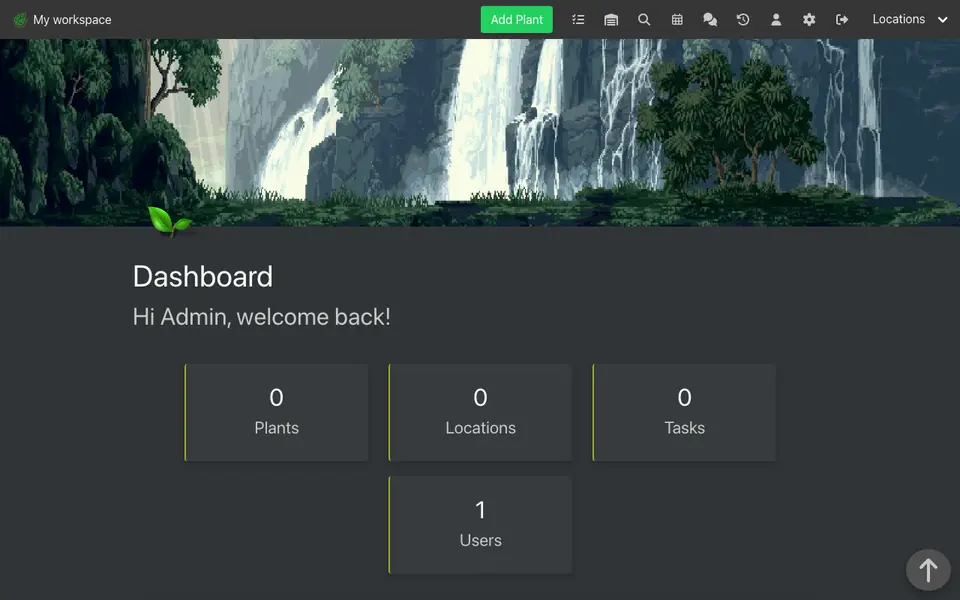
Real screenshot of HortusFox from a Companion Hub QA run. Not a recording of this family.
Yasmin
LearnerAge 20Bedroom two
University student.
Rented before, on the Core now
Rented before
- iCloud
- OurHome
- Raindrop.io
- Google Translate
On the Core now
- Nextcloud
- HomeHub
- Linkwarden
 LibreTranslate
 JupyterLab
-
At the dining table
Exam dates join the studio calendar
Sunday lunch ends at the glass table, and the week gets settled. Yasmin adds her exam dates to the Nextcloud calendar the Core serves, beside the studio’s review days.
Watch this momentNextcloudreplaces iCloud -
The kitchen
Yasmin takes the supper shift
On Thursday Yasmin takes the kitchen island for supper. She opens a squash curry in the HomeHub recipe book on the Core and adds limes to the list.
Watch this momentHomeHubreplaces OurHome -
A cited page goes missing
Propped against the headboard, Yasmin finds a page her essay cites has vanished. The copy she saved in Linkwarden, a screenshot and a PDF, still opens from the Core.
Linkwardenreplaces Raindrop.io
Watch this moment -
A planning report gets read
On the rug beside the bed, Yasmin works through a Dutch planning report. LibreTranslate does the translating on the Core, and its language models were downloaded once.
Watch this momentLibreTranslatereplaces Google Translate -
Yasmin untangles a date column
A column of dates will not parse in her JupyterLab notebook. Yasmin asks a model on the Core through Open WebUI, then fixes the line herself.
Watch this momentJupyterLab
The home
- 2 storeys
- 377 m²
- 14 rooms
Scroll the plan sideways to see all of it.
Scroll the plan sideways to see all of it.
A diagram of the rooms, drawn from the home’s layout. It leaves out walls, doors and stairs. The pins show the room each person uses, and the small box marks the Companion Core.
What runs on the Core
One Companion Core in the house runs these apps. Each is in the Companion Hub store. Other software is named in text, for what it replaces.
- OpenClaw WebCLIFrom the OpenClaw Foundation
- TwentyReplaces Salesforce
- draw.ioReplaces Lucidchart
- NextcloudReplaces Dropbox
- ForgejoReplaces GitHub
- Koodo ReaderReplaces Amazon Kindle
- Uptime KumaReplaces Datadog
- WallosReplaces Rocket Money
- HomeHubReplaces OurHome
- LinkwardenReplaces Raindrop.io
- LibreTranslateReplaces Google Translate
- JupyterLab
- HortusFox
The other apps in these stories are made by other people, most of them open-source projects. Companion Intelligence did not make them. A logo belongs to its project. It shows which app is named beside it.
How it runs
Two pieces do the work. One runs on the Core. The other keeps track of your devices.
Companion Hub
Companion Hub is where you install apps on the Core. Pick one in the Companion Hub store and Hub sets it up. Installing apps uses the internet.
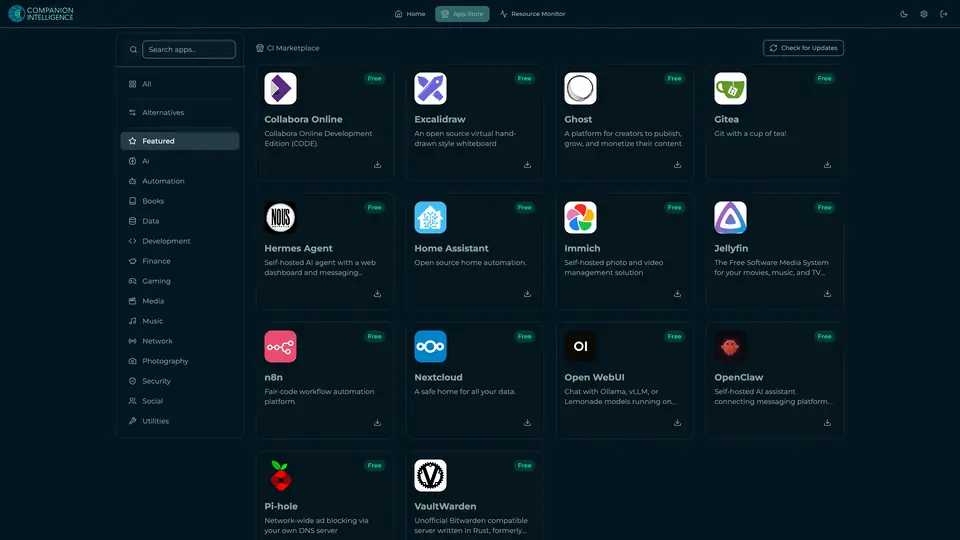
Real screenshot of Companion Hub from a product tutorial capture. Not a recording of this family. 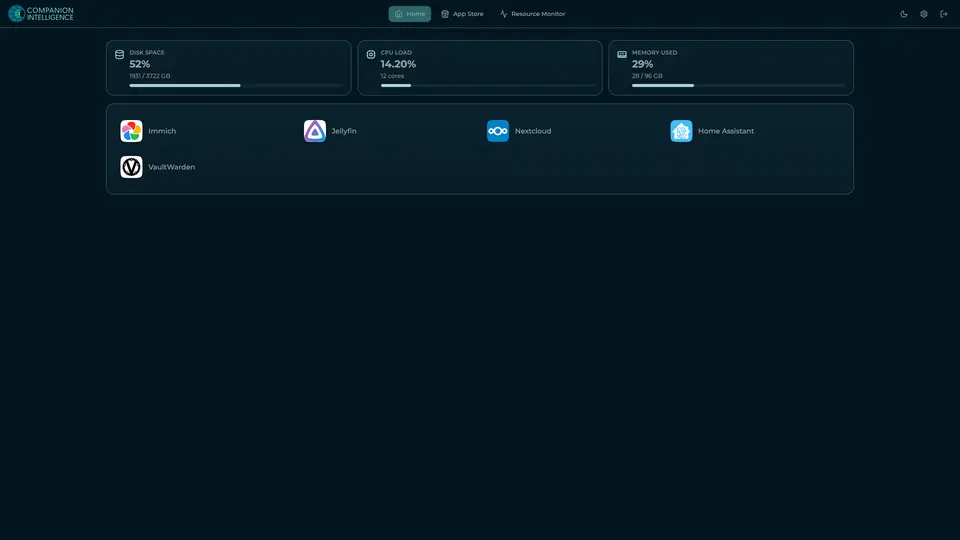
Real screenshot of Companion Hub from a product tutorial capture, with sample data. The disk, CPU and memory figures are the capture machine's, not a Companion Core spec. Not a recording of this family.
Companion account
Your Companion account pairs your devices with the Hub and lists them. The apps and their files stay on the Core.
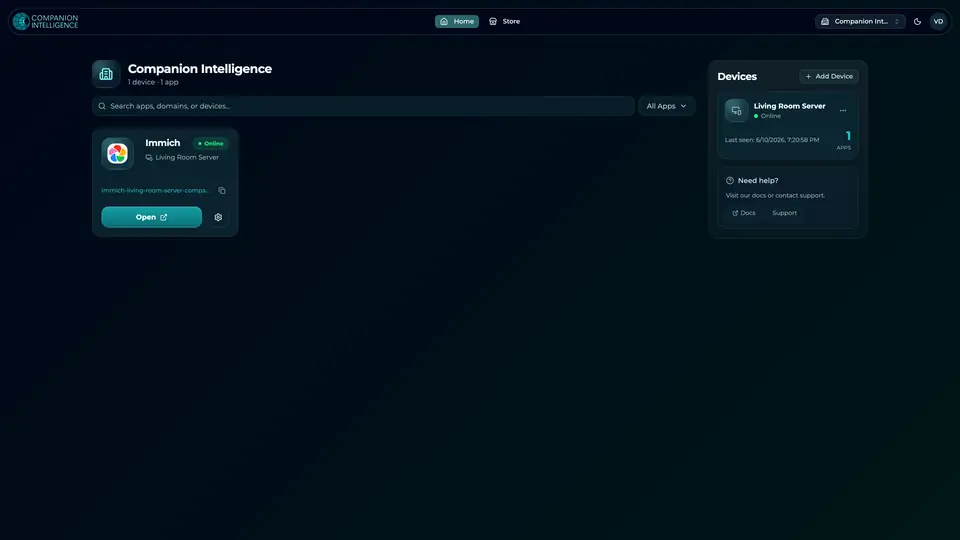
Real screenshot of the Companion account page from a product tutorial capture, with sample data. Not a recording of this family. 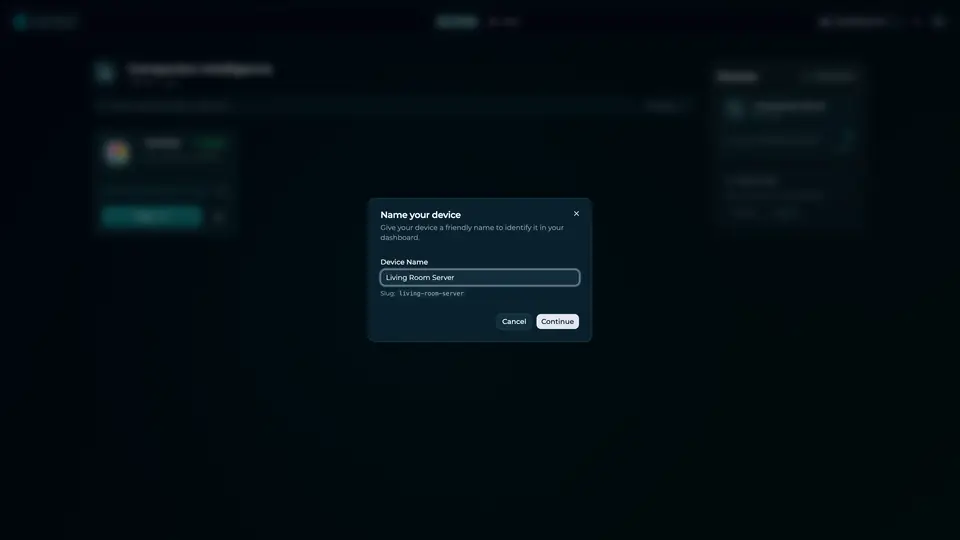
Real screenshot of the Companion account page from a product tutorial capture, with sample data. Not a recording of this family.
How the Core starts
-
Plug it in.
The parcel holds the Companion Core, a power cable, a quick-start guide and a recovery USB drive. Companion OS is already on its drive. Plug it in and press the button.
-
Join its Wi-Fi.
The Core opens its own Wi-Fi network. Join it from a phone, choose your home network from the list and enter its password.
-
Pick your apps and run.
In the Companion Hub store, pick your first agents and apps. Then walk away. Installing apps uses the internet.
Some steps use the internet: installing apps from the Companion Hub store, and any website or messaging service your agent talks to.
UnCloud your life.
Your client files, scripts and ebooks can sit on a Companion Core at home. Browse the Companion Hub store and pick your first apps.