
Fictional family. Real software.
The Halvorsen family
Two studies, two small businesses and one Companion Core.
8 Saltbarge Quay, Linden Reach
 Interactive 3D tour
- Companion OS, Companion Memory and Companion Agents are in beta.
Meet the family
Ingrid runs an events consultancy from the study beside the front door, where the Companion Core sits. Mats writes backend code for his own clients in the study upstairs. One Core holds the files, code and hours of both businesses.
Ingrid
OrganiserAge 38Study
Runs an events consultancy.
Rosemary is Ingrid’s OpenClaw agent. Opens Twenty in its own browser and edits the deals Ingrid lists. Edits deals only. Ingrid checks every field before it stands.
Rented before, on the Core now
Rented before
- Salesforce
- Adobe Acrobat
- Splitwise
- GitHub
- Google Home
On the Core now
 OpenClaw WebCLI
 Twenty
 Companion Planning
 Stirling-PDF
 Spliit
 Forgejo
 Home Assistant
-
A walkthrough changes the deal
The venue walkthrough moves a client’s date and headcount. Ingrid lists the changes. Rosemary edits the deal in Twenty on the Core, and Ingrid checks each field before it stands.
Twentyreplaces SalesforceCompanion Agents are in beta.
Watch this moment -
Ingrid picks which client goes first
Two clients want the same Saturday. Ingrid gives the morning to the first walkthrough. Companion Planning holds the second client’s follow-ups, in one local file on the Core.
Watch this momentCompanion Planning -
The venue wants one file
The venue manager asks for one file. Ingrid merges the run sheet, floor plan and supplier list in Stirling-PDF on her Core. Then she prints a copy.
Watch this momentStirling-PDFreplaces Adobe Acrobat -
Ingrid files the anniversary guest list
The anniversary guest list holds names, addresses and seating notes. Ingrid keeps it in Twenty, on the Core, where a hosted CRM would have held it.
Watch this momentTwentyreplaces Salesforce -
The kitchen
Ingrid settles the crew lunch
Back home after set-up day, Ingrid enters the crew lunch in Spliit at the breakfast bar. It works out the fewest payments to settle up.
Watch this momentSpliitreplaces Splitwise -
Mats in the upstairs study
A request comes up the stairs
Ingrid calls up the stairs that her seating plans should print on one sheet. Mats opens an issue in Forgejo, and it waits on the Core beside the code.
Watch this momentForgejoreplaces GitHub -
Out by the pool
The planters get a morning timer
Beside the front door, a Wi-Fi plug now powers the planters’ drip pump. Ingrid sets a seven o’clock start, and Home Assistant runs it from the Core.
Watch this momentHome Assistantreplaces Google Home
Real screenshots of Ingrid’s apps
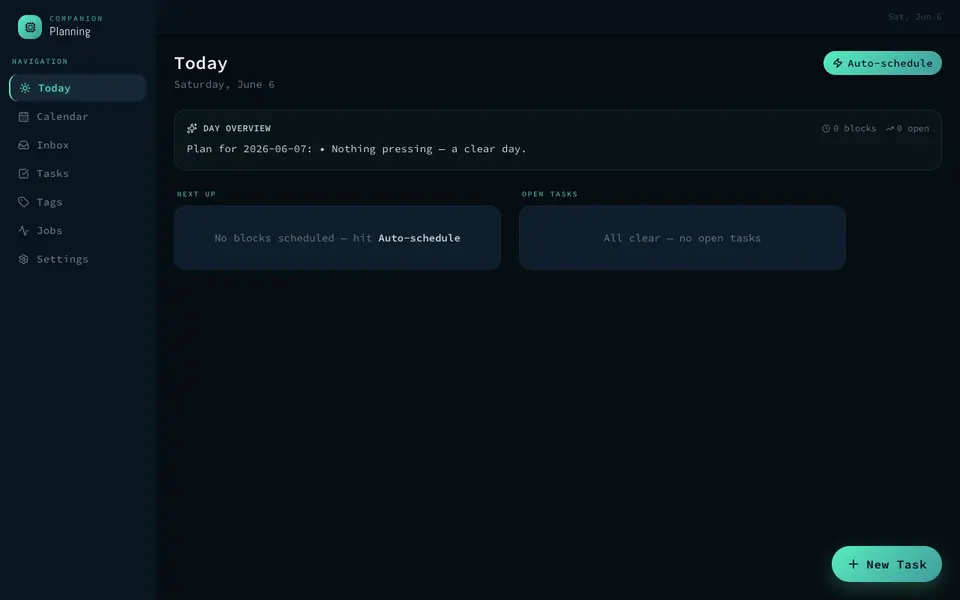
Real screenshot of Companion Planning from a Companion Hub QA run. Not a recording of this family. 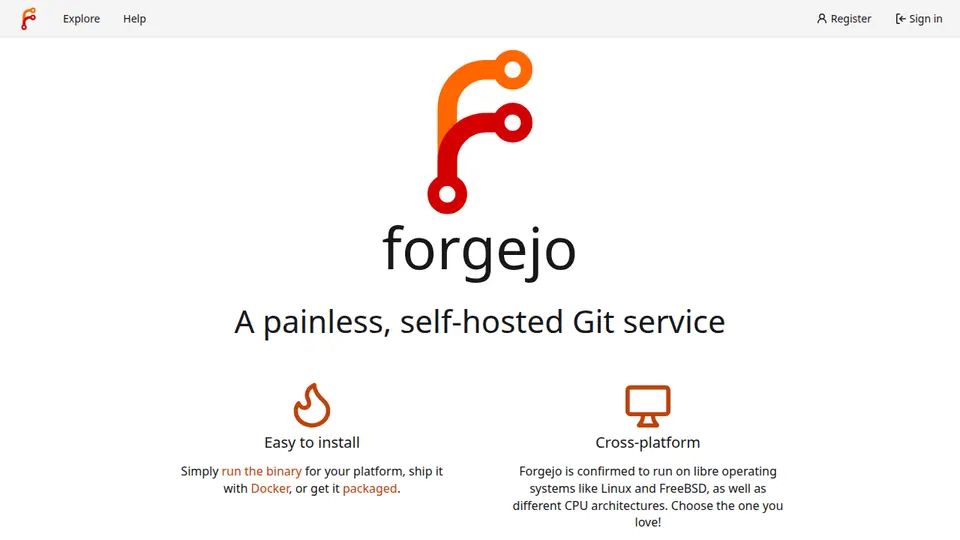
Real screenshot of Forgejo from a Companion Hub QA run. Not a recording of this family. 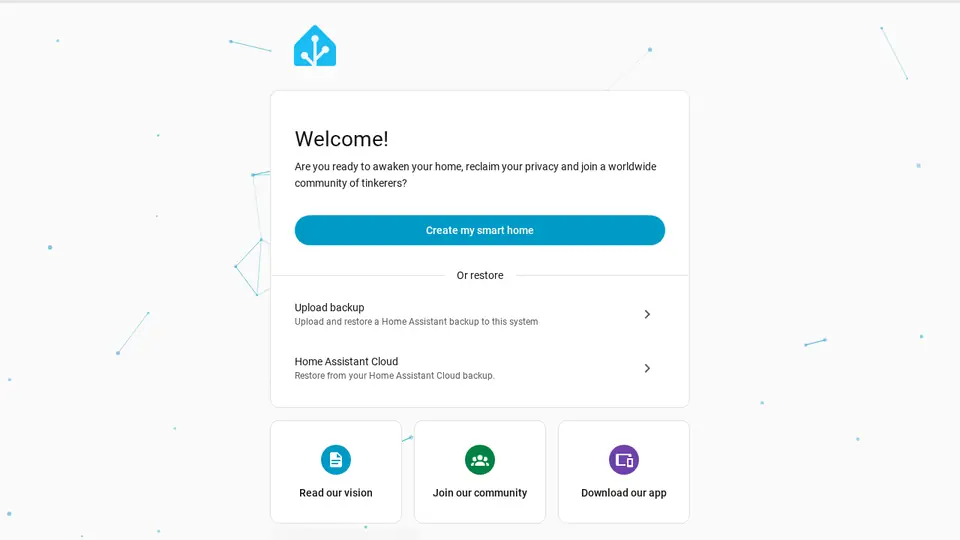
Real screenshot of Home Assistant from a Companion Hub QA run. Not a recording of this family.
Mats
BuilderAge 41Upstairs study
Freelance backend developer.
Thyme is Mats’s OpenClaw agent. Opens Kimai in its own browser and enters the hours Mats lists. Enters hours only. Mats reads every line before he invoices.
Rented before, on the Core now
Rented before
- Google Home
- GitHub
On the Core now
 Yuvomi
- Home Assistant
- Forgejo
 JupyterLab
 Kimai
-
The living room
The week fits on one calendar
Sunday morning on the sofa, Ingrid and Mats put her site visits and his client calls into one Yuvomi calendar. The calendar lives in a database on the Core.
Watch this momentYuvomi -
The living room
Mats gives the lamps a scene
Saturday afternoon, Mats picks one Home Assistant scene before the film, and the pendant lamps by the TV dim. Home Assistant runs it from the Core, with no cloud account.
Watch this momentHome Assistantreplaces Google Home -
The kitchen
Wednesday’s dinner needs dill
The herb pots hold rosemary and thyme but no dill. Mats, cooking on Wednesday, adds it to the shared Yuvomi list, and Ingrid adds lemons from her study.
Watch this momentYuvomi -
A fix goes up before lunch
A bug fix is ready before lunch, so Mats pushes it to Forgejo. The repository and its issues sit on the Core, not on a rented code host.
Watch this momentForgejoreplaces GitHub -
Mats asks about a failing test
A test fails and Mats cannot see why. He reruns it in JupyterLab, then asks a model on the Core through Open WebUI. The chat stays there by default.
Watch this momentJupyterLab -
Monday starts with a timer
Monday morning, Mats starts a Kimai timer before the first ticket. His hours are grouped by client, so the report is ready when he writes the invoice.
Watch this momentKimai -
Thyme fills in the forgotten hours
On Thursday Mats forgets the timer. He lists the afternoon’s tasks, and Thyme opens Kimai in its own browser and enters the hours. Mats reads them before he invoices.
KimaiScripted Thyme: “The hours are entered. Please read every line.”
Companion Agents are in beta.
Watch this moment -
Out by the pool
Pool day goes on the board
Pool day is Saturday, and skimming is the first card on the shared Yuvomi board. Mats ticks it off once the water is clear.
Watch this momentYuvomi
Real screenshots of Mats’s apps
Real screenshot of Home Assistant from a Companion Hub QA run. Not a recording of this family. Real screenshot of Forgejo from a Companion Hub QA run. Not a recording of this family.
The home
- 3 storeys
- 336 m²
- 22 rooms
Scroll the plan sideways to see all of it.
Scroll the plan sideways to see all of it.
Scroll the plan sideways to see all of it.
A diagram of the rooms, drawn from the home’s layout. It leaves out walls, doors and stairs. The pins show the room each person uses, and the small box marks the Companion Core.
What runs on the Core
One Companion Core in the house runs these apps. Each is in the Companion Hub store. Other software is named in text, for what it replaces.
- OpenClaw WebCLIFrom the OpenClaw Foundation
- TwentyReplaces Salesforce
- Companion PlanningFirst party
- Stirling-PDFReplaces Adobe Acrobat
- Yuvomi
- Home AssistantReplaces Google Home
- SpliitReplaces Splitwise
- ForgejoReplaces GitHub
- JupyterLab
- Kimai
The other apps in these stories are made by other people, most of them open-source projects. Companion Intelligence did not make them. A logo belongs to its project. It shows which app is named beside it.
How it runs
Two pieces do the work. One runs on the Core. The other keeps track of your devices.
Companion Hub
Companion Hub is where you install apps on the Core. Pick one in the Companion Hub store and Hub sets it up. Installing apps uses the internet.
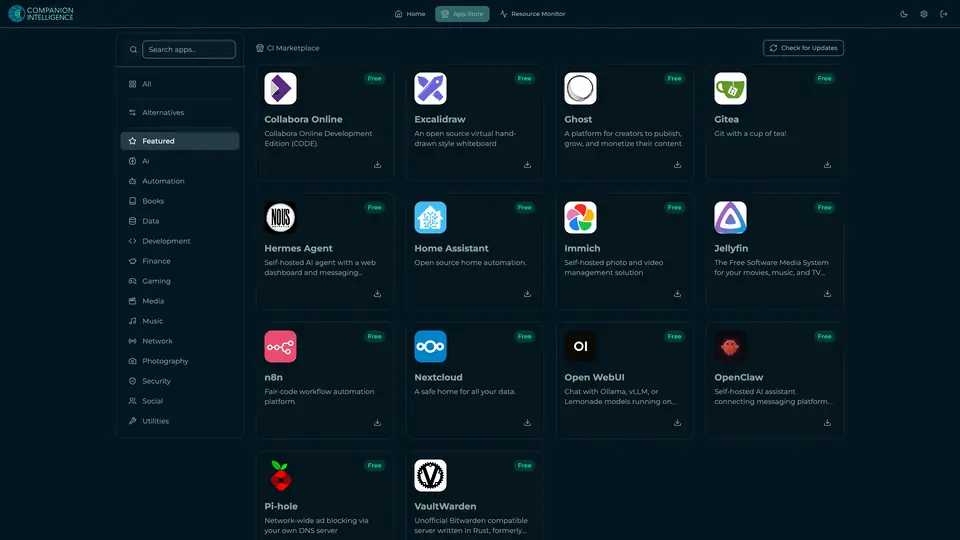
Real screenshot of Companion Hub from a product tutorial capture. Not a recording of this family. 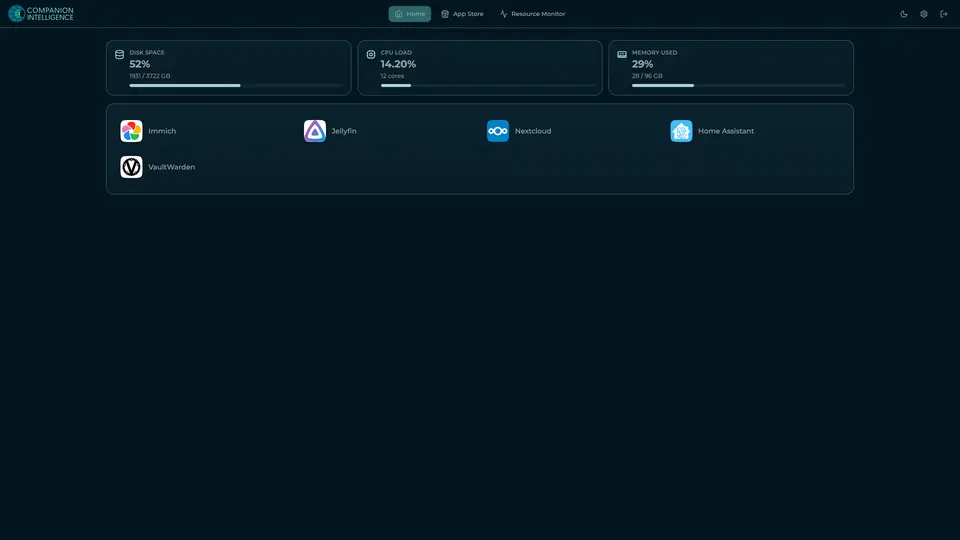
Real screenshot of Companion Hub from a product tutorial capture, with sample data. The disk, CPU and memory figures are the capture machine's, not a Companion Core spec. Not a recording of this family.
Companion account
Your Companion account pairs your devices with the Hub and lists them. The apps and their files stay on the Core.
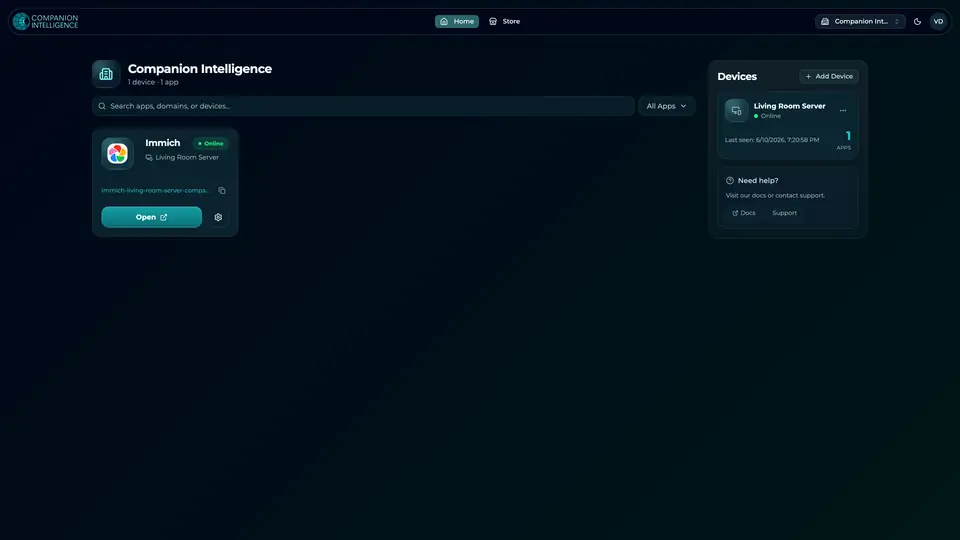
Real screenshot of the Companion account page from a product tutorial capture, with sample data. Not a recording of this family. 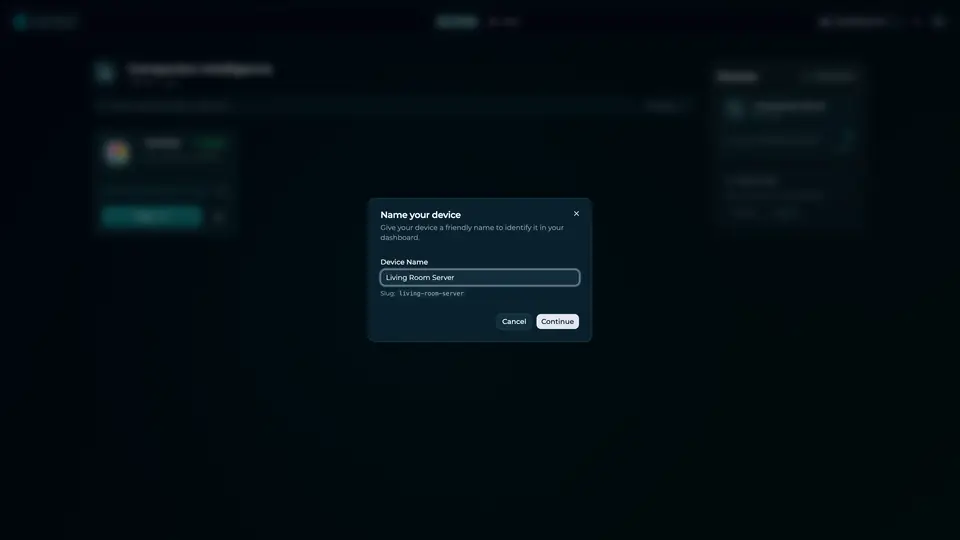
Real screenshot of the Companion account page from a product tutorial capture, with sample data. Not a recording of this family.
How the Core starts
-
Plug it in.
The parcel holds the Companion Core, a power cable, a quick-start guide and a recovery USB drive. Companion OS is already on its drive. Plug it in and press the button.
-
Join its Wi-Fi.
The Core opens its own Wi-Fi network. Join it from a phone, choose your home network from the list and enter its password.
-
Pick your apps and run.
In the Companion Hub store, pick your first agents and apps. Then walk away. Installing apps uses the internet.
Some steps use the internet: installing apps from the Companion Hub store, and any website or messaging service your agent talks to.
UnCloud your life.
Two studies, two businesses and one household can share a Companion Core at home. Start in the Companion Hub store.