
Fictional family. Real software.
The Cardoso family
Two parents, a six-year-old and one Companion Core in a small cottage.
7 Alderwick Close, Lowmere
 Interactive 3D tour
- Companion OS, Companion Memory and Companion Agents are in beta.
Meet the family
Beatriz coordinates a local charity from the desk in the family bedroom. Tiago stays home with Leo, who is six. One Companion Core serves the whole cottage.
Beatriz
OrganiserAge 33Family bedroom
Charity coordinator.
Tuppence is Beatriz’s Hermes agent. Drafts emails to the charity’s volunteers from Beatriz’s notes. Drafts only. Beatriz reads and sends every message.
Rented before, on the Core now
Rented before
- Adobe Acrobat
- Rocket Money
- LastPass
On the Core now
 Hermes
 BentoPDF
 Wallos
 VaultWarden
-
Beatriz reads the draft, then sends
A volunteer drops out of Thursday’s rota. Beatriz jots two lines and Tuppence drafts the email on the Core’s local model. Beatriz reads it, then sends it herself.
HermesScripted Tuppence: “Draft ready. Check the names before you send it.”
Messages pass through the chat service you choose.
Watch this moment -
Three scans become one form
On the edge of the bed, Beatriz joins the swimming lesson form’s three scans into one file. BentoPDF runs in her browser, from the Core.
Watch this momentBentoPDFreplaces Adobe Acrobat -
The broadband renewal gets a reminder
Before the broadband renews, Wallos on the Core sends Beatriz a reminder. She typed the household’s renewals in herself, so she decides what stays.
Watch this momentWallosreplaces Rocket Money -
The kitchen
The school sign-in joins the vault
The school portal wants a new sign-in. Beatriz saves it in the VaultWarden vault on the Core. Tiago finds it through the Bitwarden apps on his phone.
Watch this momentVaultWardenreplaces LastPass
Tiago
HostAge 35Kitchen
At home with Leo.
Dumpling is Tiago’s Hermes agent. Drafts Tiago’s replies to school and playdate messages. Drafts only. Tiago reads and sends every reply.
Rented before, on the Core now
Rented before
- AdGuard
- Google Photos
On the Core now
 Pi-hole
 KitchenOwl
 Yuvomi
- Hermes
 Immich
-
The living room
Tiago points the router at Pi-hole
Saturday morning, Leo watches a nature programme from the couch. Tiago has set the router to ask Pi-hole first, which blocks ad and tracker domains for devices that use it.
Watch this momentPi-holereplaces AdGuard -
The milk goes on the list
The milk is nearly gone, so Tiago adds it in KitchenOwl. Beatriz adds oat biscuits from the desk, and the one shared list lives on the Core.
Watch this momentKitchenOwl -
The school trip moves shopping day
Beatriz puts the school trip in Yuvomi, the family calendar on the Core. At the breakfast bar, Tiago moves the shopping day to Wednesday.
Watch this momentYuvomi -
Tiago chooses which playdate to accept
Two playdate invitations land for one Friday. Tiago tells Dumpling which to accept, and Dumpling drafts both replies on the Core’s local model. Tiago reads both, then sends them himself.
HermesScripted Dumpling: “Both replies are ready. Shall I make either one warmer?”
Messages pass through the chat service you choose.
Watch this moment -
Out in the garden
A snail gets its picture taken
Leo finds a snail on the path, and Tiago takes its picture. The photo backs up to Immich on the Core, not to a photo cloud.
Watch this momentImmichreplaces Google Photos
Real screenshots of Tiago’s apps
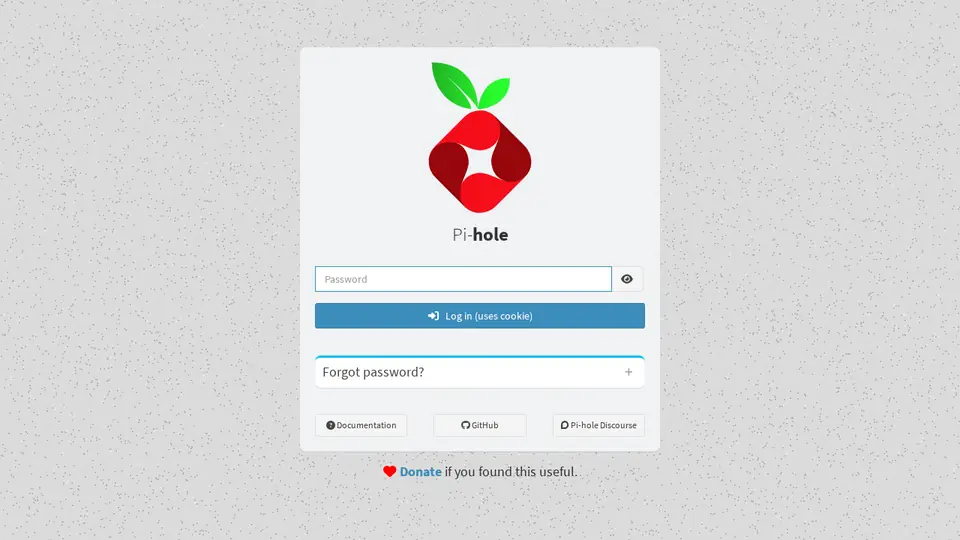
Real screenshot of Pi-hole from a Companion Hub QA run. Not a recording of this family. 
Real screenshot of Immich from a Companion Hub QA run. Not a recording of this family.
Leo
LearnerAge 6Kids zone
Infant school.
Rented before, on the Core now
Rented before
- Audible
- Google Home
- Plex
On the Core now
 Audiobookshelf
- Kokoro
 Home Assistant
 Jellyfin
- KitchenOwl
 HortusFox
-
The family bedroom
The story starts where it stopped
After lunch, Leo climbs the loft bed for story time. Audiobookshelf starts the next chapter where he stopped, from audiobooks kept on the Core.
Watch this momentAudiobookshelfreplaces Audible -
Leo hears the snail story
After school, Leo asks for the snail story Tiago made up at breakfast. Tiago typed it, and Kokoro on the Core speaks it while Leo plays in the tent.
Kokoro
Watch this moment -
The puzzle gets better light
On a grey afternoon, Leo says his puzzle needs more light. Tiago brings the floor lamp and the table lamp up as one scene in Home Assistant on the Core.
Watch this momentHome Assistantreplaces Google Home -
The living room
Leo watches himself learn to walk
On Sunday, Beatriz sits down beside Leo. Jellyfin plays the family’s home videos from the Core to the TV, starting with Leo learning to walk.
Watch this momentJellyfinreplaces Plex -
The kitchen
Leo chooses supper from the book
On Tuesday, Leo chooses bean chilli from the recipe book in KitchenOwl on the Core. Tiago reads the steps while the hob warms, and Leo hands him the tins.
Watch this momentKitchenOwl -
Out in the garden
Leo finds the fern a corner
After the rain, a new fern comes home in a pot. Leo picks the shady corner by the fence, and Tiago logs the spot in HortusFox on the Core.
Watch this momentHortusFox
Real screenshots of Leo’s apps
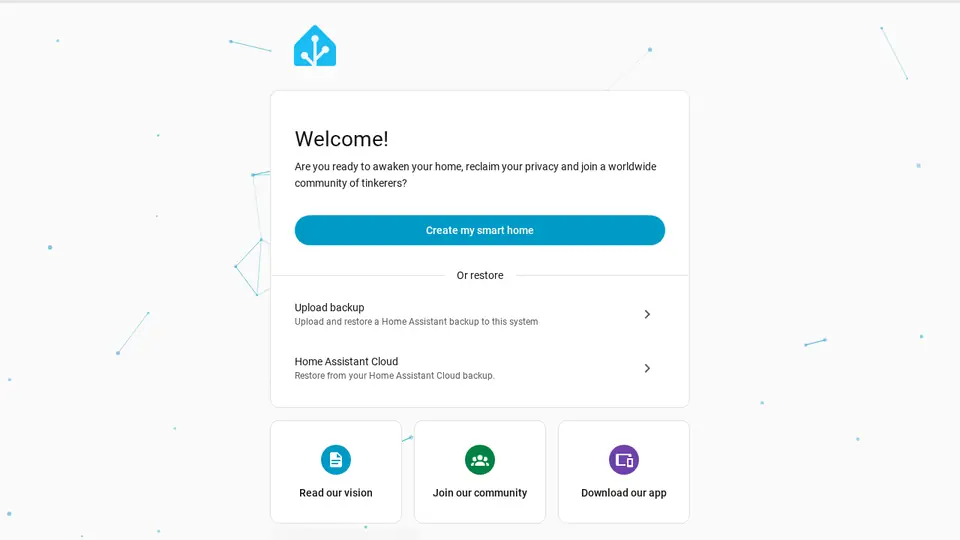
Real screenshot of Home Assistant from a Companion Hub QA run. Not a recording of this family. 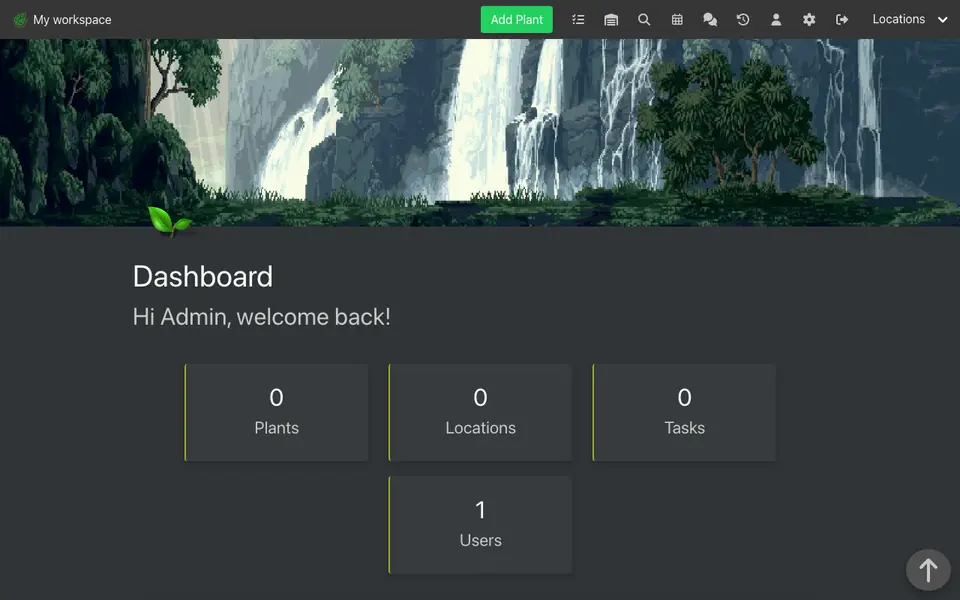
Real screenshot of HortusFox from a Companion Hub QA run. Not a recording of this family.
The home
- 1 storey
- 115 m²
- 7 rooms
Scroll the plan sideways to see all of it.
A diagram of the rooms, drawn from the home’s layout. It leaves out walls, doors and stairs. The pins show the room each person uses, and the small box marks the Companion Core.
What runs on the Core
One Companion Core in the house runs these apps. Each is in the Companion Hub store. Other software is named in text, for what it replaces.
- HermesFrom Nous Research
- AudiobookshelfReplaces Audible
- BentoPDFReplaces Adobe Acrobat
- WallosReplaces Rocket Money
- Kokoro
- Home AssistantReplaces Google Home
- Pi-holeReplaces AdGuard
- JellyfinReplaces Plex
- KitchenOwl
- Yuvomi
- VaultWardenReplaces LastPass
- ImmichReplaces Google Photos
- HortusFox
The other apps in these stories are made by other people, most of them open-source projects. Companion Intelligence did not make them. A logo belongs to its project. It shows which app is named beside it.
How it runs
Two pieces do the work. One runs on the Core. The other keeps track of your devices.
Companion Hub
Companion Hub is where you install apps on the Core. Pick one in the Companion Hub store and Hub sets it up. Installing apps uses the internet.
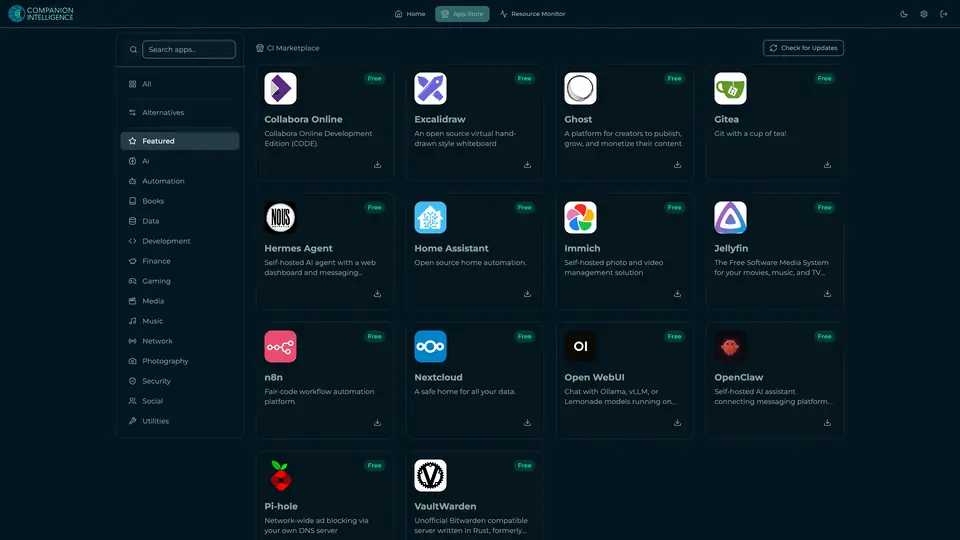
Real screenshot of Companion Hub from a product tutorial capture. Not a recording of this family. 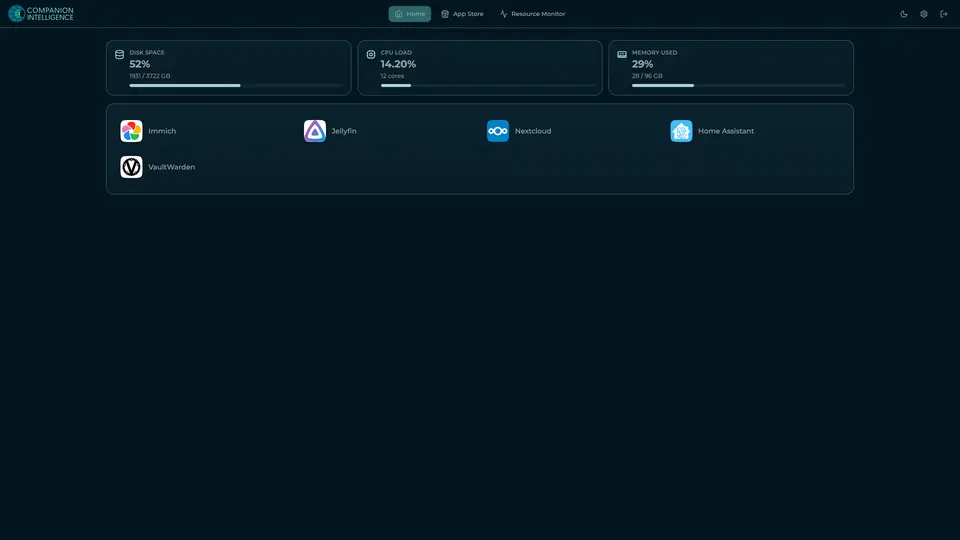
Real screenshot of Companion Hub from a product tutorial capture, with sample data. The disk, CPU and memory figures are the capture machine's, not a Companion Core spec. Not a recording of this family.
Companion account
Your Companion account pairs your devices with the Hub and lists them. The apps and their files stay on the Core.
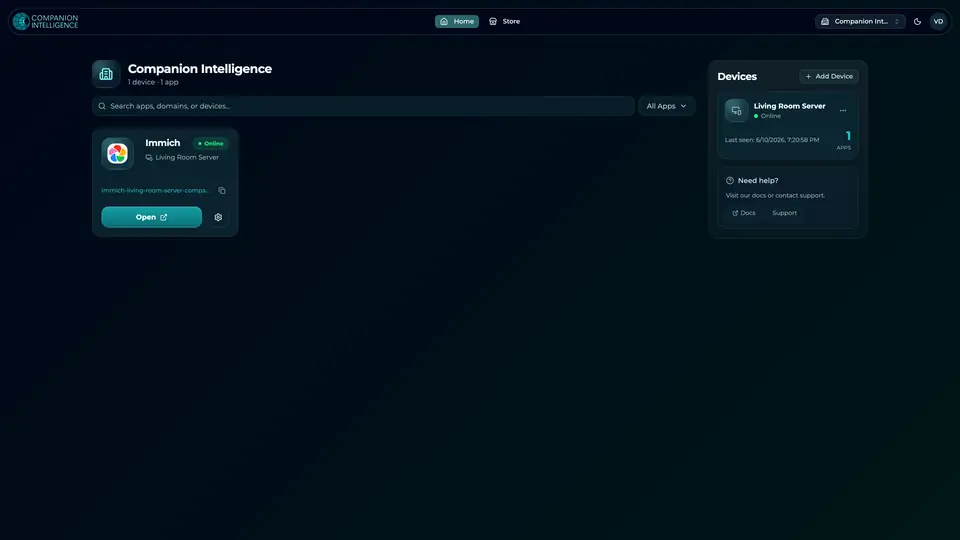
Real screenshot of the Companion account page from a product tutorial capture, with sample data. Not a recording of this family. 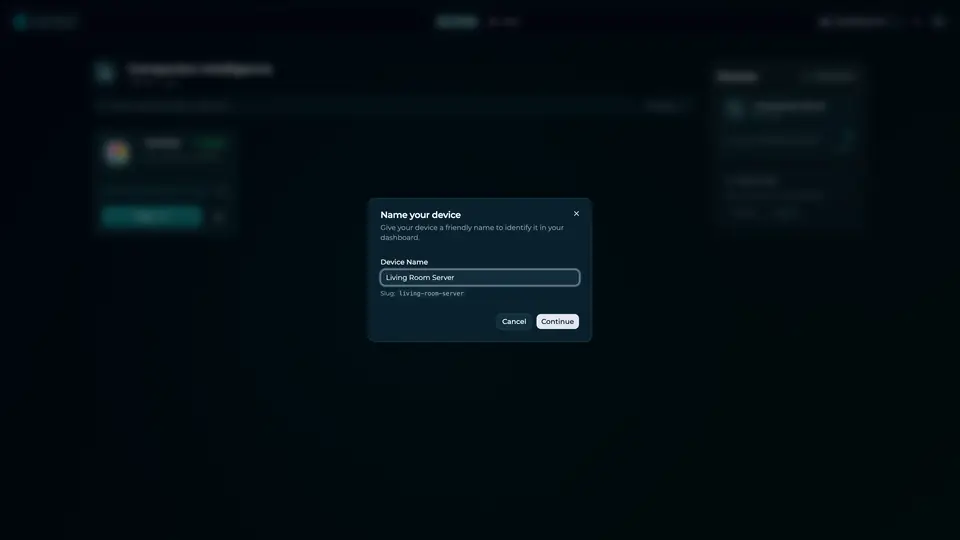
Real screenshot of the Companion account page from a product tutorial capture, with sample data. Not a recording of this family.
How the Core starts
-
Plug it in.
The parcel holds the Companion Core, a power cable, a quick-start guide and a recovery USB drive. Companion OS is already on its drive. Plug it in and press the button.
-
Join its Wi-Fi.
The Core opens its own Wi-Fi network. Join it from a phone, choose your home network from the list and enter its password.
-
Pick your apps and run.
In the Companion Hub store, pick your first agents and apps. Then walk away. Installing apps uses the internet.
Some steps use the internet: installing apps from the Companion Hub store, and any website or messaging service your agent talks to.
UnCloud your life.
Your calendar, shopping list and sign-ins can run on a Companion Core at home. Browse the Companion Hub store for your first apps.