
Fictional family. Real software.
The Brennan family
One Companion Core, one kitchen whiteboard, and two teens sharing a room.
18 Fieldfare Lane, Merrow Ford
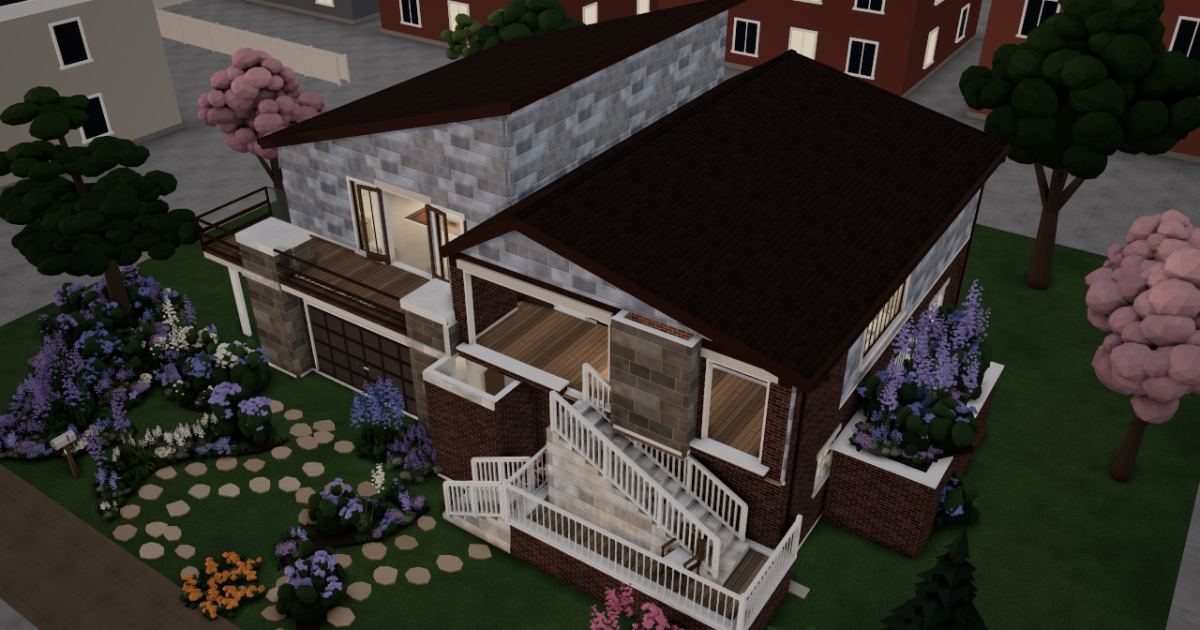 Interactive 3D tour
- Companion OS, Companion Memory and Companion Agents are in beta.
Meet the family
Sally runs a small consultancy from the craft room, and John writes software at the garage workbench. Steve claims the den downstairs, and Jean studies at the desk in the room she shares with him. One Companion Core stands in the kitchen, beside the whiteboard.
Sally
OrganiserAge 43Craft room
Sally runs a small consultancy from the craft room. Her call notes, client sign-ins and invoices sit on the Core, and Juniper drafts replies that she reads before she sends them.
Juniper is Sally’s Hermes agent. Drafts replies and proposals for Sally's clients from the context she connected. Drafts only. Sally reads and sends every message.
Rented before, on the Core now
Rented before
- Evernote
- LastPass
- FreshBooks
- Mailchimp
On the Core now
 Hermes
 Joplin Server
 Companion Memory
 VaultWarden
- Invoice Ninja
- Listmonk
-
Last week's calls, this week's list
Sally has moved four years of client notes into Joplin Server on the Core. At the standing desk on Monday, she turns Friday's calls into the week's to-do list.
Joplin Serveralternative to EvernoteJoplin Server is the server. The Joplin apps are separate.
Watch this momentMore about this moment
- Before
- Four years of call notes sat in Evernote, one notebook per client, and the to-do list lived somewhere else.
- Now
- Joplin Server syncs the notes and the to-do list between her laptop and her phone, through the server on the Core.
What you do
- Open Friday's call notes
- Turn each action into a to-do
- Check the list on her phone
Good to know Joplin Server lets you take notes and keep to-dos that sync across your devices through your own server.
-
Juniper drafts the renewal, Sally checks
Juniper drafts a renewal reply from last spring's thread, which Sally connected to Companion Memory (beta). Sally checks the figures, then sends it herself.
Companion MemoryMessages pass through the chat service you choose. Companion Agents are in beta.
Watch this momentMore about this moment
- Before
- A renewal reply meant digging out last spring's thread and rebuilding the figures by hand.
- Now
- Juniper drafts the reply on the Core from the thread Sally connected in Companion Memory. She checks every figure, then sends it herself.
What you do
- Ask Juniper for the renewal reply
- Check each figure against the thread
- Send the reply herself
Good to know Companion Memory keeps your digital life on your disk, so your agents know your context.
-
The old account closes last
Before Sally closes her old password account, she opens every client sign-in from the new vault. VaultWarden runs on the Core and works with the Bitwarden apps.
VaultWardenalternative to LastPassWatch this momentMore about this moment
- Before
- Client portal sign-ins lived in LastPass, and the family's shared ones sat on a sticky note by the whiteboard.
- Now
- VaultWarden keeps the sign-ins in a vault on the Core. Sally opens them with the Bitwarden apps, and the sticky note goes in the bin.
What you do
- Open each client sign-in from VaultWarden
- Check that every one works
- Close the old account
Good to know VaultWarden stores every password in a vault you host and works with the Bitwarden apps.
-
Invoice day reuses an old quote
On the last Friday, Sally turns her tracked hours into invoices in Invoice Ninja. March's quote is there too, so she copies its rate into the new one.
Invoice Ninjaalternative to FreshBooks
Watch this momentMore about this moment
- Before
- Invoices were built in FreshBooks, and the client list and every past quote lived there too.
- Now
- Invoice Ninja holds the clients, quotes, invoices and tracked time on the Core. Sally builds the month's invoices from what is already there.
What you do
- Open the client in Invoice Ninja
- Add the month's tracked hours
- Send the invoice
Good to know Invoice Ninja sends invoices and quotes and tracks expenses and time.
-
The mailing list stays at home
Sally writes the practice's quarterly newsletter in Listmonk, and the subscriber list sits on the Core. Sending still goes through an outside mail provider.
Listmonkalternative to Mailchimp
Delivery depends on the mail provider.
Watch this momentMore about this moment
- Before
- The subscriber list lived in Mailchimp, along with the draft of every issue.
- Now
- Listmonk holds the subscriber list and the drafts on the Core. An outside mail provider sends each issue.
What you do
- Write the issue in Listmonk
- Check the subscriber list
- Send it through the mail provider
Good to know Listmonk writes and sends newsletters to your own mailing list.
John
BuilderAge 45Garage
John writes software and builds shelves in the garage. His code sits in Gitea on the Core, and Quill fills in the order forms that he checks and sends himself.
Quill is John’s OpenClaw agent. Opens supplier order forms and fills in the details John typed. One form at a time. John reads each field and sends it himself.
Rented before, on the Core now
Rented before
- NextDNS
- Cursor
- GitHub
- Carbonite
On the Core now
 Pi-hole
 Code Server
 Gitea
 OpenClaw WebCLI
 Duplicati
-
The living room
The homework site comes back
Jean's vocabulary site stops loading on the sofa. John adds it to the Pi-hole allow list, and the page opens.
Pi-holealternative to NextDNSLookups it does not block still go to the DNS provider the family picked.
Watch this momentMore about this moment
- Before
- NextDNS answered the house's DNS lookups, and the allow list lived in its settings.
- Now
- Pi-hole answers the house's DNS on the Core. John keeps the allow list there and adds a site when the family needs a page back.
What you do
- Find the blocked site
- Add it to the allow list
- Reload the page on the sofa
Good to know Pi-hole blocks ads, trackers and bad domains for every device on your network at the DNS level.
-
One extension comes from outside
John writes a cut-list script in Code Server at the workbench, and its folder sits on the Core. The one extension he adds comes from an outside registry.
Code Serveralternative to CursorWatch this momentMore about this moment
- Before
- John coded in Cursor on the laptop, and the project folder lived on that one machine.
- Now
- Code Server gives John the editor in a browser tab. The editor and his files are on the Core, and extensions are fetched from an outside registry.
What you do
- Open the editor in a browser
- Open the cut-list folder
- Add the one extension he needs
Good to know Code Server runs VS Code in your browser, with the editor and your files on your Core.
-
Shelf-jig lands in Gitea
John's last push today, a branch called shelf-jig, lands in Gitea on the Core, issues and pull requests beside it.
Giteaalternative to GitHubWatch this momentMore about this moment
- Before
- John pushed his side projects to GitHub, with their issues and pull requests kept there too.
- Now
- Gitea hosts the repository on the Core, with its issues and pull requests beside it.
What you do
- Point the repository at Gitea
- Push the shelf-jig branch
- Open the pull request in Gitea
Good to know Gitea hosts private Git repositories, pull requests and issues on your Core.
-
Quill fills in the order form
Quill opens the supplier's order form and fills it in for the shelf brackets John needs. John checks every field, then sends it himself.
OpenClaw
Scripted Quill: “The order form is filled in. Please check the delivery address before you send it.”
OpenClaw reaches websites over your home internet.
Watch this momentMore about this moment
- Before
- Ordering hardware meant typing the same details into a supplier's form, field by field.
- Now
- Quill opens the supplier's page in its browser and fills in the form from what John typed. John reads every field and sends it himself.
What you do
- Type what he needs
- Let Quill fill in the form
- Read every field, then send it
Good to know OpenClaw is an agent with browser automation and tool use, running in a sandboxed app on your Core.
-
The spare lives in the garage
Duplicati backs up the Core's folders, with encryption, to a local disk John has labelled. He keeps the disk in the garage cube storage, a floor away from the Core.
Duplicatialternative to CarboniteWatch this momentMore about this moment
- Before
- Backups went to a Carbonite account, and the second copy lived with that service.
- Now
- Duplicati backs up the Core's folders with encryption to a local drive that John labels. The Core keeps the files, and the drive keeps the second copy.
What you do
- Plug the labelled drive into the Core
- Set the backup in Duplicati
- Carry the drive down to the garage
Good to know Duplicati backs up your files with encryption before they leave your Core.
Real screenshots of John’s apps
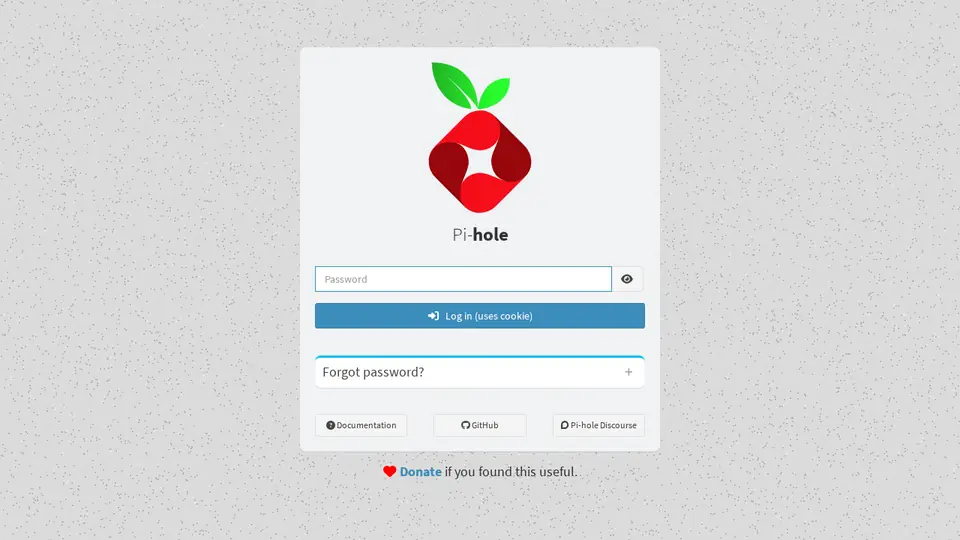
Real screenshot of Pi-hole from a Companion Hub QA run. Not a recording of this family.
Steve
GamerAge 16Den
Steve plays on the den TV, drums in the same room and shares a bedroom with his sister. His headphones keep that room quiet for her.
Rented before, on the Core now
Rented before
- Spotify
- AirDrop
- GeForce Now
- TwistedWave
On the Core now
 Navidrome
 PairDrop
 Steam Headless
 AudioMass
-
Headphones on, the shared room quiet
Steve streams the albums the family owns from the Core to his phone. His headphones keep the room quiet for Jean. Navidrome plays only the files the family holds.
Navidromealternative to SpotifyWatch this momentMore about this moment
- Before
- Steve played his music through Spotify on his phone.
- Now
- Navidrome streams the family's music files from the Core to his phone over the home Wi-Fi.
What you do
- Open Navidrome on the phone
- Pick a folder of the family's music
- Put the headphones on
Good to know Navidrome streams your own music collection to any device.
-
Three paces from bed to desk
Jean's school concert video is too big for the family chat. Steve sends it past the old rocking horse with PairDrop, served by the Core, over the home Wi-Fi.
PairDropalternative to AirDropWatch this momentMore about this moment
- Before
- Steve's phone and Jean's school laptop are different makes, so a video too big for the family chat went by cable.
- Now
- PairDrop sends the file straight from Steve's phone to Jean's laptop over the home Wi-Fi, with no chat app between.
What you do
- Open PairDrop on the phone and the laptop
- Choose the laptop from the phone
- Send the video across the room
Good to know PairDrop sends files between phones and laptops on the same Wi-Fi.
-
Steve's den
The game runs by the whiteboard
Steve's game runs on the Core, beside the kitchen whiteboard. He signs in with his own Valve account, and the den TV shows it.
Steam Headlessalternative to GeForce NowSteam needs a Valve account. A Core may lack the graphics power a game wants.
Watch this momentMore about this moment
- Before
- Steve played his Steam library through GeForce Now, with the session running somewhere else.
- Now
- Steam Headless runs Steam on the Core. The session shows in a browser on the den TV, and Valve still keeps the account and the library.
What you do
- Sign in with the Valve account
- Open the session in the TV's browser
- Pick a game from the library
Good to know Steam Headless runs Steam on your Core and plays it in a browser on a screen in the house.
-
Steve's den
The take loses its count-in
The count-in comes off Steve's drum take in AudioMass, in a browser tab. The Core serves the editor, and he saves the file where he chooses.
AudioMassalternative to TwistedWaveWatch this momentMore about this moment
- Before
- Steve trimmed his drum takes in TwistedWave.
- Now
- AudioMass opens in a browser tab served by the Core. Steve cuts the count-in, fades the end and saves the file where he chooses.
What you do
- Open the take in AudioMass
- Cut the count-in and fade the end
- Save the file where he chooses
Good to know AudioMass edits audio in a browser tab: cut, fade, normalise and export.
Real screenshots of Steve’s apps
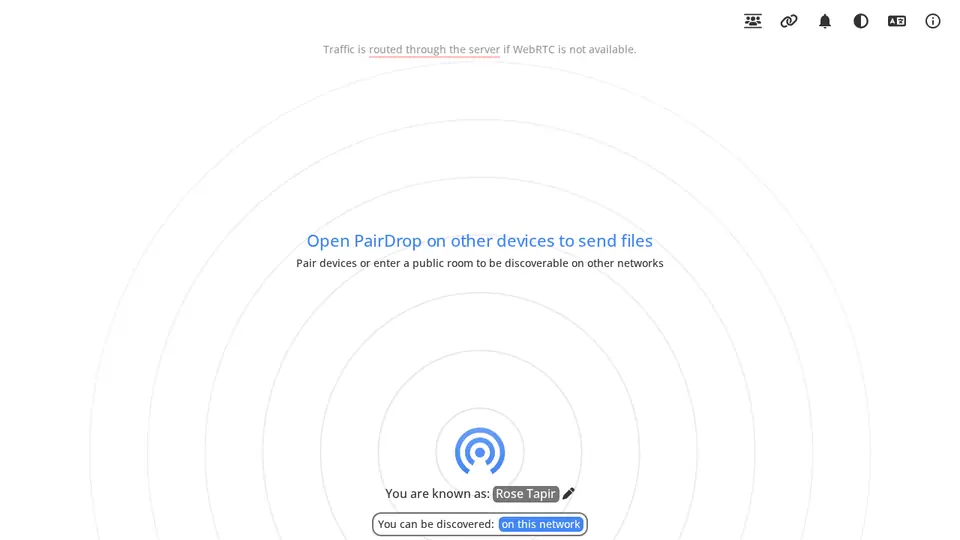
Real screenshot of PairDrop from a Companion Hub QA run. Not a recording of this family.
Jean
LearnerAge 14Kids bedroom
Jean studies at the desk she shares with her brother. She keeps a note for every French test, draws her maths in a browser and reads her set text, with tools that each do one job on the Core.
Rented before, on the Core now
Rented before
- Google Keep
- Lucidchart
- Apple Books
- iCloud Photos
On the Core now
- Memos
 draw.io
 Spellbook
 Koodo Reader
 PhotoPrism
-
The kitchen
A note for every vocab test
At the glass table, Jean writes a note for each French test, with the words she missed. Memos keeps them as Markdown on the Core, not in a notes service.
Memosalternative to Google Keep
Watch this momentMore about this moment
- Before
- Jean's missed words went into Google Keep, in one pile with every other quick note.
- Now
- Memos keeps one note for each test on the Core, in Markdown. Jean reads back through them before the next test.
What you do
- Write down the words she missed
- Save the note for that test
- Read the old notes before the next one
Good to know Memos captures quick notes and journal entries in Markdown.
-
The shared room, drawn to scale
Jean measures her shared room for a maths scale drawing. draw.io opens from the Core, and she draws the beds, the desk and the shelf.
draw.ioalternative to LucidchartWatch this momentMore about this moment
- Before
- Jean's diagrams for school were drawn in Lucidchart.
- Now
- draw.io opens in her browser from the Core. Jean draws the two beds, the desk and the shelf to scale.
What you do
- Measure the beds, the desk and the shelf
- Draw the plan to scale in draw.io
- Check the drawing against the room
Good to know draw.io draws flowcharts, floor plans and network maps in the browser.
-
Three names for John
Jean searches Spellbook on the Core for a computing club project. She copies three tool names onto a card for John to read at dinner.
SpellbookCrash reports go to Companion Intelligence unless switched off.
Watch this momentMore about this moment
- Before
- A project idea meant a search engine, a dozen open tabs and no list to hand John.
- Now
- Spellbook is a searchable catalog on the Core. Jean reads three entries and copies the names for John.
What you do
- Search the catalog for a topic
- Read three entries
- Copy the names onto a card for John
Good to know Spellbook is a searchable catalog of local-AI and self-hosting tools.
-
The set text joins the library
The school sends the set text as a file. Jean keeps it in a Koodo Reader library on the Core. She reads it on the beanbag by the shelf.
Koodo Readeralternative to Apple BooksIt opens the family's own ebook files.
Watch this momentMore about this moment
- Before
- Jean read her set texts in Apple Books, with her notes kept in that app.
- Now
- Koodo Reader opens the school's file in a browser, from a library on the Core. Jean highlights the lines she wants in the same app.
What you do
- Put the school's file in the library
- Open it in Koodo Reader
- Highlight the lines she wants
Good to know Koodo Reader reads ebooks in your browser, with notes, highlights and text-to-speech, and keeps the library on your Core.
-
Out by the lavender
Same stone, same lavender, three summers
Every August Jean takes one picture of the lavender from the same stepping stone. PhotoPrism lines the three summers up on the Core, and adding the next one uploads nothing.
PhotoPrismalternative to iCloud PhotosA photo library is not a backup. Keep the originals.
Watch this momentMore about this moment
- Before
- The lavender pictures sat in iCloud Photos among everything else, and nobody had lined the summers up.
- Now
- PhotoPrism browses the family library on the Core, so Jean can set the three Augusts next to each other.
What you do
- Take the August picture from the stepping stone
- Add it to the family library
- Set the three summers side by side
Good to know PhotoPrism browses and shares your photo library, with automatic tagging, without uploading it anywhere.
Real screenshots of Jean’s apps
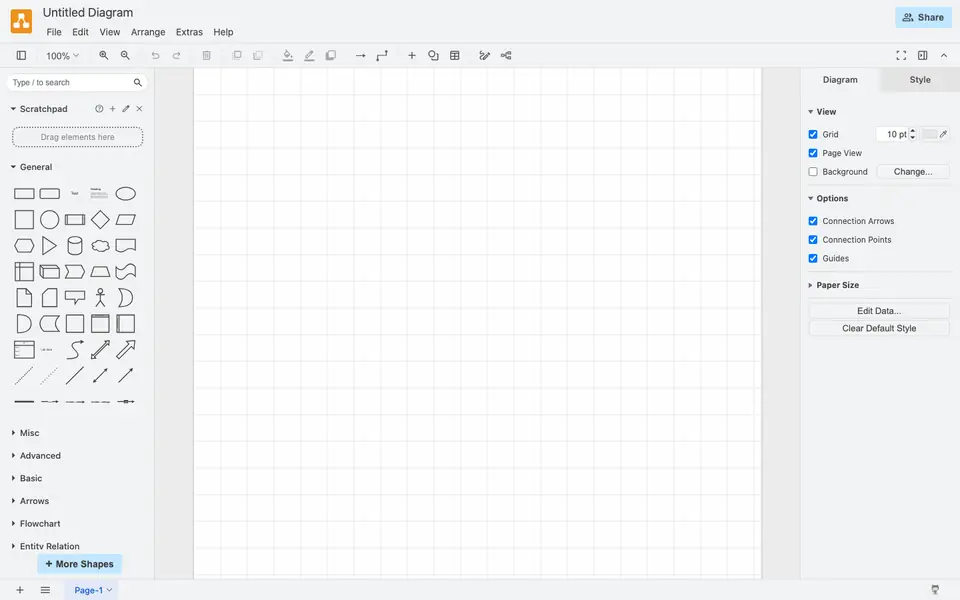
Real screenshot of draw.io from a Companion Hub QA run. Not a recording of this family. 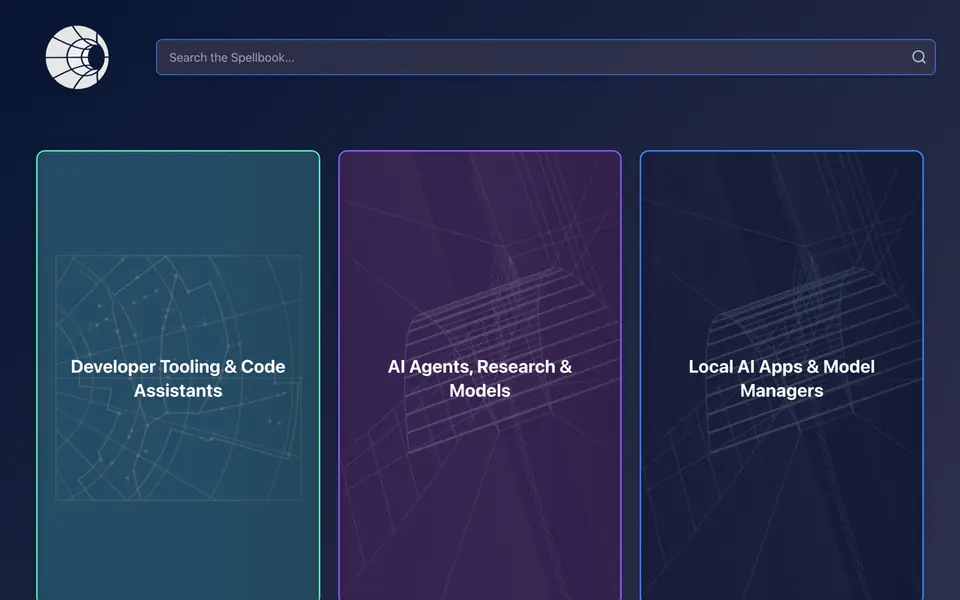
Real screenshot of Spellbook from a Companion Hub QA run. Not a recording of this family.
Around the house
-
The kitchen
Thursday survives the sleeve
A sleeve wipes Thursday off the whiteboard. Its twin in Yuvomi on the Core still has the dentist and the dinner.
 YuvomiWatch this moment
More about this moment
- Before
- The week lived on the whiteboard and, copied by hand, in a calendar service on each phone. When they disagreed, nobody knew which was right.
- Now
- Yuvomi keeps the calendar, tasks, shopping and meals in a database on the Core. The whiteboard stays on the wall as the copy everyone reads.
What you do
- Copy Sunday's whiteboard into Yuvomi
- Add the dinners and the shopping list
- Read Thursday back when the board is wiped
Good to know Yuvomi is a family planner with a shared calendar, tasks, shopping, meals and notes, stored in SQLite on your Core.
-
The kitchen
The range hood hums its last
When the range hood stops humming, the warranty is in Papra, added from the old Drive folder. The family's receipts, warranties and contracts are archived there, on the Core.
 Papraalternative to Google DriveWatch this moment
More about this moment
- Before
- Receipts went into one Google Drive folder called house, and the range hood's warranty was somewhere among the photos.
- Now
- Papra archives each receipt, warranty and contract on the Core, so the one the family needs is there when the hood stops.
What you do
- Add the receipt to Papra
- File it with the warranty
- Open it when the hood stops
Good to know Papra archives the receipts, warranties and contracts you rarely look at, until you need them.
A day in the house
One ordinary day, in the order it happens. Each line opens the moment above.
-
Morning
-
Midday
At lunch the family reads the week off the whiteboard.
Thursday survives the sleeve
-
Afternoon
-
After school
-
Weekend
The home
A mid-century raised ranch with a garage tucked under it, between fieldstone piers. The main floor sits a storey up, behind a brick-walled loggia. Stepping stones cross a lavender garden to the stoop.
- 2 storeys
- 371 m²
- 18 rooms
Kitchen & dining
A whiteboard on the wall, the Core beside it, and a glass table.
Craft room
A standing desk, an easel and two ladder shelves.
Garage
A workbench, a bicycle and a wheelbarrow.
Den
A sofa, two barrel chairs, the TV and a drum kit.
Kids bedroom
Two single beds, one desk and a rocking horse.
Scroll the plan sideways to see all of it.
Scroll the plan sideways to see all of it.
A diagram of the rooms, drawn from the home’s layout. It leaves out walls, doors and stairs. The pins show the room each person uses, and the small box marks the Companion Core.
What runs on the Core
One Companion Core in the house runs these apps. Each is in the Companion Hub store. Other software is named in text, for what it replaces.
- HermesFrom Nous Research
- Yuvomi
- PapraReplaces Google Drive
- MemosReplaces Google Keep
- Pi-holeReplaces NextDNS
- NavidromeReplaces Spotify
- PairDropReplaces AirDrop
- draw.ioReplaces Lucidchart
- SpellbookFirst party
- Koodo ReaderReplaces Apple Books
- Joplin ServerReplaces Evernote
- Companion MemoryFirst party
- VaultWardenReplaces LastPass
- Invoice NinjaReplaces FreshBooks
- ListmonkReplaces Mailchimp
- Code ServerReplaces Cursor
- GiteaReplaces GitHub
- OpenClaw WebCLIFrom the OpenClaw Foundation
- DuplicatiReplaces Carbonite
- Steam HeadlessReplaces GeForce Now
- AudioMassReplaces TwistedWave
- PhotoPrismReplaces iCloud Photos
The other apps in these stories are made by other people, most of them open-source projects. Companion Intelligence did not make them. A logo belongs to its project. It shows which app is named beside it.
How it runs
Two pieces do the work. One runs on the Core. The other keeps track of your devices.
Companion Hub
Companion Hub is where you install apps on the Core. Pick one in the Companion Hub store and Hub sets it up. Installing apps uses the internet.
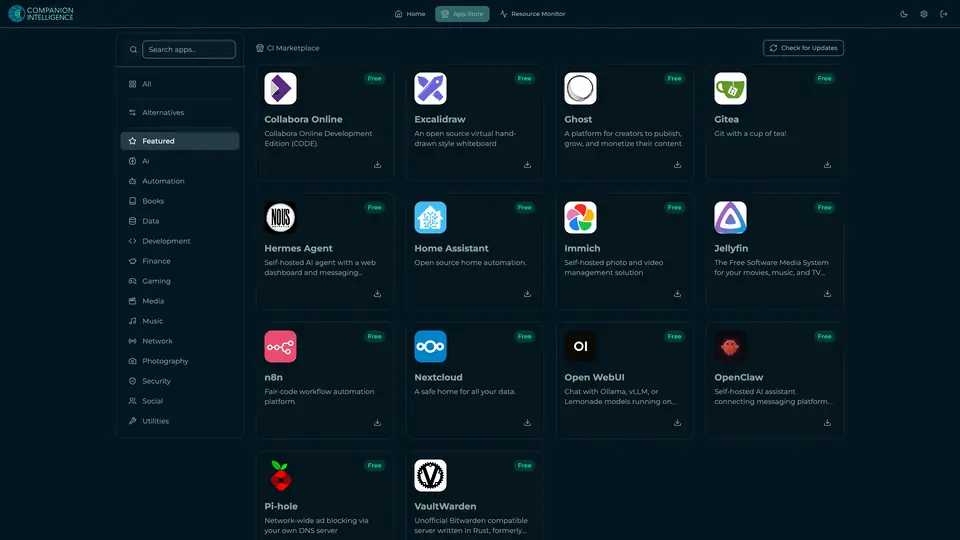
Real screenshot of Companion Hub from a product tutorial capture. Not a recording of this family. 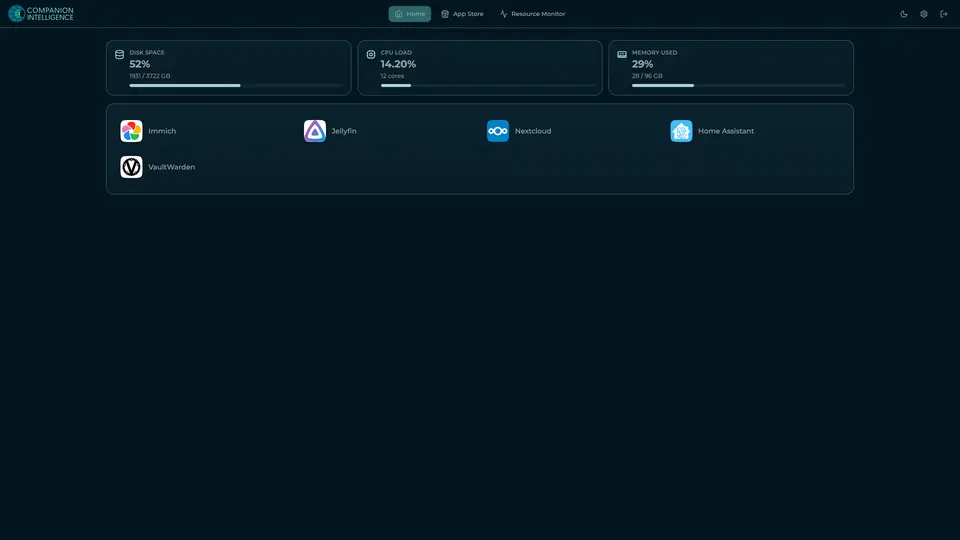
Real screenshot of Companion Hub from a product tutorial capture, with sample data. The disk, CPU and memory figures are the capture machine's, not a Companion Core spec. Not a recording of this family.
Companion account
Your Companion account pairs your devices with the Hub and lists them. The apps and their files stay on the Core.
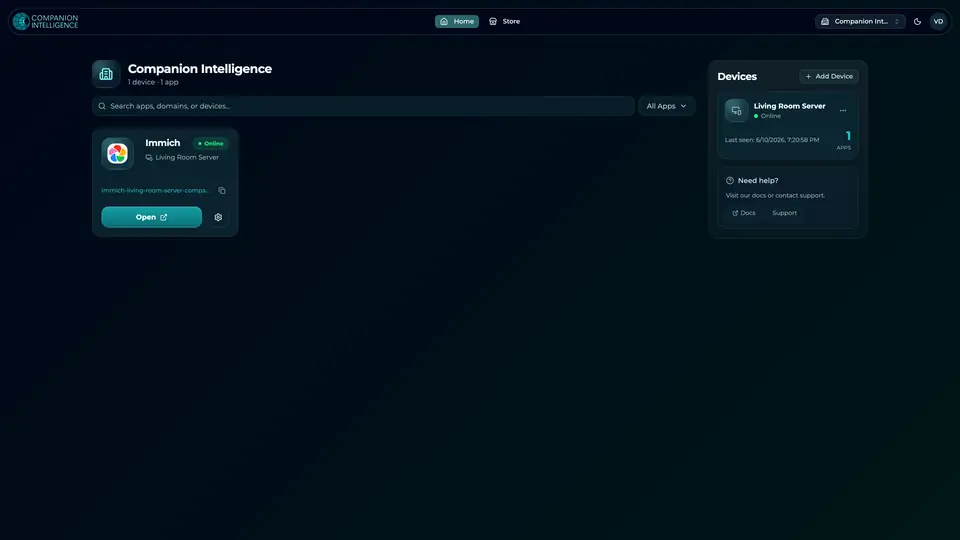
Real screenshot of the Companion account page from a product tutorial capture, with sample data. Not a recording of this family. 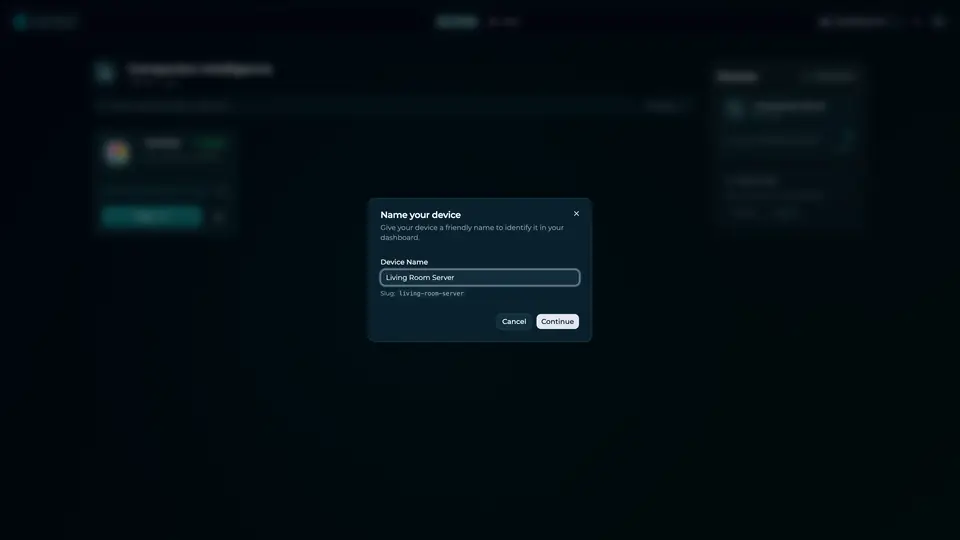
Real screenshot of the Companion account page from a product tutorial capture, with sample data. Not a recording of this family.
How the Core starts
-
Plug it in.
The parcel holds the Companion Core, a power cable, a quick-start guide and a recovery USB drive. Companion OS is already on its drive. Plug it in and press the button.
-
Join its Wi-Fi.
The Core opens its own Wi-Fi network. Join it from a phone, choose your home network from the list and enter its password.
-
Pick your apps and run.
In the Companion Hub store, pick your first agents and apps. Then walk away. Installing apps uses the internet.
Some steps use the internet: installing apps from the Companion Hub store, and any website or messaging service your agent talks to.
UnCloud your life.
Your family's week, notes and homework can live on a Companion Core. Browse the Companion Hub store and pick your first apps.