
Fictional family. Real software.
The Brennan family
A house lined with books, a lake out back and one Companion Core.
21 Thornwick Rise, Wrenfield
 Interactive 3D tour
- Companion OS, Companion Memory and Companion Agents are in beta.
Meet the family
Sally runs a small consultancy from the library, with the Companion Core on its writing desk. John writes software in the primary suite, Steve plays upstairs and Jean studies at her own desk. The lake is just out the back.
Sally
OrganiserAge 43Library
Sally runs a small consultancy from the library. Her week, her client folders and the letters they sign sit on the Core, and Juniper drafts replies that she reads before they go.
Juniper is Sally’s Hermes agent. Drafts replies to Sally’s clients from the notes she sends it. Drafts only. Sally reads and sends every message.
Rented before, on the Core now
Rented before
- Smallpdf
- Dropbox
- DocuSign
On the Core now
 Stirling-PDF
 Companion Planning
 Nextcloud
 Hermes
 Docuseal
-
A double scan, split before sending
One scan holds two clients’ papers. Sally splits it in Stirling-PDF on the Core, so each client gets only their own pages.
Stirling-PDFalternative to SmallpdfWatch this momentMore about this moment
- Before
- Splitting a scan meant uploading the whole stack to Smallpdf, including the pages that belonged to the other client.
- Now
- Stirling-PDF splits the scan on the Core. Each client’s pages become their own file before anything is sent.
What you do
- Open the scan in Stirling-PDF
- Split it where the second client starts
- Save one file per client
Good to know Stirling-PDF merges, splits, compresses and converts PDFs on your own Core.
-
Monday’s admin hour comes first
Monday’s admin hour used to be whatever the client calls left over. Now Sally blocks it first in Companion Planning, one local file on the Core.
Companion PlanningWatch this momentMore about this moment
- Before
- Client calls sat in one calendar, school dates in another, and Monday’s admin hour nowhere at all.
- Now
- Companion Planning keeps tasks and time blocks in one local file on the Core. Sally places the admin hour first, then the calls.
What you do
- List the week’s calls and deadlines
- Block the admin hour first
- Fit the school dates around it
Good to know Companion Planning plans tasks and time blocks in one local file on your Core. Briefings from a local model are optional.
-
The last client folder comes home
Sally copies her last client folder out of a rented drive. Nextcloud on the Core now holds all five years of folders, filed by surname like the shelves behind her.
Nextcloudalternative to DropboxWatch this momentMore about this moment
- Before
- Client folders sat in Dropbox, with the client contacts kept in a separate app.
- Now
- Nextcloud holds the folders and the contacts together on the Core, synced to Sally’s devices.
What you do
- Copy the last folder to the Core
- File each client by surname
- Open a folder on a laptop or phone
Good to know Nextcloud keeps your files, calendar and contacts on your own Core, synced to your devices.
-
Sally fixes a date, then sends
Sally changes one date in Juniper’s draft, then sends the reply herself. Juniper drafts on the Core’s local model, from three lines Sally typed at the piano stool.
HermesScripted Juniper: “Here is the draft. Please check the dates before it goes.”
Messages pass through the chat service you choose.
Watch this momentMore about this moment
- Before
- A moved deadline meant opening the mail window, finding the thread and writing the apology from a blank page.
- Now
- Sally texts Juniper three lines. Juniper drafts the reply on the Core’s local model, and Sally reads it, fixes it and sends it herself.
What you do
- Text Juniper three lines
- Read the draft and fix what is wrong
- Send the reply herself
Good to know Hermes is an agent built for messaging: it connects to chat apps, email and more from one self-hosted app.
-
Chess hall, living room
Signed at the chess hall table
A client from next door climbs the steps and signs on Sally’s laptop at the chess hall table. The signed letter stays in Docuseal on the Core, no inbox involved.
Docusealalternative to DocuSignWatch this momentMore about this moment
- Before
- Signing meant sending the letter to DocuSign and waiting for the client to open an email.
- Now
- Docuseal runs on the Core. The client signs at the table, and the signed PDF stays on the Core.
What you do
- Open the letter in Docuseal
- Turn the laptop to the client
- Keep the signed PDF in the folder
Good to know Docuseal fills and signs PDF forms on any device, from your own Core.
Real screenshots of Sally’s apps
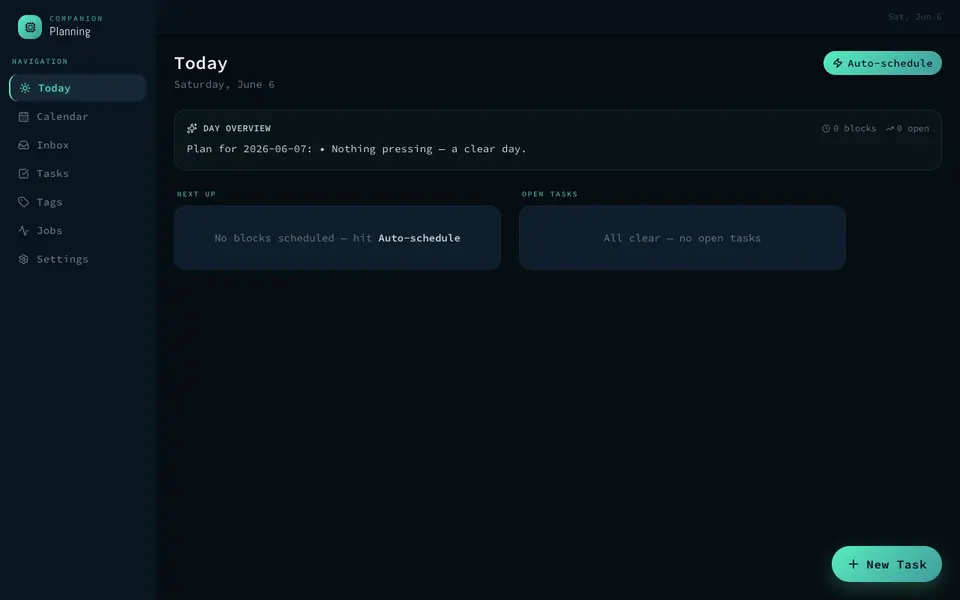
Real screenshot of Companion Planning from a Companion Hub QA run. Not a recording of this family.
John
BuilderAge 45Primary suite
John writes software from the primary suite and keeps a catalogue of the library’s books as a side project. His editor and the house manual sit on the Core, and Quill drafts his rules.
Quill is John’s Hermes agent. Drafts home automation rules and notes from what John types to it. Drafts only. John reads every word before it is used.
Rented before, on the Core now
Rented before
- Cursor
- Notion
- Google Home
On the Core now
 Code Server
 Open WebUI
 BookStack
 Home Assistant
-
The editor follows John around
John’s book catalogue no longer lives on one laptop. Code Server keeps it on the Core, so the editor tab follows him to the loveseat.
Code Serveralternative to CursorWatch this momentMore about this moment
- Before
- John wrote the book catalogue in Cursor, with the project folder on that one laptop.
- Now
- Code Server opens the editor in a browser tab on the home network, with the project folder on the Core.
What you do
- Open the editor in a browser tab
- Open the project folder on the Core
- Carry on from any room
Good to know Code Server runs VS Code in your browser, with the editor and your files on your Core.
-
Where John’s stack trace goes
A test fails in John’s book catalogue, so he pastes the trace into Open WebUI. The model on the Core answers, and he reads it before changing a line.
Open WebUIalternative to ChatGPTA model on the Core can be wrong.
Watch this momentMore about this moment
- Before
- John pasted error traces from his side projects into ChatGPT whenever a test failed.
- Now
- Open WebUI sends the trace to a model on the Core. John reads the explanation and changes the code himself.
What you do
- Paste the stack trace into Open WebUI
- Read the explanation against the code
- Change the code himself
Good to know Open WebUI chats with models running on your own Core, in a browser.
-
What only John knows, written down
John writes down how the house runs, as a book in BookStack on the Core. Sally can search any page, and every page keeps its history.
BookStackalternative to NotionWatch this momentMore about this moment
- Before
- The family’s how-to notes sat in a Notion page that only John could find his way around.
- Now
- BookStack keeps the manual as books, chapters and pages on the Core. Search finds a phrase, and each page keeps its history.
What you do
- Start a book for the house
- Add a chapter for the Core
- Write a page, then read its history
Good to know BookStack writes a wiki or a set of manuals in books, chapters and pages, with search and history.
-
By the pool and the lake
John reads the pump rule first
The pool pump’s plug had two timers, in two apps. John’s agent, Quill, drafts one rule, and John reads and saves it in Home Assistant on the Core.
Home Assistantalternative to Google HomeScripted Quill: “Here is the rule. Please read it before you save it.”
Messages pass through the chat service you choose.
Watch this momentMore about this moment
- Before
- The pump’s plug answered to its maker’s app and to Google Home, each with its own timer.
- Now
- Home Assistant on the Core holds one schedule for the plug on the home network, and John reads Quill’s draft rule before he saves it.
What you do
- Describe the pump hours to Quill
- Check each line of the drafted rule
- Save it in Home Assistant
Good to know Home Assistant controls and automates your smart home from one place, locally, without a cloud account.
Real screenshots of John’s apps
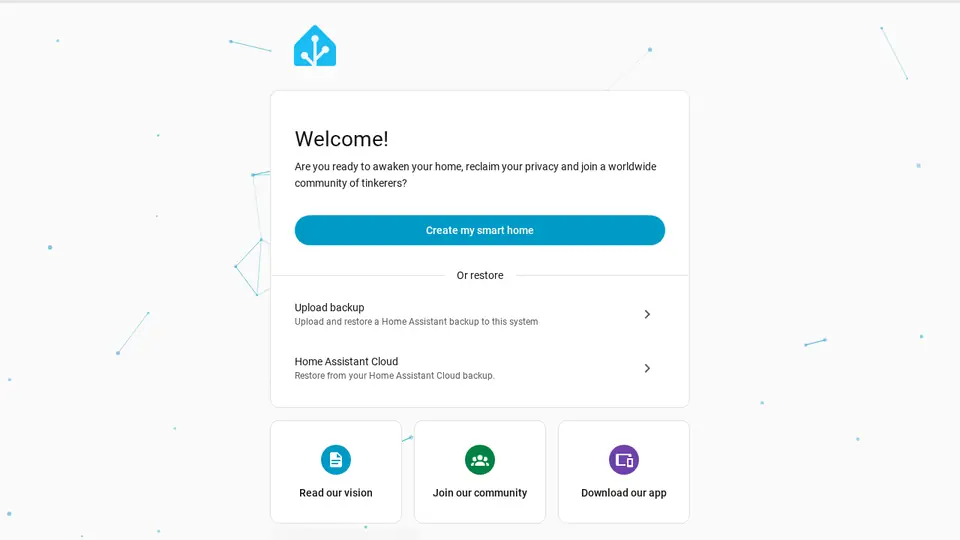
Real screenshot of Home Assistant from a Companion Hub QA run. Not a recording of this family.
Steve
GamerAge 16Steve's room
Steve plays on the Core from his desk upstairs, with his own Valve account. His phone pictures land on the Core, and he treats bin day as a quest.
Rented before, on the Core now
Rented before
- Plex
- Todoist
- GeForce Now
- Google Photos
On the Core now
 Jellyfin
- Habitica
 Steam Headless
 Immich
-
Chess hall, living room
Saturday’s film stars the family
Saturday’s film is John’s lake video from four summers back. Steve picks it from a list of nothing but the family’s own files, and Jellyfin streams it from the Core.
Jellyfinalternative to PlexWatch this momentMore about this moment
- Before
- The family’s home videos played through Plex on the television.
- Now
- Jellyfin streams the same files from the Core to the TV, and everyone picks from one list.
What you do
- Open Jellyfin on the TV
- Pick the lake video from the list
- Press play
Good to know Jellyfin streams the movies, TV and music you already have to the devices in your home.
-
The kitchen
Bin day is a quest now
Steve takes the bins out because bin day is a quest he set up himself. Habitica, running on the Core, turns the chore list into a game.
Habiticaalternative to Todoist
Watch this momentMore about this moment
- Before
- Chores sat in a Todoist list that nobody opened after Tuesday.
- Now
- Habitica turns the same chores into quests with rewards, and the game runs on the Core.
What you do
- Add bin day as a quest
- Take the bins out
- Tick it off and collect the reward
Good to know Habitica turns habits and chores into a game with levels and quests.
-
The session runs in the library
Upstairs, Steve signs in to his own Valve account. The session itself runs on the Core in the library, and he plays it in a browser.
Steam Headlessalternative to GeForce NowSteam needs a Valve account.
Watch this momentMore about this moment
- Before
- A cloud gaming service such as GeForce Now runs the session on its own servers and streams it to the player.
- Now
- Steam Headless runs the session on the Core, and Steve plays it in a browser in his room.
What you do
- Sign in with his own Valve account
- Open the Steam library in the browser
- Pick a game and play
Good to know Steam Headless runs Steam on your Core and plays it in a browser on a screen in the house.
-
Steve’s pictures join everyone else’s
Steve’s phone sent every picture to Google Photos. Now, on the home Wi-Fi, they back up to Immich on the Core, beside everyone else’s.
Immichalternative to Google PhotosWatch this momentMore about this moment
- Before
- Steve’s phone uploaded every picture to Google Photos, and the whole summer sat in that account.
- Now
- Immich takes the pictures onto the Core and gathers them into one family collection. Its first start takes a while.
What you do
- Install Immich from the Companion Hub store
- Sign in on the phone while at home
- Let the first backup finish
Good to know Immich backs up, searches and organises your family photos and videos on your own Core.
Real screenshots of Steve’s apps

Real screenshot of Immich from a Companion Hub QA run. Not a recording of this family.
Jean
LearnerAge 14Jean's room
Jean writes her French first and checks it after, keeps her books, comics and PDFs on one shelf, and saves her sources. Each tool she uses does one job on the Core.
Rented before, on the Core now
Rented before
- Google Translate
- Kindle
- Raindrop.io
On the Core now
 LibreTranslate
 BookLore
- Linkwarden
- Kokoro
-
The check comes after the writing
Jean writes the lake paragraph in French herself. Then she pastes it into LibreTranslate on the Core and compares the result with what she meant.
LibreTranslatealternative to Google TranslateWatch this momentMore about this moment
- Before
- Jean checked her paragraphs by pasting them into Google Translate.
- Now
- LibreTranslate runs on the Core. Jean writes first, pastes second, and compares the result with what she meant to say.
What you do
- Write the paragraph by hand first
- Paste it into LibreTranslate
- Compare the result with what she meant
Good to know LibreTranslate translates text and documents on your own Core, and your words are not sent to a third party.
-
Comics and school PDFs, same shelf
Jean’s comics and school PDFs no longer live apart from her ebooks. BookLore keeps them on one shelf on the Core, with covers and details added from the internet.
BookLorealternative to KindleWatch this momentMore about this moment
- Before
- Jean read in a Kindle account, with her comics and school PDFs kept in other places.
- Now
- BookLore keeps the ebook files, comics and PDFs the family has on one shelf on the Core, with covers and details added from the internet.
What you do
- Add an ebook, a comic and a PDF
- Check the covers BookLore found
- Open any of them from the shelf
Good to know BookLore manages and reads books, comics and PDFs, with automatic covers and metadata.
-
The page as Jean read it
The page Jean quoted has changed since she read it. Her Linkwarden copy, a screenshot and a PDF, is the page as she read it.
Linkwardenalternative to Raindrop.io
Watch this momentMore about this moment
- Before
- Jean saved her essay sources as bookmarks in Raindrop.io, and the pages themselves stayed out on the web.
- Now
- Linkwarden saves each page with a screenshot and a PDF on the Core, so Jean can still read a source as it was after the page changes.
What you do
- Open the source page
- Save it in Linkwarden
- Open the saved copy later
Good to know Linkwarden saves web pages with a screenshot and PDF so they survive link rot.
-
Jean hears her essay read aloud
Jean has Kokoro read her essay aloud, so she can hear where the sentences run long. The voice is made on the Core, from her own text.
Kokoro
Watch this momentMore about this moment
- Before
- Jean proofread by re-reading in her head, which skipped the clumsy sentences.
- Now
- Kokoro turns her essay into speech on the Core, and Jean follows the page while it plays.
What you do
- Finish the draft
- Have Kokoro read it aloud
- Mark each sentence that runs long
Good to know Kokoro turns text into natural speech on your own Core.
Around the house
-
Sally in the library
One word finds the piano’s receipts
One word, tuning, brings up the grand piano’s receipts. Paperless-ngx reads and tags each page, so the whole lot is searchable.
 Paperless-ngxalternative to EvernoteWatch this moment
More about this moment
- Before
- Receipts went into Evernote as photos, and the tuner’s invoice was somewhere among them.
- Now
- Paperless-ngx reads each page on the Core, tags it and files it, so one word finds the invoice.
What you do
- Scan the stack of receipts
- Check the tags Paperless-ngx chose
- Search for the word tuning
Good to know Paperless-ngx scans and files your paperwork: it reads every page, tags it and makes the lot searchable.
-
The kitchen
Four people, three stools, one planner
Four people share three stools at the breakfast bar, so the week needs one place. Dinners, shopping and dentist visits live in a Yuvomi planner on the Core.
 YuvomiWatch this moment
More about this moment
- Before
- Dinners were on a note, the shopping on a phone and the dentist on a wall calendar.
- Now
- Yuvomi keeps dinners, shopping and the calendar in one planner, stored in a database on the Core.
What you do
- Plan the week’s dinners
- Add what is missing to the list
- Put the dentist on the calendar
Good to know Yuvomi is a family planner with a shared calendar, tasks, shopping, meals, notes, contacts and budget in one app.
-
By the pool and the lake
Two loungers, one audiobook, two bookmarks
Two loungers can share one audiobook, because Audiobookshelf remembers where each listener stopped. By the pool, two phones play files the family already has, kept on the Core.
 Audiobookshelfalternative to AudibleWatch this moment
More about this moment
- Before
- Audiobooks played through the Audible app, and each listener’s place in the story was kept there.
- Now
- Audiobookshelf organises the audiobook files the family already has on the Core and remembers where each listener stopped.
What you do
- Add the audiobook files to the library
- Press play on a phone by the pool
- Pick up from the same place later
Good to know Audiobookshelf organises audiobooks and podcasts and remembers where each listener stopped.
A day in the house
One ordinary day, in the order it happens. Each line opens the moment above.
-
Morning
-
Midday
Lunch at the breakfast bar settles the week’s dinners.
Four people, three stools, one planner
-
Afternoon
-
After school
-
Weekend
Steve
Saturday afternoon fills both chesterfields for the lake video.
Saturday’s film stars the familyBy the pool, two phones play the same audiobook.
Two loungers, one audiobook, two bookmarks
The home
A cascade of brick gables sits under a dark shingle roof, with twin chimneys. A white-columned porch waits at the top of the front steps. The ground floor is open and lined with books, and the pool garden runs down to the lake.
- 2 storeys
- 331 m²
- 18 rooms
Library
Bookcases along the walls, a grand piano and the Core on its writing desk.
Chess hall
A bistro table, two Windsor chairs and a fireplace.
Primary suite
A writing desk with a laptop, a loveseat, a fireplace and a telescope.
Kitchen
A breakfast bar with three stools, where the week’s dinners get planned.
Jean's room
Jean’s desk sits under a lamp, beside her single bed and dresser.
Scroll the plan sideways to see all of it.
Scroll the plan sideways to see all of it.
A diagram of the rooms, drawn from the home’s layout. It leaves out walls, doors and stairs. The pins show the room each person uses, and the small box marks the Companion Core.
What runs on the Core
One Companion Core in the house runs these apps. Each is in the Companion Hub store. Other software is named in text, for what it replaces.
- Stirling-PDFReplaces Smallpdf
- Companion PlanningFirst party
- NextcloudReplaces Dropbox
- Paperless-ngxReplaces Evernote
- HermesFrom Nous Research
- DocusealReplaces DocuSign
- JellyfinReplaces Plex
- Yuvomi
- HabiticaReplaces Todoist
- Code ServerReplaces Cursor
- Open WebUI
- BookStackReplaces Notion
- Steam HeadlessReplaces GeForce Now
- ImmichReplaces Google Photos
- LibreTranslateReplaces Google Translate
- BookLoreReplaces Kindle
- LinkwardenReplaces Raindrop.io
- Kokoro
- Home AssistantReplaces Google Home
- AudiobookshelfReplaces Audible
The other apps in these stories are made by other people, most of them open-source projects. Companion Intelligence did not make them. A logo belongs to its project. It shows which app is named beside it.
How it runs
Two pieces do the work. One runs on the Core. The other keeps track of your devices.
Companion Hub
Companion Hub is where you install apps on the Core. Pick one in the Companion Hub store and Hub sets it up. Installing apps uses the internet.
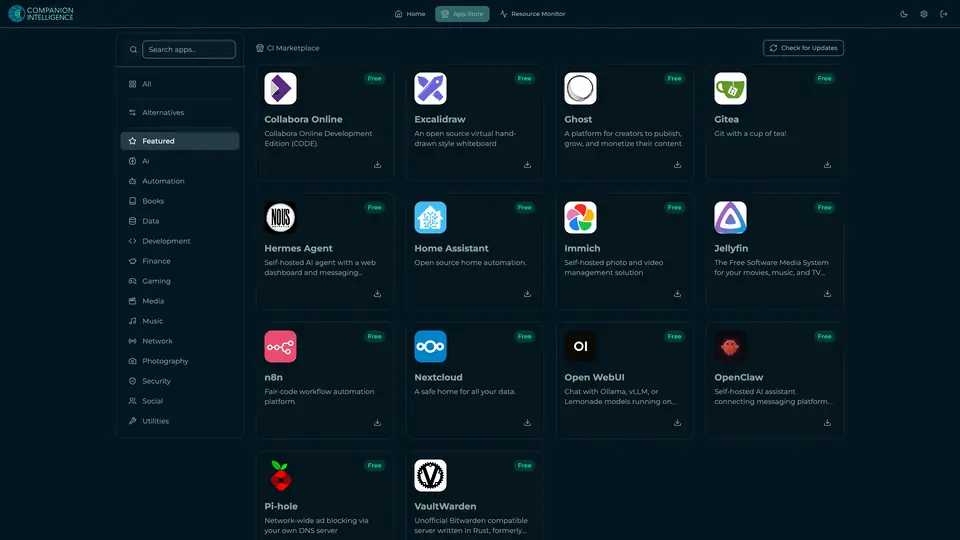
Real screenshot of Companion Hub from a product tutorial capture. Not a recording of this family. 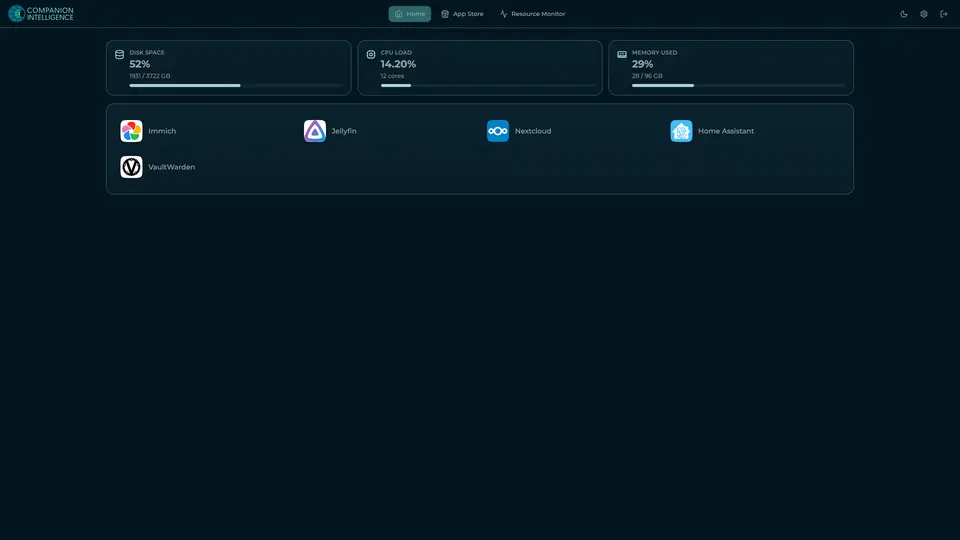
Real screenshot of Companion Hub from a product tutorial capture, with sample data. The disk, CPU and memory figures are the capture machine's, not a Companion Core spec. Not a recording of this family.
Companion account
Your Companion account pairs your devices with the Hub and lists them. The apps and their files stay on the Core.
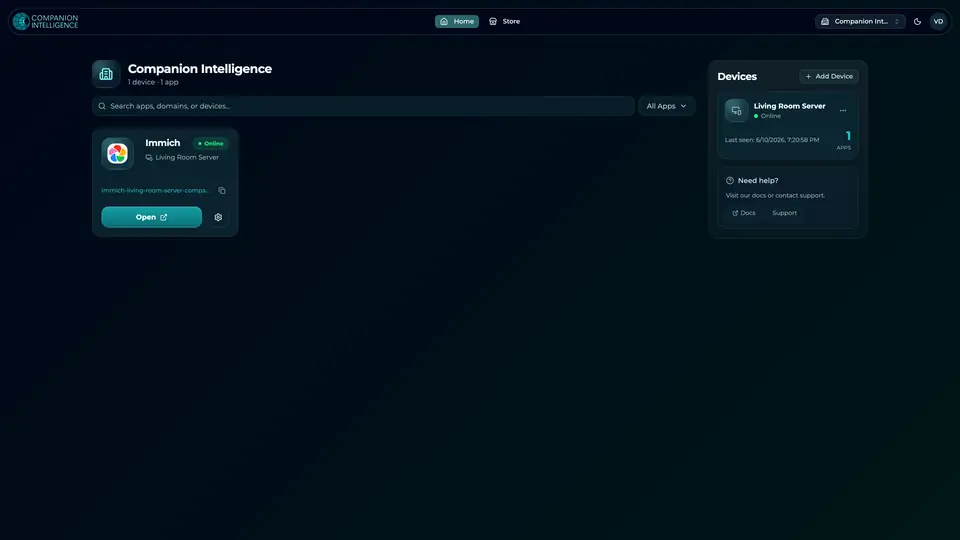
Real screenshot of the Companion account page from a product tutorial capture, with sample data. Not a recording of this family. 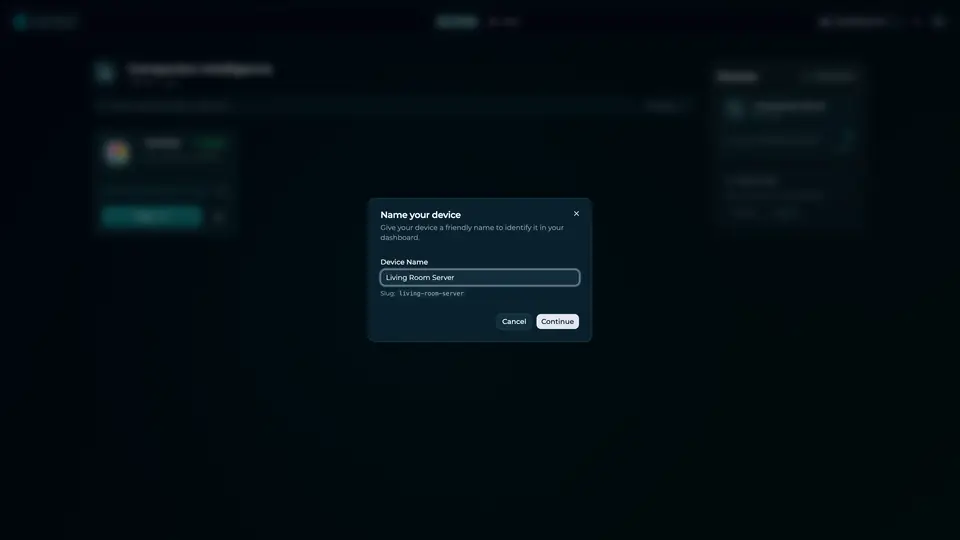
Real screenshot of the Companion account page from a product tutorial capture, with sample data. Not a recording of this family.
How the Core starts
-
Plug it in.
The parcel holds the Companion Core, a power cable, a quick-start guide and a recovery USB drive. Companion OS is already on its drive. Plug it in and press the button.
-
Join its Wi-Fi.
The Core opens its own Wi-Fi network. Join it from a phone, choose your home network from the list and enter its password.
-
Pick your apps and run.
In the Companion Hub store, pick your first agents and apps. Then walk away. Installing apps uses the internet.
Some steps use the internet: installing apps from the Companion Hub store, and any website or messaging service your agent talks to.
UnCloud your life.
Sally’s client folders, John’s code and Jean’s sources sit on a Companion Core at home. Browse the Companion Hub store and choose your first apps.