
Fictional family. Real software.
The Banerjee family
A product design studio and an indie app share one Companion Core.
9 Ashlar Court, Wexcombe
 Interactive 3D tour
- Companion OS, Companion Memory and Companion Agents are in beta.
Meet the family
Ananya runs a product design studio from the desk in the living room. Rohan builds apps of his own in the stair study, with the grand piano across the room. One Companion Core holds the studio’s drawings and his code.
Ananya
OrganiserAge 40Living room
Runs a product design studio.
Sorbet is Ananya’s OpenClaw agent. Opens a supplier’s website in its own browser and fills in the forms Ananya lists. Fills in forms only. Ananya reads every field and sends it herself.
Rented before, on the Core now
Rented before
- Google Drive
- Miro
- Trello
- Evernote
- Google Photos
On the Core now
 OpenClaw WebCLI
 Companion Planning
 Nextcloud
 tldraw
 Planka
 Paperless-ngx
 Immich
-
Ananya clears Rohan’s release day
Rohan’s release is due on Thursday. Ananya moves her review to Friday in Companion Planning, so his day stays clear. It is one local file on the Core.
Watch this momentCompanion Planning -
Ananya files a long client brief
Ananya saves a long client brief in Nextcloud, beside the drawings. She pastes it to a model on the Core, through Open WebUI, and asks what it requires.
Watch this momentNextcloudreplaces Google Drive -
Ananya redraws the strap joint
Ananya redraws the strap joint on a tldraw board, from the sectional. Rohan asks about the buckle, and she moves one line. The board stays on the Core.
Watch this momenttldrawreplaces Miro -
Ananya moves the strap to prototype
A client approves a leather strap, so Ananya moves its card to prototype on the studio’s Planka board. The cards stay on the Core.
Watch this momentPlankareplaces Trello -
Ananya sends the sample request herself
The studio needs leather samples. Sorbet opens the supplier’s website in its own browser and fills in the request form. Ananya checks the quantities, then presses send herself.
OpenClaw
Scripted Sorbet: “Filled in and tidy. Check the quantities, then send it yourself.”
OpenClaw reaches websites over your home internet.
Watch this moment -
The kitchen
The accountant wants the invoices
The accountant asks for last spring’s print invoices. Ananya types the print shop’s name at the island, and Paperless-ngx pulls up the pages it filed on the Core.
Watch this momentPaperless-ngxreplaces Evernote -
Out in the garden
Ananya takes the swatches outside
For the afternoon daylight, Ananya carries the leather swatches to the pool. Her phone backs the photos up to Immich on the Core, not to a photo cloud.
Watch this momentImmichreplaces Google Photos
Real screenshots of Ananya’s apps
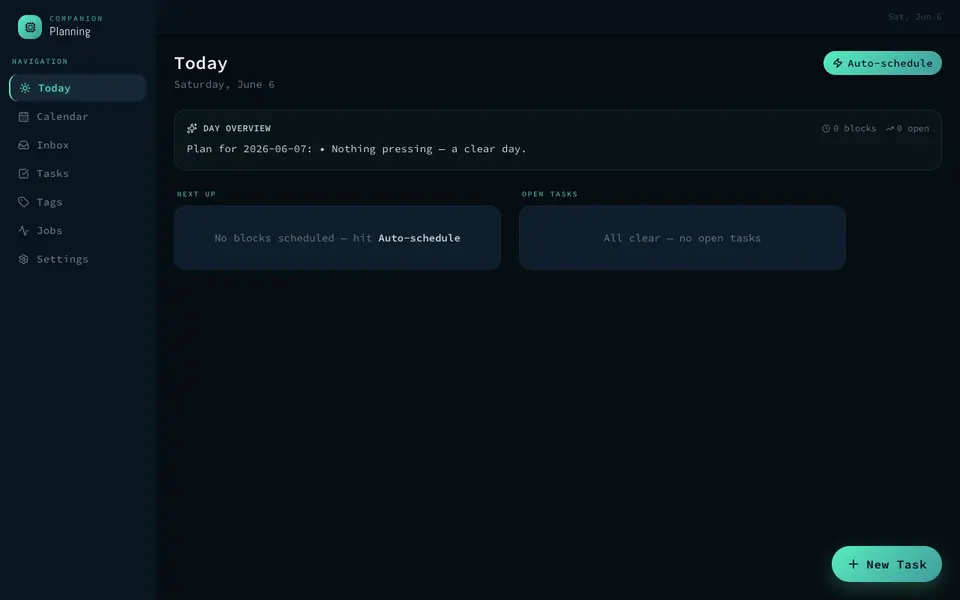
Real screenshot of Companion Planning from a Companion Hub QA run. Not a recording of this family. 
Real screenshot of Immich from a Companion Hub QA run. Not a recording of this family.
Rohan
BuilderAge 42Stair study
Indie software developer.
Nibs is Rohan’s Hermes agent. Drafts release notes from the list of fixes Rohan messages it. Drafts only. Rohan reads each note and pastes it himself.
Rented before, on the Core now
Rented before
- GitHub
- Plex
- Datadog
- AnyList
- LastPass
On the Core now
 Forgejo
 Hermes
 JupyterLab
 Jellyfin
 Uptime Kuma
 Grocy
 VaultWarden
 HortusFox
-
Rohan tags the release
Rohan’s rain-gauge app is ready for release. He tags it at his stair-study desk. Forgejo keeps the code on the Core, not on a rented code host.
Watch this momentForgejoreplaces GitHub -
Nibs drafts the release notes
With the fixes done, Rohan messages Nibs the list. Nibs drafts the release notes on the Core’s local model. Rohan reads them and pastes them into Forgejo himself.
HermesScripted Nibs: “Draft done. Read it through, then paste it yourself.”
Messages pass through the chat service you choose.
Watch this moment -
Rohan tries a chord mid-run
A notebook of rain-gauge readings runs in JupyterLab on the Core. While it finishes, Rohan tries a chord on the grand piano across the room.
Watch this momentJupyterLab -
The living room
Rohan plays the stop-motion
On Saturday, Rohan puts Ananya’s stop-motion of a strap design on the TV. Jellyfin plays it from the Core, and Ananya, on the sectional, spots a loose stitch.
Watch this momentJellyfinreplaces Plex -
The living room
Rohan checks before the client call
A router update just finished, and a client call is close. Rohan has Uptime Kuma watch the studio’s board from the Core, and an alert reaches him if it stops.
Watch this momentUptime Kumareplaces Datadog -
The kitchen
Rohan descales the coffee maker
Rohan descales the coffee maker because Grocy lists it as due. He ticks the chore off, then adds beans to the shopping list on the Core.
Watch this momentGrocyreplaces AnyList -
The kitchen
Rohan saves the new sign-in
A domain renewal arrives, so Rohan saves the new sign-in at the glass table. VaultWarden hosts the vault on the Core and works with the Bitwarden apps.
Watch this momentVaultWardenreplaces LastPass -
The laundry
Rohan takes over the bedding
With Ananya on a deadline, Rohan takes her turn at the bedding. He starts the machine, then marks the empty detergent used up in Grocy on the Core.
Watch this momentGrocyreplaces AnyList -
Out in the garden
Rohan notes the court’s new flowers
New flowers have opened in the planted court. Rohan adds them to the HortusFox journal on the Core, with photos alongside.
Watch this momentHortusFox
Real screenshots of Rohan’s apps
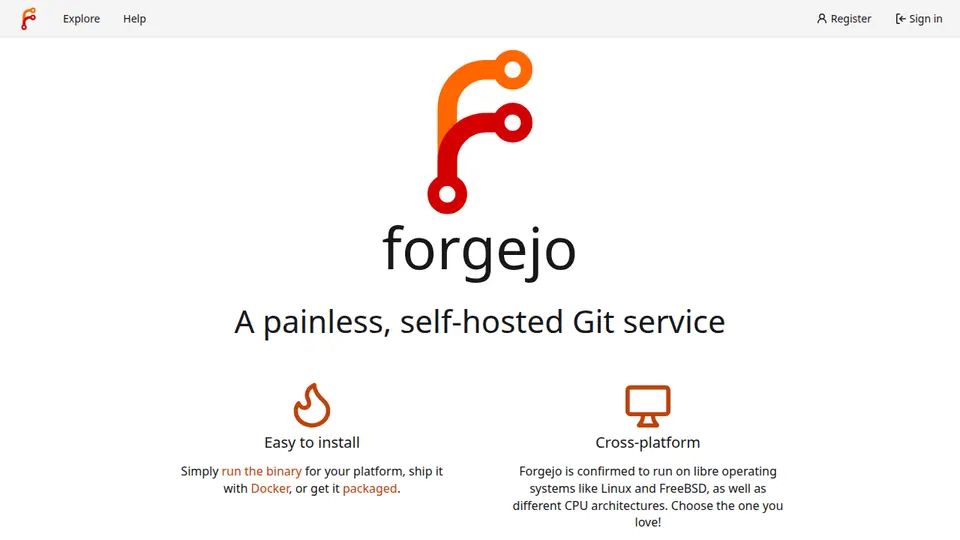
Real screenshot of Forgejo from a Companion Hub QA run. Not a recording of this family. 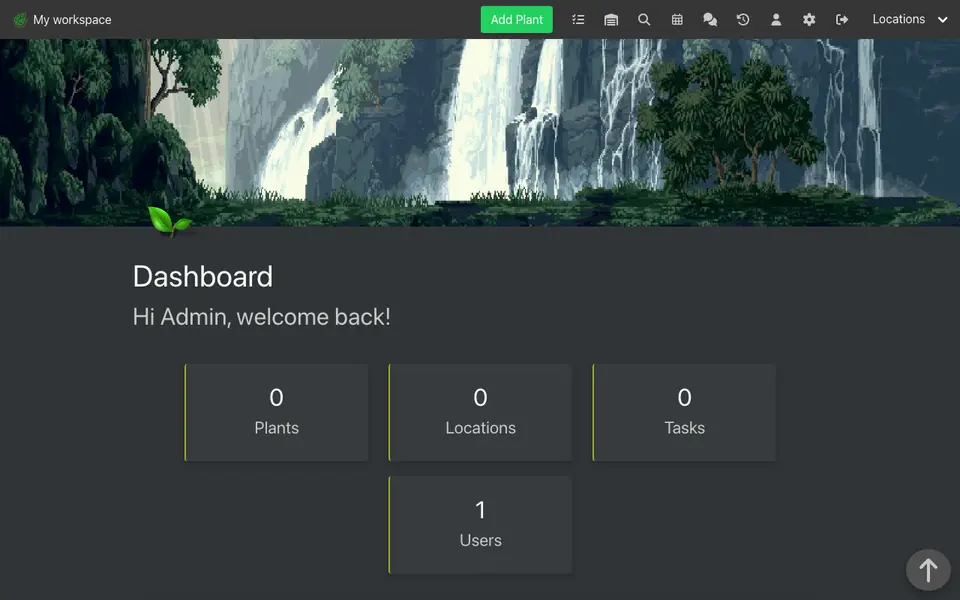
Real screenshot of HortusFox from a Companion Hub QA run. Not a recording of this family.
The home
- 2 storeys
- 169 m²
- 12 rooms
Scroll the plan sideways to see all of it.
Scroll the plan sideways to see all of it.
A diagram of the rooms, drawn from the home’s layout. It leaves out walls, doors and stairs. The pins show the room each person uses, and the small box marks the Companion Core.
What runs on the Core
One Companion Core in the house runs these apps. Each is in the Companion Hub store. Other software is named in text, for what it replaces.
- OpenClaw WebCLIFrom the OpenClaw Foundation
- ForgejoReplaces GitHub
- HermesFrom Nous Research
- JupyterLab
- Companion PlanningFirst party
- JellyfinReplaces Plex
- NextcloudReplaces Google Drive
- Uptime KumaReplaces Datadog
- tldrawReplaces Miro
- PlankaReplaces Trello
- GrocyReplaces AnyList
- Paperless-ngxReplaces Evernote
- VaultWardenReplaces LastPass
- ImmichReplaces Google Photos
- HortusFox
The other apps in these stories are made by other people, most of them open-source projects. Companion Intelligence did not make them. A logo belongs to its project. It shows which app is named beside it.
How it runs
Two pieces do the work. One runs on the Core. The other keeps track of your devices.
Companion Hub
Companion Hub is where you install apps on the Core. Pick one in the Companion Hub store and Hub sets it up. Installing apps uses the internet.
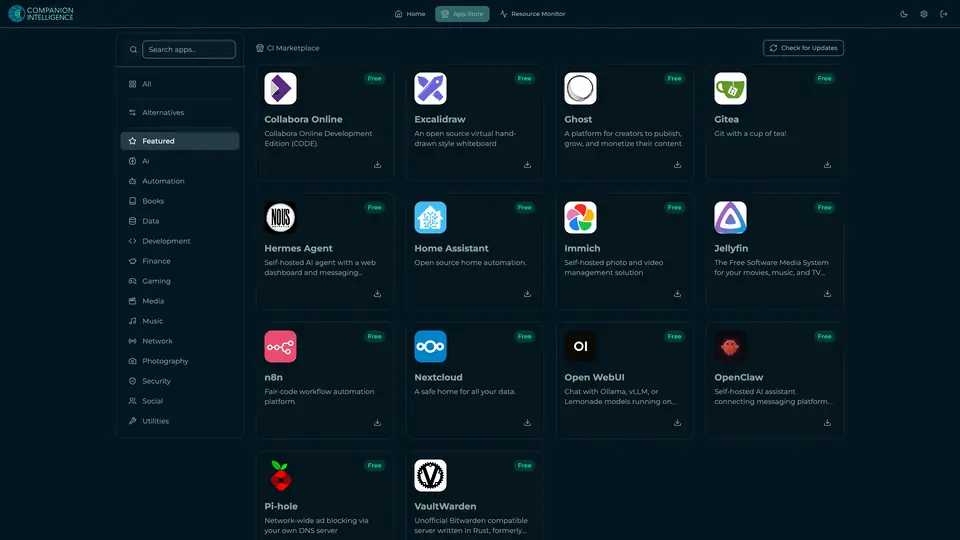
Real screenshot of Companion Hub from a product tutorial capture. Not a recording of this family. 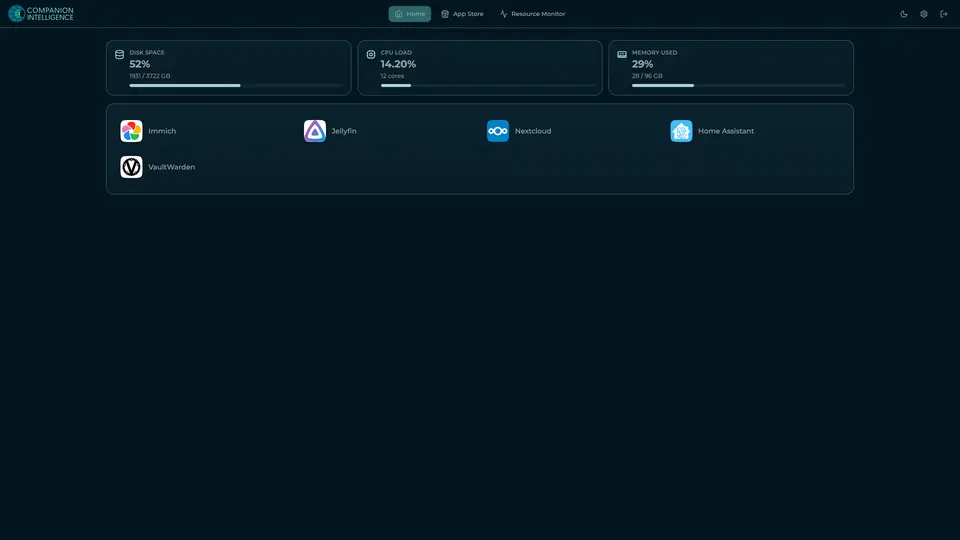
Real screenshot of Companion Hub from a product tutorial capture, with sample data. The disk, CPU and memory figures are the capture machine's, not a Companion Core spec. Not a recording of this family.
Companion account
Your Companion account pairs your devices with the Hub and lists them. The apps and their files stay on the Core.
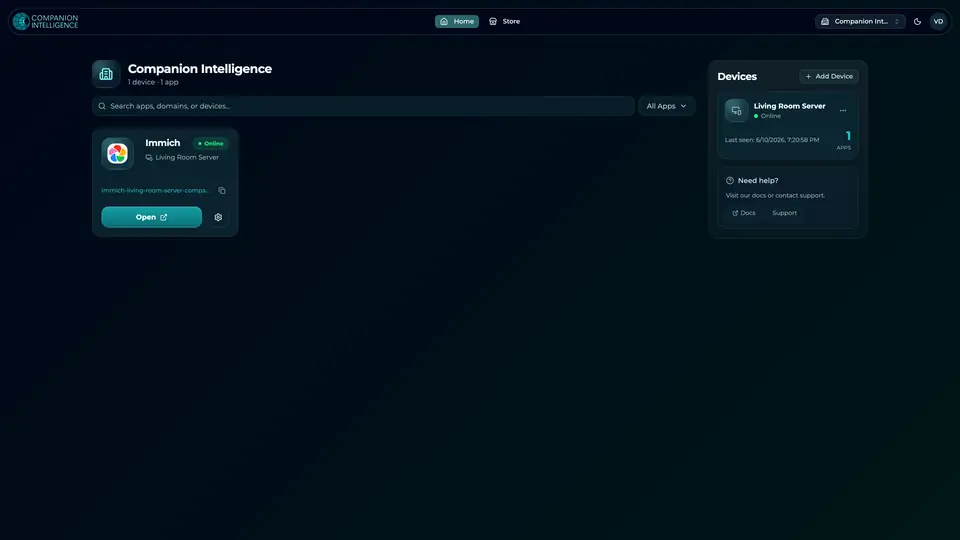
Real screenshot of the Companion account page from a product tutorial capture, with sample data. Not a recording of this family. 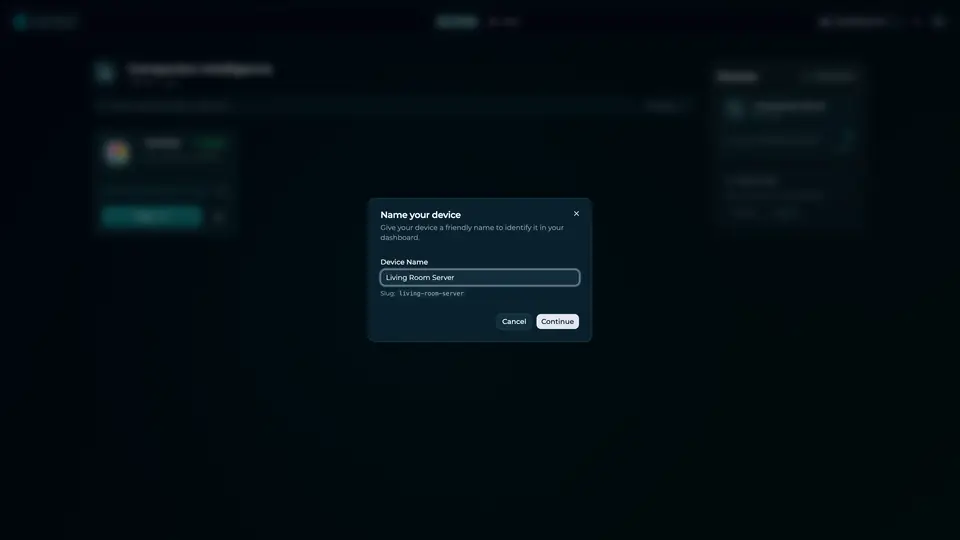
Real screenshot of the Companion account page from a product tutorial capture, with sample data. Not a recording of this family.
How the Core starts
-
Plug it in.
The parcel holds the Companion Core, a power cable, a quick-start guide and a recovery USB drive. Companion OS is already on its drive. Plug it in and press the button.
-
Join its Wi-Fi.
The Core opens its own Wi-Fi network. Join it from a phone, choose your home network from the list and enter its password.
-
Pick your apps and run.
In the Companion Hub store, pick your first agents and apps. Then walk away. Installing apps uses the internet.
Some steps use the internet: installing apps from the Companion Hub store, and any website or messaging service your agent talks to.
UnCloud your life.
Your boards, code, lists and photos can sit on a Companion Core at home. Browse the Companion Hub store and pick your first apps.